




























• bitcoinBitcoin(BTC)$77,109.00-1.60%
  • ethereumEthereum(ETH)$2,459.71-0.73%
  • tetherTether(USDT)$1.000.01%
  • binancecoinBNB(BNB)$715.74-0.82%
  • rippleXRP(XRP)$1.35-2.88%
  • usd-coinUSDC(USDC)$1.000.03%
  • solanaSolana(SOL)$99.70-2.20%
  • tronTRON(TRX)$0.339074-0.14%
  • Figure HelocFigure Heloc(FIGR_HELOC)$1.040.97%
  • zcashZcash(ZEC)$1,086.80-12.55%
  • HyperliquidHyperliquid(HYPE)$79.64-5.21%
  • dogecoinDogecoin(DOGE)$0.084046-1.99%
  • RainRain(RAIN)$0.015723-4.17%
  • USDSUSDS(USDS)$1.000.00%
  • moneroMonero(XMR)$515.790.31%
  • whitebitWhiteBIT Coin(WBT)$79.82-1.30%
  • chainlinkChainlink(LINK)$11.54-2.41%
  • leo-tokenLEO Token(LEO)$9.10-1.04%
  • cardanoCardano(ADA)$0.209922-1.57%
  • stellarStellar(XLM)$0.176198-2.33%
  • bitcoin-cashBitcoin Cash(BCH)$227.95-8.89%
  • daiDai(DAI)$1.000.01%
  • Ethena USDeEthena USDe(USDE)$1.000.00%
  • USD1USD1(USD1)$1.000.01%
  • litecoinLitecoin(LTC)$52.890.27%
  • CantonCanton(CC)$0.098702-4.82%
  • uniswapUniswap(UNI)$6.171.78%
  • the-open-networkGram (prev. Toncoin)(GRAM)$1.35-1.74%
  • hedera-hashgraphHedera(HBAR)$0.075623-1.85%
  • Global DollarGlobal Dollar(USDG)$1.000.01%
  • avalanche-2Avalanche(AVAX)$7.52-4.00%
  • nearNEAR Protocol(NEAR)$2.46-2.00%
  • suiSui(SUI)$0.74-3.81%
  • shiba-inuShiba Inu(SHIB)$0.000005-2.48%
  • paypal-usdPayPal USD(PYUSD)$1.000.00%
  • BlackRock USD Institutional Digital Liquidity FundBlackRock USD Institutional Digital Liquidity Fund(BUIDL)$1.000.00%
  • crypto-com-chainCronos(CRO)$0.056587-2.55%
  • tether-goldTether Gold(XAUT)$4,336.58-1.74%
  • MemeCoreMemeCore(M)$1.16-4.77%
  • Circle USYCCircle USYC(USYC)$1.140.01%
  • Ripple USDRipple USD(RLUSD)$1.000.00%
  • okbOKB(OKB)$109.39-3.51%
  • BittensorBittensor(TAO)$237.24-7.43%
  • Ondo US Dollar YieldOndo US Dollar Yield(USDY)$1.150.19%
  • polkadotPolkadot(DOT)$1.153.58%
  • AsterAster(ASTER)$0.71-2.00%
  • mantleMantle(MNT)$0.58-3.50%
  • aaveAave(AAVE)$123.05-1.52%
  • pax-goldPAX Gold(PAXG)$4,342.77-1.70%
  • World Liberty FinancialWorld Liberty Financial(WLFI)$0.056008-1.63%
TradePoint.io
  • Main
  • AI & Technology
  • Stock Charts
  • Market & News
  • Business
  • Finance Tips
  • Trade Tube
  • Blog
  • Shop
No Result
View All Result
TradePoint.io
No Result
View All Result

How to use Github? Step-by-Step Guide

December 17, 2023
in AI & Technology
Reading Time: 6 mins read
A A
How to use Github? Step-by-Step Guide
ShareShareShareShareShare

To sign up on GitHub, here are six steps

Step 1: Sign up for GitHub

  1. Visit their website and click on the Signup button.
  2. Fill in the information, including your username, email, and password.
  3. Once completed, verify your email, and you’ll have a free GitHub account to use for code repositories and collaboration.
https://docs.github.com/en/get-started/quickstart/hello-world

Step 2: Create a Repository on GitHub

Create a Repository on GitHub

YOU MAY ALSO LIKE

How These XL Phones Compete

CA Governor Signs ‘Landmark’ Laws On Youth Use Of Social Media And AI Chatbots

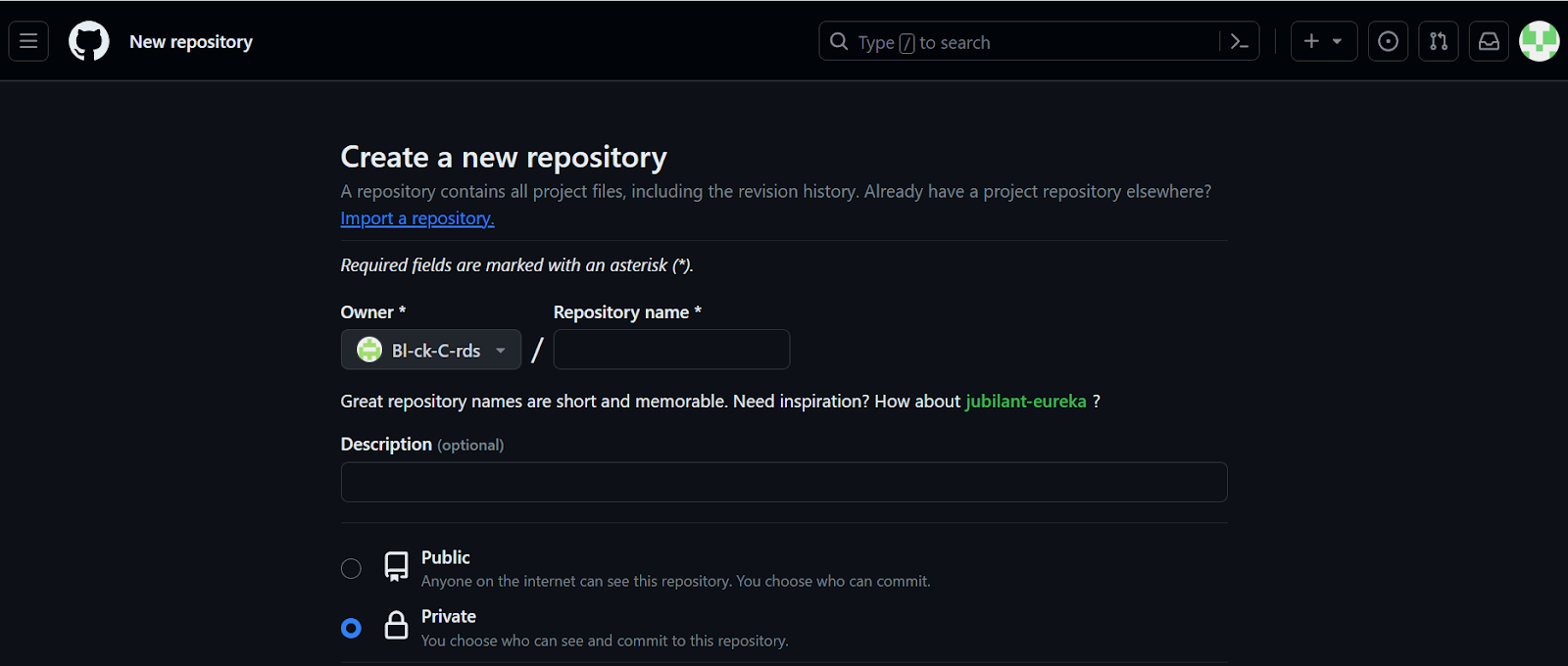
To create a GitHub repository for your project, follow these simple steps:

1. Go to the upper-right corner of any GitHub page and click on the “+” sign, then select “New repository.”

2. In the “Repository name” box, give your repository a name.

3. Add a short description in the “Description” box.

4. Choose whether your repository will be Public or Private.

5. Check the option that says “Add a README file.”

6. Click on the “Create repository” button.

This repository can be used to organize and store files, collaborate with others, and showcase your project on GitHub.
https://docs.github.com/en/get-started/quickstart/hello-world

Step 3: Create a branch

To create a new branch in GitHub, follow these simple steps:

1. Go to your repository on GitHub.

2. Click on the “Code” tab.

3. Above the file list, find the dropdown menu that currently says “main.”

4. Type a new branch name, for example, “readme-edits,” into the text box.

5. Click on the “Create branch: readme-edits from main” button.

This allows you to work on different versions of your project simultaneously. Later, you can make changes on this branch and merge it back into the main branch when ready.

https://docs.github.com/en/get-started/quickstart/hello-world

Step 4: Making and Committing Changes

To make and save changes to your project on GitHub, follow these steps:

1. Under the branch you created (like “readme-edits”), click on the file you want to edit (e.g., README.md).

2. Click the pencil icon in the upper right to enter the editor.

3. Write your changes using different Markdown elements to format the text.

4. Click “Commit changes” at the bottom of the page.

5. In the “Commit changes” box, write a brief message explaining what you changed.

6. Click “Commit changes” again.

These changes will be saved in the branch you’re working on (e.g., readme-edits) and won’t affect the main branch. Each set of changes is called a commit, and the commit messages help track and understand the history of your project.

Step 5: Open a Pull Request

A pull request is how you propose and merge changes from one branch into another on GitHub. Here’s how you do it:

1. Go to the “Pull requests” tab in your repository on GitHub.

2. Click on the “New pull request” button.

3. In the “Example Comparisons” box, select the branch you made (e.g., readme-edits) to compare with the main branch.

4. Review the changes in the comparison to make sure they’re what you want.

5. Click “Create pull request.”

6. Give your pull request a title and write a brief description of your changes.

7. Optionally, add reviewers, assignees, labels, projects, or milestones to your pull request.

8. Click “Create pull request” again.

Your proposed changes are visible now, and collaborators can review, discuss, and suggest further edits before merging them into the main project.

https://docs.github.com/en/get-started/quickstart/hello-world

Step 6: Merge your Pull Request

Merging a pull request is like adding your changes from a separate branch into the main project. Here’s how you can do it:

1. Go to the bottom of your pull request on GitHub.

2. Click on the “Merge pull request” button.

3. Select “Confirm merge.”

4. Click on “Delete branch” to remove the branch you merged.

5. You’ll see a message confirming the successful merge.

This process brings your changes from the branch into the main branch of the project. If there were any conflicts between the code, GitHub would notify you to resolve them before merging. After merging, you can safely delete the branch, and if you have more changes, you can create a new branch and repeat the process.

https://docs.github.com/en/get-started/quickstart/hello-world

References

  • https://docs.github.com/en/get-started/quickstart/hello-world
  • https://devmountain.com/blog/what-is-github-and-how-do-you-use-it/

The post How to use Github? Step-by-Step Guide appeared first on MarkTechPost.

Credit: Source link

ShareTweetSendSharePin

Related Posts

How These XL Phones Compete
AI & Technology

How These XL Phones Compete

September 10, 2026
CA Governor Signs ‘Landmark’ Laws On Youth Use Of Social Media And AI Chatbots
AI & Technology

CA Governor Signs ‘Landmark’ Laws On Youth Use Of Social Media And AI Chatbots

September 10, 2026
Meet Redis LangCache: A Managed Semantic Cache That Cuts LLM API Costs by Up to 90% and Returns Cache Hits Up to 15x Faster
AI & Technology

Meet Redis LangCache: A Managed Semantic Cache That Cuts LLM API Costs by Up to 90% and Returns Cache Hits Up to 15x Faster

September 10, 2026
NVIDIA Details BioNeMo Inference Runtime (BioIR): 2.90x Higher Boltz-2 Folding Throughput and 58.5K Residues per GPU-Hour on 8xH100
AI & Technology

NVIDIA Details BioNeMo Inference Runtime (BioIR): 2.90x Higher Boltz-2 Folding Throughput and 58.5K Residues per GPU-Hour on 8xH100

September 10, 2026
Next Post
Kornacki: New Pew report shows Americans ‘sour’ on politics

Kornacki: New Pew report shows Americans ‘sour’ on politics

Leave a Reply Cancel reply

Your email address will not be published. Required fields are marked *

Search

No Result
View All Result
Wife of Kansas City Chiefs offensive coordinator shot by son

Wife of Kansas City Chiefs offensive coordinator shot by son

September 4, 2026
UN votes to endorse new map projection that shows Africa's size more accurately – CBS News

UN votes to endorse new map projection that shows Africa's size more accurately – CBS News

September 6, 2026
My Wife Is Blowing All Of Our Money On Parties

My Wife Is Blowing All Of Our Money On Parties

September 9, 2026

About

Learn more

Our Services

Legal

Privacy Policy

Terms of Use

Bloggers

Learn more

Article Links

Contact

Advertise

Ask us anything

©2020- TradePoint.io - All rights reserved!

Tradepoint.io, being just a publishing and technology platform, is not a registered broker-dealer or investment adviser. So we do not provide investment advice. Rather, brokerage services are provided to clients of Tradepoint.io by independent SEC-registered broker-dealers and members of FINRA/SIPC. Every form of investing carries some risk and past performance is not a guarantee of future results. “Tradepoint.io“, “Instant Investing” and “My Trading Tools” are registered trademarks of Apperbuild, LLC.

This website is operated by Apperbuild, LLC. We have no link to any brokerage firm and we do not provide investment advice. Every information and resource we provide is solely for the education of our readers. © 2020 Apperbuild, LLC. All rights reserved.

No Result
View All Result
  • Main
  • AI & Technology
  • Stock Charts
  • Market & News
  • Business
  • Finance Tips
  • Trade Tube
  • Blog
  • Shop

© 2023 - TradePoint.io - All Rights Reserved!