













• bitcoinBitcoin(BTC)$78,004.000.28%
  • ethereumEthereum(ETH)$2,278.190.52%
  • tetherTether(USDT)$1.00-0.06%
  • binancecoinBNB(BNB)$706.220.18%
  • rippleXRP(XRP)$1.25-0.29%
  • usd-coinUSDC(USDC)$1.00-0.05%
  • solanaSolana(SOL)$94.14-1.32%
  • tronTRON(TRX)$0.3152161.67%
  • Figure HelocFigure Heloc(FIGR_HELOC)$1.081.12%
  • zcashZcash(ZEC)$1,261.521.46%
  • HyperliquidHyperliquid(HYPE)$85.61-2.20%
  • dogecoinDogecoin(DOGE)$0.075026-0.95%
  • moneroMonero(XMR)$605.510.39%
  • USDSUSDS(USDS)$1.00-0.07%
  • whitebitWhiteBIT Coin(WBT)$74.930.27%
  • chainlinkChainlink(LINK)$11.30-4.18%
  • leo-tokenLEO Token(LEO)$9.400.17%
  • cardanoCardano(ADA)$0.190302-1.68%
  • stellarStellar(XLM)$0.167042-1.22%
  • bitcoin-cashBitcoin Cash(BCH)$279.31-1.92%
  • nearNEAR Protocol(NEAR)$4.08-6.62%
  • daiDai(DAI)$1.00-0.08%
  • Ethena USDeEthena USDe(USDE)$1.00-0.07%
  • uniswapUniswap(UNI)$7.15-2.02%
  • litecoinLitecoin(LTC)$54.91-2.26%
  • RainRain(RAIN)$0.005836-5.28%
  • USD1USD1(USD1)$1.00-0.03%
  • CantonCanton(CC)$0.095123-2.48%
  • avalanche-2Avalanche(AVAX)$8.53-4.75%
  • suiSui(SUI)$0.89-1.82%
  • the-open-networkGram (prev. Toncoin)(GRAM)$1.20-1.80%
  • tether-goldTether Gold(XAUT)$3,895.100.60%
  • hedera-hashgraphHedera(HBAR)$0.070867-1.53%
  • Global DollarGlobal Dollar(USDG)$1.00-0.04%
  • quant-networkQuant(QNT)$197.09-1.58%
  • paypal-usdPayPal USD(PYUSD)$1.00-0.04%
  • shiba-inuShiba Inu(SHIB)$0.000005-1.48%
  • BittensorBittensor(TAO)$229.63-3.24%
  • crypto-com-chainCronos(CRO)$0.050840-0.79%
  • Ripple USDRipple USD(RLUSD)$1.00-0.05%
  • Ondo US Dollar YieldOndo US Dollar Yield(USDY)$1.15-0.03%
  • EthenaEthena(ENA)$0.177486-5.41%
  • okbOKB(OKB)$112.831.76%
  • Circle USYCCircle USYC(USYC)$1.140.00%
  • aaveAave(AAVE)$133.43-3.96%
  • BlackRock USD Institutional Digital Liquidity FundBlackRock USD Institutional Digital Liquidity Fund(BUIDL)$1.000.00%
  • pepePepe(PEPE)$0.000005-3.97%
  • MemeCoreMemeCore(M)$0.86-4.86%
  • OndoOndo(ONDO)$0.395084-4.91%
  • Pump.funPump.fun(PUMP)$0.004077-3.42%
TradePoint.io
  • Main
  • AI & Technology
  • Stock Charts
  • Market & News
  • Business
  • Finance Tips
  • Trade Tube
  • Blog
  • Shop
No Result
View All Result
TradePoint.io
No Result
View All Result

How To Add And Rearrange Apps On Your Samsung Smart TV

November 2, 2026
in AI & Technology
Reading Time: 3 mins read
A A
How To Add And Rearrange Apps On Your Samsung Smart TV
ShareShareShareShareShare

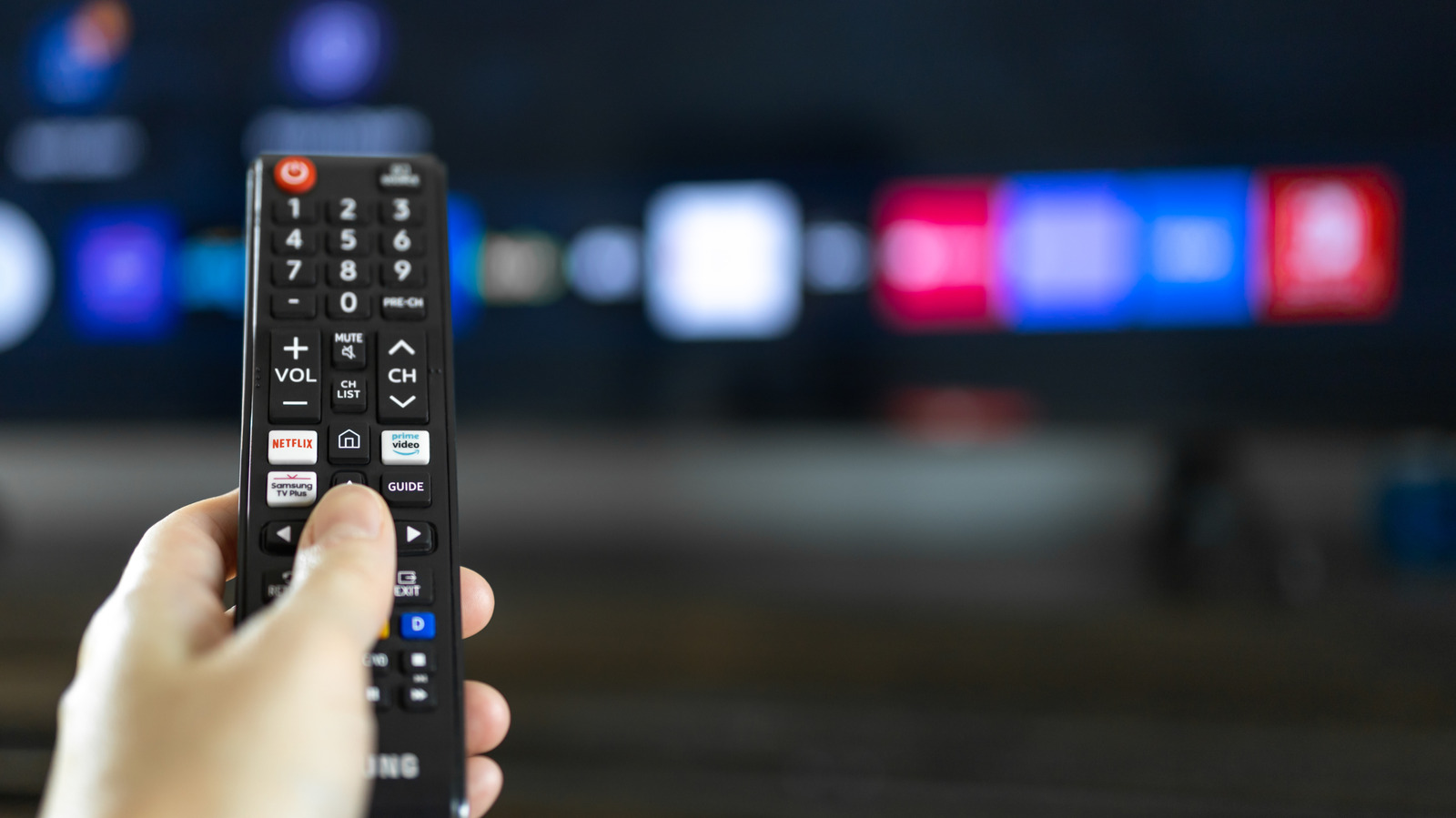
It’s a snap to reorganize your Samsung TV home screen.


ANNVIPS/Shutterstock

Smart TVs make it easy to access streaming services as well as self-hosted media servers, such as Plex, without needing to buy an extra device like a streaming stick (though there are other reasons to buy a streaming device when you have a smart TV). But even if you have a smart TV, you might not be taking full advantage of it. Fortunately, it’s easy to add new apps to a Samsung smart TV if the ones you want aren’t already included when you first set it up.

YOU MAY ALSO LIKE

OpenAI Sets Shared ChatGPT and Codex Usage Allowance for December – Unite.AI

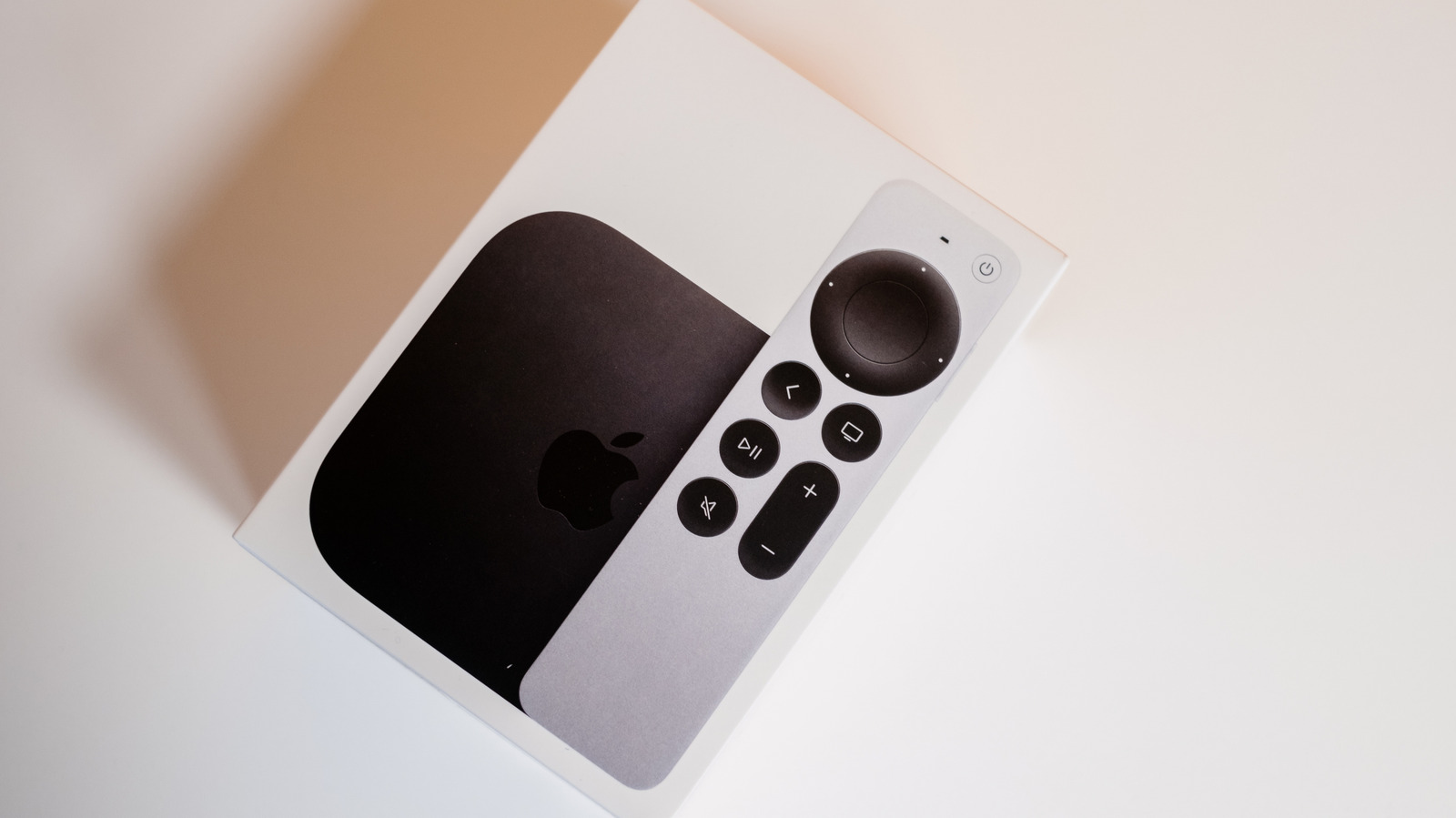
How Long Is A New Apple TV Actually Supposed To Last?

If you only need the most popular streaming services, you might not need to do anything to get them running. Samsung smart TVs usually come pre-loaded with the Netflix, YouTube, Disney+, Prime Video and Apple TV apps, though that list can change depending on which apps are available in your particular region. For anything else (like these free channels for your smart TV), you’ll have to download a new app from a built-in search feature on your TV. And after downloading those apps, you’ll probably want to do some rearranging on your home screen.

How to install new apps and organize your home screen
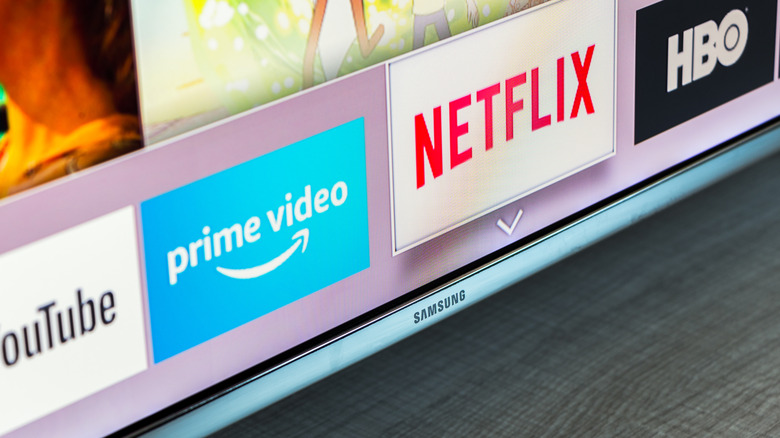

Close up shot of a Samsung TV with streaming app icons displayed.
Manuel Esteban/Shutterstock

To add new apps, first pull up the TV’s home screen. Use your remote to select the search bar at the top of the screen and type in the name of the app you want to download. If you search for something that doesn’t show up, it may not be available in your region or might not be supported by Samsung smart TVs at all — Samsung has even publicly banned some smart TV apps. Otherwise, you can just select the app’s icon with your remote to install it. If you don’t have a specific app in mind but want to see what options are available, you can also find a selection of what’s available, sorted by category, in your TV’s apps menu.

Once an app is finished installing, a button to add it to the home screen should appear. If you’ve already navigated away and want to pin an app later, you can still find everything you have in the apps menu on the home screen. Just press and hold on the one you want to pin to the home screen, and the option to add to home will appear.

You can also rearrange apps once they’re on the home screen to sort them in whatever order works best for you. On the home screen, use the remote to select whichever app you want to move, and press and hold the select button to open a menu. For older TV models, you might need to use a different command to open the menu, such as pressing the down key. Then select the move setting, and you can slide individual apps left and right. If you want to remove an app from the home screen or delete it entirely, you can do so from this same menu.

Credit: Source link

ShareTweetSendSharePin

Related Posts

OpenAI Sets Shared ChatGPT and Codex Usage Allowance for December – Unite.AI
AI & Technology

OpenAI Sets Shared ChatGPT and Codex Usage Allowance for December – Unite.AI

November 2, 2026
How Long Is A New Apple TV Actually Supposed To Last?
AI & Technology

How Long Is A New Apple TV Actually Supposed To Last?

November 2, 2026
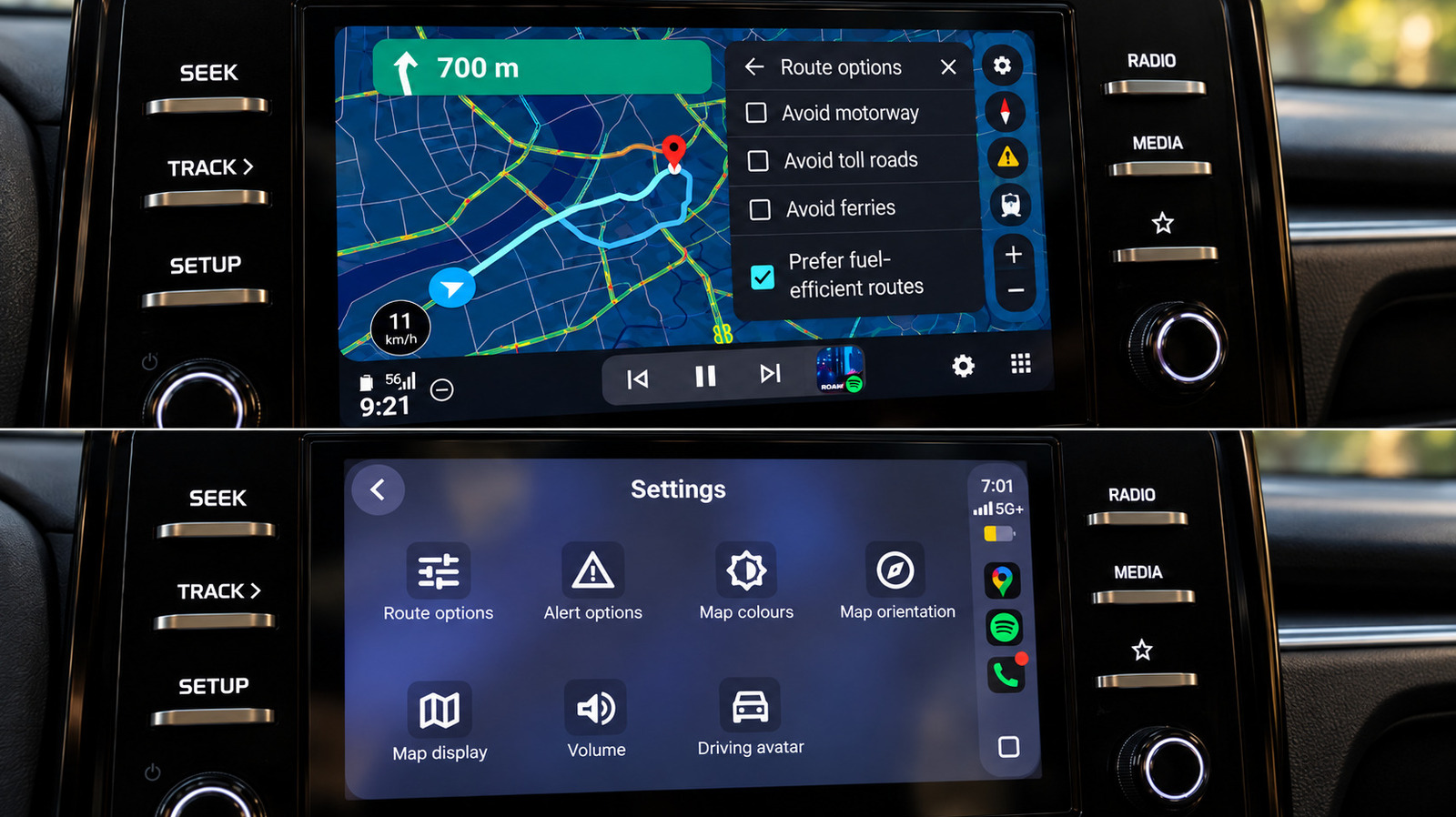
6 Google Maps Features That Work Better On Android Auto Vs. CarPlay
AI & Technology

6 Google Maps Features That Work Better On Android Auto Vs. CarPlay

November 2, 2026
This Is The Right Way To Clean Your Vinyl Records
AI & Technology

This Is The Right Way To Clean Your Vinyl Records

November 1, 2026
Next Post
Hawaii’s Hōlei Sea Arch collapses into the ocean

Hawaii’s Hōlei Sea Arch collapses into the ocean

Leave a Reply Cancel reply

Your email address will not be published. Required fields are marked *

Search

No Result
View All Result
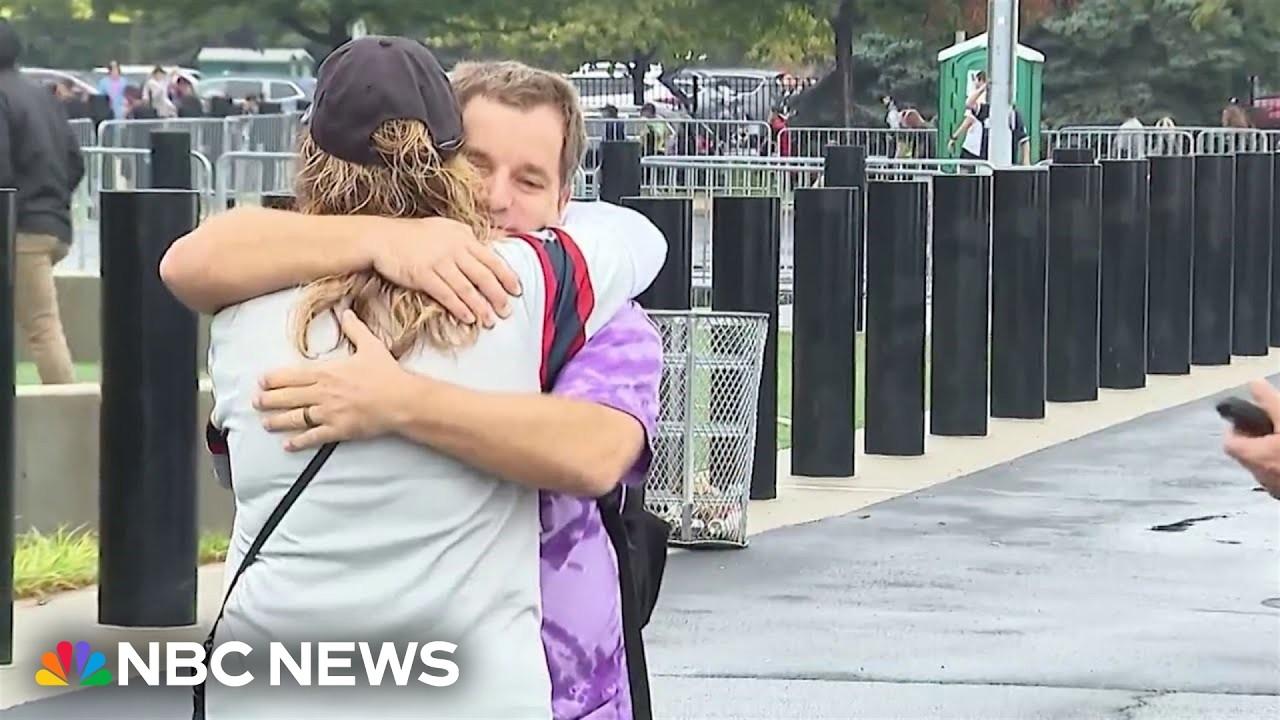
Good News: White Sox fan meets hero who donated life-saving kidney

Good News: White Sox fan meets hero who donated life-saving kidney

November 1, 2026
Zacharia only calls on conservative outlets in first WH press briefing

Zacharia only calls on conservative outlets in first WH press briefing

October 26, 2026
LIVE: Trump hosts Columbus Day celebration at White House | NBC News

LIVE: Trump hosts Columbus Day celebration at White House | NBC News

October 28, 2026

About

Learn more

Our Services

Legal

Privacy Policy

Terms of Use

Bloggers

Learn more

Article Links

Contact

Advertise

Ask us anything

©2020- TradePoint.io - All rights reserved!

Tradepoint.io, being just a publishing and technology platform, is not a registered broker-dealer or investment adviser. So we do not provide investment advice. Rather, brokerage services are provided to clients of Tradepoint.io by independent SEC-registered broker-dealers and members of FINRA/SIPC. Every form of investing carries some risk and past performance is not a guarantee of future results. “Tradepoint.io“, “Instant Investing” and “My Trading Tools” are registered trademarks of Apperbuild, LLC.

This website is operated by Apperbuild, LLC. We have no link to any brokerage firm and we do not provide investment advice. Every information and resource we provide is solely for the education of our readers. © 2020 Apperbuild, LLC. All rights reserved.

No Result
View All Result
  • Main
  • AI & Technology
  • Stock Charts
  • Market & News
  • Business
  • Finance Tips
  • Trade Tube
  • Blog
  • Shop

© 2023 - TradePoint.io - All Rights Reserved!