



























• bitcoinBitcoin(BTC)$81,279.004.23%
  • ethereumEthereum(ETH)$2,641.305.67%
  • tetherTether(USDT)$1.000.05%
  • binancecoinBNB(BNB)$771.003.43%
  • rippleXRP(XRP)$1.438.27%
  • usd-coinUSDC(USDC)$1.000.03%
  • solanaSolana(SOL)$111.835.75%
  • tronTRON(TRX)$0.3381030.10%
  • zcashZcash(ZEC)$1,537.925.45%
  • Figure HelocFigure Heloc(FIGR_HELOC)$1.030.25%
  • HyperliquidHyperliquid(HYPE)$92.481.72%
  • dogecoinDogecoin(DOGE)$0.0884883.65%
  • moneroMonero(XMR)$581.928.90%
  • RainRain(RAIN)$0.0139429.06%
  • whitebitWhiteBIT Coin(WBT)$83.143.54%
  • USDSUSDS(USDS)$1.000.03%
  • chainlinkChainlink(LINK)$12.535.92%
  • cardanoCardano(ADA)$0.2273485.83%
  • leo-tokenLEO Token(LEO)$8.89-0.27%
  • stellarStellar(XLM)$0.1980376.43%
  • uniswapUniswap(UNI)$9.105.57%
  • bitcoin-cashBitcoin Cash(BCH)$251.830.69%
  • Ethena USDeEthena USDe(USDE)$1.000.03%
  • nearNEAR Protocol(NEAR)$3.631.07%
  • daiDai(DAI)$1.00-0.03%
  • litecoinLitecoin(LTC)$57.995.15%
  • CantonCanton(CC)$0.1110173.66%
  • USD1USD1(USD1)$1.000.05%
  • avalanche-2Avalanche(AVAX)$9.2715.78%
  • the-open-networkGram (prev. Toncoin)(GRAM)$1.391.31%
  • hedera-hashgraphHedera(HBAR)$0.0807025.21%
  • suiSui(SUI)$0.857.04%
  • Global DollarGlobal Dollar(USDG)$1.000.00%
  • shiba-inuShiba Inu(SHIB)$0.0000051.84%
  • BittensorBittensor(TAO)$265.487.78%
  • crypto-com-chainCronos(CRO)$0.0599841.28%
  • MemeCoreMemeCore(M)$1.290.02%
  • paypal-usdPayPal USD(PYUSD)$1.000.03%
  • tether-goldTether Gold(XAUT)$4,373.520.24%
  • okbOKB(OKB)$121.366.38%
  • Circle USYCCircle USYC(USYC)$1.140.00%
  • Ripple USDRipple USD(RLUSD)$1.000.01%
  • BlackRock USD Institutional Digital Liquidity FundBlackRock USD Institutional Digital Liquidity Fund(BUIDL)$1.000.00%
  • Ondo US Dollar YieldOndo US Dollar Yield(USDY)$1.14-0.17%
  • aaveAave(AAVE)$142.623.97%
  • AsterAster(ASTER)$0.772.49%
  • OndoOndo(ONDO)$0.4259077.69%
  • mantleMantle(MNT)$0.625.77%
  • EthenaEthena(ENA)$0.19714220.85%
  • Pump.funPump.fun(PUMP)$0.004161-1.56%
TradePoint.io
  • Main
  • AI & Technology
  • Stock Charts
  • Market & News
  • Business
  • Finance Tips
  • Trade Tube
  • Blog
  • Shop
No Result
View All Result
TradePoint.io
No Result
View All Result

Getting Started with OpenClaw and Connecting It with WhatsApp

February 15, 2026
in AI & Technology
Reading Time: 9 mins read
A A
Getting Started with OpenClaw and Connecting It with WhatsApp
ShareShareShareShareShare

OpenClaw is a self-hosted personal AI assistant that runs on your own devices and communicates through the apps you already use—such as WhatsApp, Telegram, Slack, Discord, and more. It can answer questions, automate tasks, interact with your files and services, and even speak or listen on supported devices, all while keeping you in control of your data.

Rather than being just another chatbot, OpenClaw acts as a true personal assistant that fits into your daily workflow. In just a few months, this open-source project has surged in popularity, crossing 150,000+ stars on GitHub. In this article, we’ll walk through how to get started with OpenClaw and connect it to WhatsApp.

YOU MAY ALSO LIKE

Linkup Research Releases SPARSEUP: A 149M-Parameter Open-Source Sparse Embedding Model

GGUF vs GPTQ vs AWQ vs EXL2: LLM Model Formats Explained (2026)

What can OpenClaw do?

OpenClaw is built to fit seamlessly into your existing digital life. It connects with 50+ integrations, letting you chat with your assistant from apps like WhatsApp, Telegram, Slack, or Discord, while controlling and automating tasks from your desktop. You can use cloud or local AI models of your choice, manage notes and tasks, control music and smart home devices, trigger automations, and even interact with files, browsers, and APIs—all from a single assistant you own.

Beyond chat, OpenClaw acts as a powerful automation and productivity hub. It works with popular tools like Notion, Obsidian, GitHub, Spotify, Gmail, and Home Assistants, supports voice interaction and a live visual Canvas, and runs across macOS, Windows, Linux, iOS, and Android. Whether you’re scheduling tasks, controlling devices, generating content, or automating workflows, OpenClaw brings everything together under one private, extensible AI assistant.

Installing OpenClaw

You can head over to openclaw.ai to access the code and follow the quick start guide. OpenClaw supports macOS, Windows, and Linux, and provides a simple one-liner that installs Node.js along with all required dependencies for you:

Copy CodeCopiedUse a different Browser
curl -fsSL https://openclaw.ai/install.cmd -o install.cmd && install.cmd && del install.cmd

After running the command, OpenClaw will guide you through an onboarding process. During setup, you’ll see security-related warnings explaining that the assistant can access local files and execute actions. This is expected behavior—since OpenClaw is designed to act autonomously, it also highlights the importance of staying cautious about prompts and permissions.

Configuring the LLM 

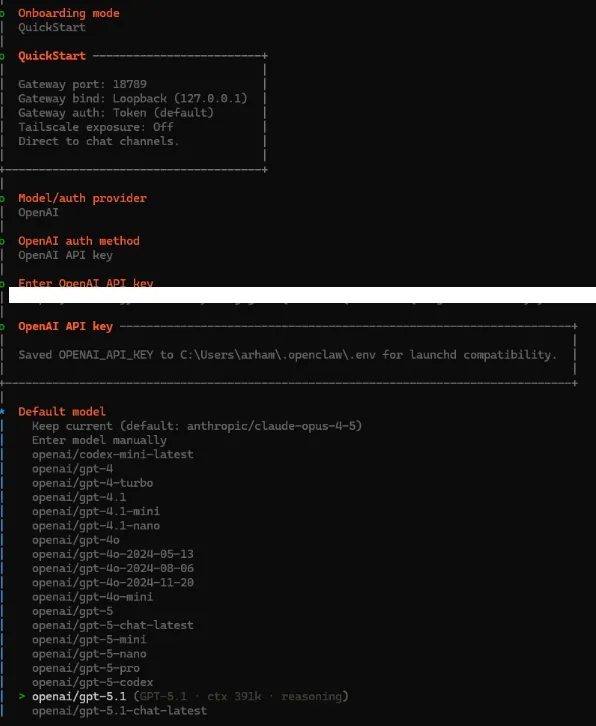
Once the setup is complete, the next step is to choose an LLM provider. OpenClaw supports multiple providers, including OpenAI, Google, Anthropic, Minimax, and others.

After selecting your provider, you’ll be prompted to enter the corresponding API key. Once the key is verified, you can choose the specific model you want to use. In this setup, we’ll be using GPT-5.1.
Adding Skills

During configuration, OpenClaw also lets you add skills, which define what the agent can do beyond basic conversation. OpenClaw uses AgentSkills-compatible skill folders to teach the assistant how to work with different tools and services.

Each skill lives in its own directory and includes a SKILL.md file with YAML frontmatter and usage instructions. By default, OpenClaw loads bundled skills and any local overrides, then filters them at startup based on your environment, configuration, and available binaries.

OpenClaw also supports ClawHub, a lightweight skill registry. When enabled, the agent can automatically search for relevant skills and install them on demand.

Another popular option is https://skills.sh/. You can simply search for the skill you need, copy the provided command, and ask the agent to run it. Once executed, the new skill is added and immediately available to OpenClaw.

Configuring the Chat Channel

The final step is to configure the channel where you want to run the agent. In this walkthrough, we’ll use WhatsApp. During setup, OpenClaw will ask for your phone number and then display a QR code. Scanning this QR code links your WhatsApp account to OpenClaw.

Once connected, you can message OpenClaw from WhatsApp—or any other supported chat app—and it will respond directly in the same conversation.

Once the setup is complete, OpenClaw will open a local web page in your browser with a unique gateway token. Make sure to keep this token safe and handy, as it will be required later.

Running OpenClaw Gateway

Next, we’ll start the OpenClaw Gateway, which acts as the control plane for OpenClaw. The Gateway runs a WebSocket server that manages channels, nodes, sessions, and hooks.

To start the Gateway, run the following command:

Copy CodeCopiedUse a different Browser
openclaw gateway

Once the Gateway is running, refresh the earlier local web page that displayed the token. This will open the OpenClaw Gateway dashboard.

From the dashboard, navigate to the Overview section and enter the Gateway token you saved earlier to complete the connection.

Once this is done, you can start using OpenClaw either from the chat interface in the Gateway dashboard or by messaging the bot directly on WhatsApp.

Note that OpenClaw responds to messages sent to yourself on WhatsApp, so make sure you’re chatting with your own number when testing the setup.

The post Getting Started with OpenClaw and Connecting It with WhatsApp appeared first on MarkTechPost.

Credit: Source link

ShareTweetSendSharePin

Related Posts

Linkup Research Releases SPARSEUP: A 149M-Parameter Open-Source Sparse Embedding Model
AI & Technology

Linkup Research Releases SPARSEUP: A 149M-Parameter Open-Source Sparse Embedding Model

September 19, 2026
GGUF vs GPTQ vs AWQ vs EXL2: LLM Model Formats Explained (2026)
AI & Technology

GGUF vs GPTQ vs AWQ vs EXL2: LLM Model Formats Explained (2026)

September 19, 2026
Consumers Sue Anthropic, OpenAI, SpaceXAI and Google Over Alleged AI Pact – Unite.AI
AI & Technology

Consumers Sue Anthropic, OpenAI, SpaceXAI and Google Over Alleged AI Pact – Unite.AI

September 19, 2026
How Focus Mode Has Changed In iOS 27
AI & Technology

How Focus Mode Has Changed In iOS 27

September 18, 2026
Next Post
Week Ahead: SCOTUS Decision On Tariffs? 8 Fed Officials Speak As The Market Discounts Almost 65 Bp Of Cuts This Year

Week Ahead: SCOTUS Decision On Tariffs? 8 Fed Officials Speak As The Market Discounts Almost 65 Bp Of Cuts This Year

Leave a Reply Cancel reply

Your email address will not be published. Required fields are marked *

Search

No Result
View All Result
Anthropic quietly sets up biology lab as it ramps AI drug program

Anthropic quietly sets up biology lab as it ramps AI drug program

September 18, 2026
Werner Enterprises, Inc. (WERN) Presents at Morgan Stanley’s 14th Annual Laguna Conference Transcript

Werner Enterprises, Inc. (WERN) Presents at Morgan Stanley’s 14th Annual Laguna Conference Transcript

September 15, 2026
County coroner says Pennsylvania infant died from measles

County coroner says Pennsylvania infant died from measles

September 17, 2026

About

Learn more

Our Services

Legal

Privacy Policy

Terms of Use

Bloggers

Learn more

Article Links

Contact

Advertise

Ask us anything

©2020- TradePoint.io - All rights reserved!

Tradepoint.io, being just a publishing and technology platform, is not a registered broker-dealer or investment adviser. So we do not provide investment advice. Rather, brokerage services are provided to clients of Tradepoint.io by independent SEC-registered broker-dealers and members of FINRA/SIPC. Every form of investing carries some risk and past performance is not a guarantee of future results. “Tradepoint.io“, “Instant Investing” and “My Trading Tools” are registered trademarks of Apperbuild, LLC.

This website is operated by Apperbuild, LLC. We have no link to any brokerage firm and we do not provide investment advice. Every information and resource we provide is solely for the education of our readers. © 2020 Apperbuild, LLC. All rights reserved.

No Result
View All Result
  • Main
  • AI & Technology
  • Stock Charts
  • Market & News
  • Business
  • Finance Tips
  • Trade Tube
  • Blog
  • Shop

© 2023 - TradePoint.io - All Rights Reserved!