


























• bitcoinBitcoin(BTC)$81,113.005.06%
  • ethereumEthereum(ETH)$2,621.456.11%
  • tetherTether(USDT)$1.000.05%
  • binancecoinBNB(BNB)$763.561.84%
  • rippleXRP(XRP)$1.417.43%
  • usd-coinUSDC(USDC)$1.000.02%
  • solanaSolana(SOL)$113.017.86%
  • tronTRON(TRX)$0.3383570.74%
  • zcashZcash(ZEC)$1,535.963.07%
  • Figure HelocFigure Heloc(FIGR_HELOC)$1.030.41%
  • HyperliquidHyperliquid(HYPE)$93.458.27%
  • dogecoinDogecoin(DOGE)$0.0877904.44%
  • moneroMonero(XMR)$574.7311.56%
  • whitebitWhiteBIT Coin(WBT)$83.214.65%
  • USDSUSDS(USDS)$1.000.02%
  • RainRain(RAIN)$0.0133915.79%
  • chainlinkChainlink(LINK)$12.365.76%
  • cardanoCardano(ADA)$0.2276226.78%
  • leo-tokenLEO Token(LEO)$8.88-0.04%
  • stellarStellar(XLM)$0.1945683.67%
  • uniswapUniswap(UNI)$8.852.78%
  • bitcoin-cashBitcoin Cash(BCH)$247.971.39%
  • nearNEAR Protocol(NEAR)$3.759.19%
  • Ethena USDeEthena USDe(USDE)$1.000.06%
  • daiDai(DAI)$1.000.00%
  • litecoinLitecoin(LTC)$58.647.69%
  • CantonCanton(CC)$0.1122504.76%
  • USD1USD1(USD1)$1.000.06%
  • the-open-networkGram (prev. Toncoin)(GRAM)$1.371.82%
  • avalanche-2Avalanche(AVAX)$8.457.38%
  • hedera-hashgraphHedera(HBAR)$0.0794803.30%
  • suiSui(SUI)$0.836.41%
  • Global DollarGlobal Dollar(USDG)$1.000.00%
  • shiba-inuShiba Inu(SHIB)$0.0000052.02%
  • crypto-com-chainCronos(CRO)$0.0593281.36%
  • MemeCoreMemeCore(M)$1.290.35%
  • BittensorBittensor(TAO)$254.816.68%
  • paypal-usdPayPal USD(PYUSD)$1.000.04%
  • tether-goldTether Gold(XAUT)$4,376.030.50%
  • Circle USYCCircle USYC(USYC)$1.140.03%
  • okbOKB(OKB)$116.852.43%
  • Ripple USDRipple USD(RLUSD)$1.000.00%
  • BlackRock USD Institutional Digital Liquidity FundBlackRock USD Institutional Digital Liquidity Fund(BUIDL)$1.000.00%
  • Ondo US Dollar YieldOndo US Dollar Yield(USDY)$1.150.34%
  • aaveAave(AAVE)$143.167.02%
  • AsterAster(ASTER)$0.773.72%
  • mantleMantle(MNT)$0.626.75%
  • Pump.funPump.fun(PUMP)$0.0042393.78%
  • OndoOndo(ONDO)$0.4063735.20%
  • polkadotPolkadot(DOT)$1.141.62%
TradePoint.io
  • Main
  • AI & Technology
  • Stock Charts
  • Market & News
  • Business
  • Finance Tips
  • Trade Tube
  • Blog
  • Shop
No Result
View All Result
TradePoint.io
No Result
View All Result

Visual Studio Code Setup Guide

March 10, 2025
in AI & Technology
Reading Time: 11 mins read
A A
Visual Studio Code Setup Guide
ShareShareShareShareShare


Visual Studio Code (VSCode) is a lightweight but powerful source code editor that runs on your desktop. It comes with built-in support for JavaScript, TypeScript, and Node.js and has a rich ecosystem of extensions for other languages and tools.

Table of Contents

  1. Installation
  2. First Launch and Interface Overview
  3. Essential Settings
  4. Extensions
  5. Workspace Setup
  6. Keyboard Shortcuts
  7. Integrated Terminal
  8. Source Control Integration
  9. Debugging
  10. Additional Resources

Installation

Windows

  1. Visit the VSCode download page
  2. Click on the Windows download button
  3. Run the installer (.exe file)
  4. Follow the installation wizard
  5. Check the options to:
    • Create a desktop icon
    • Add “Open with Code” to Windows Explorer context menu
    • Register Code as an editor for supported file types

macOS

  1. Visit the VSCode download page
  2. Click on the Mac download button
  3. Open the downloaded .zip file
  4. Drag Visual Studio Code.app to the Applications folder
  5. Optional: Add VSCode to your Dock

Linux

  1. Visit the VSCode download page
  2. Choose the appropriate package for your distribution (.deb, .rpm, etc.)
  3. For Debian/Ubuntu:
  1. For Red Hat/Fedora:

First Launch and Interface Overview

When you first open VSCode, you’ll see:

YOU MAY ALSO LIKE

Consumers Sue Anthropic, OpenAI, SpaceXAI and Google Over Alleged AI Pact – Unite.AI

How Focus Mode Has Changed In iOS 27

  1. Welcome Page: Contains quick links to common commands and recent projects
  2. Activity Bar: Left sidebar with icons for different views:
    • Explorer: File browser
    • Search: Find and replace
    • Source Control: Git integration
    • Run and Debug: Debug panel
    • Extensions: Manage extensions
  3. Status Bar: Bottom bar showing information about the current file and editor
  4. Editor Area: Main coding area (can be split into multiple editors)
  5. Panel: Bottom panel that can show terminal, output, problems, etc.

Essential Settings

Access settings by:

  • Windows/Linux: File > Preferences > Settings
  • macOS: Code > Preferences > Settings

Recommended settings to consider:

  1. Theme:
    • File > Preferences > Color Theme (or Ctrl+K Ctrl+T)
    • Popular choices: Dark+, Light+, Monokai, Solarized
  2. Font:
  1. Auto Save:
  1. Tab Size:
  1. Formatting:

Extensions

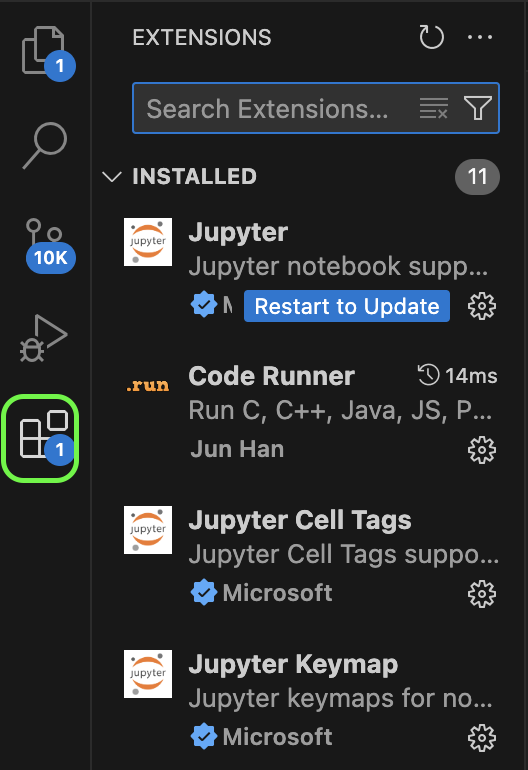
VSCode’s power comes from its extensions. To install extensions:

  1. Click the Extensions icon in the Activity Bar (or press Ctrl+Shift+X)
  2. Search for extensions by name
  3. Click Install

Essential extensions by category:

General

  • Prettier – Code formatter: Consistent code formatting
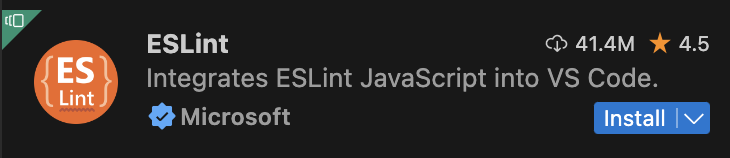
  • ESLint: JavaScript linting
  • EditorConfig: Maintain consistent coding styles
Languages

  • Python: Full Python support
  • C/C++: C and C++ intellisense, debugging

  • Java Extension Pack: Java development tools
  • JavaScript (ES6) code snippets: Snippets for JavaScript

Themes

  • Material Theme: Popular theme pack
  • One Dark Pro: Atom’s iconic theme

Productivity

  • GitLens: Supercharge Git capabilities
  • Live Share: Collaborative editing
  • Path Intellisense: Autocomplete filenames

Workspace Setup

A workspace in VSCode represents one or more folders that are opened in an editor window.

  1. Open a folder: File > Open Folder (Ctrl+K Ctrl+O)
  2. Save workspace: File > Save Workspace As…
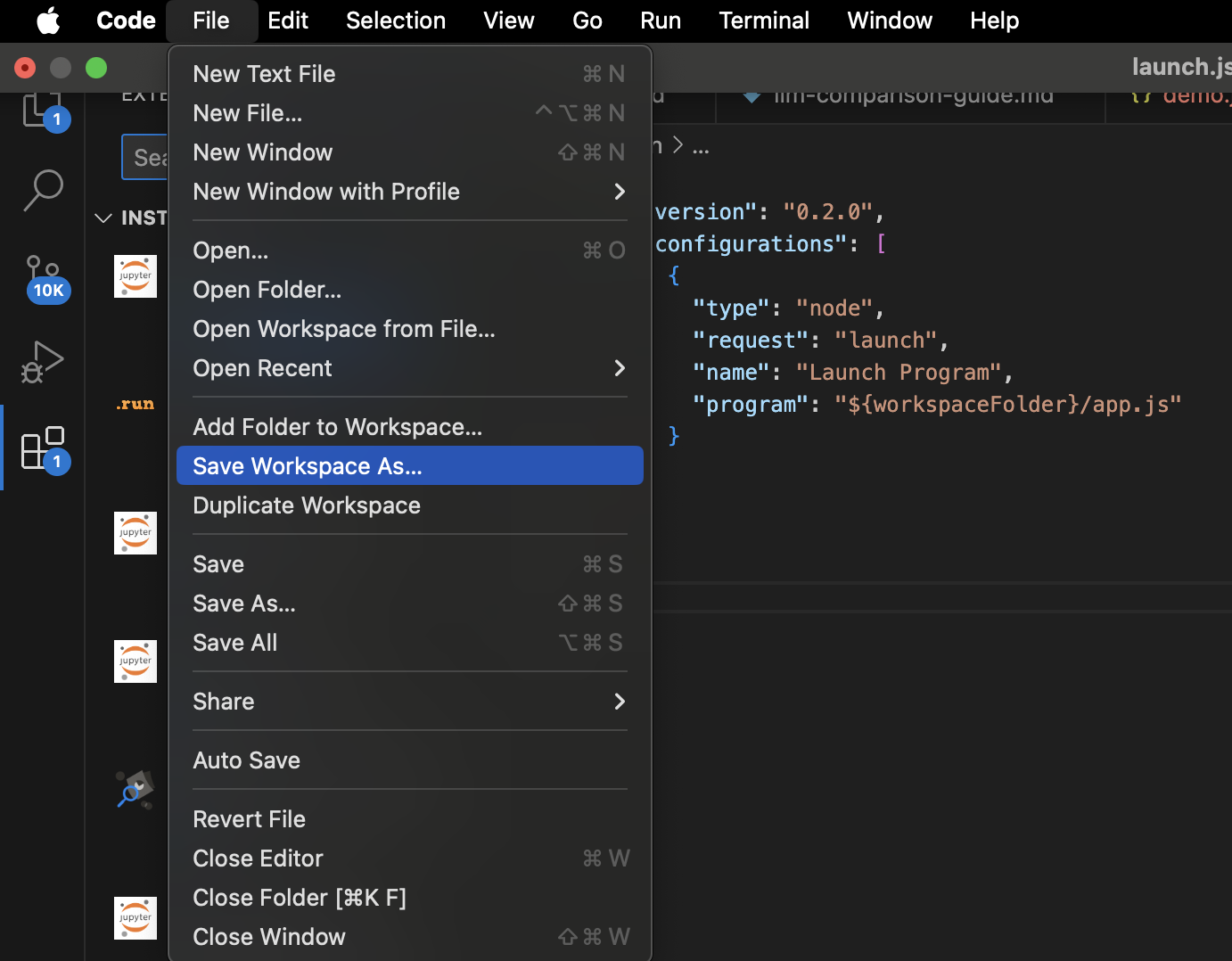
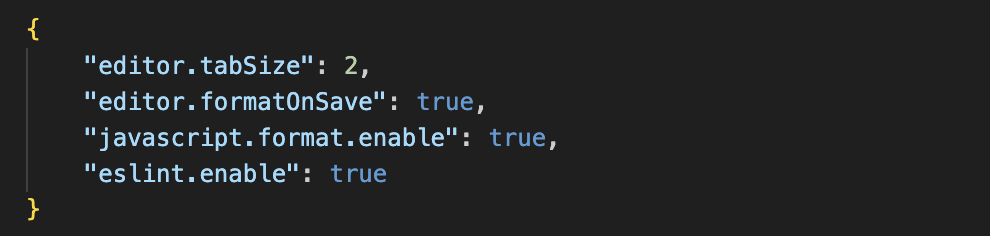
  1. Workspace settings: Create a .vscode folder in your project with:
    • settings.json: Project-specific settings
    • launch.json: Debugging configurations
    • tasks.json: Build task configurations
    • extensions.json: Recommended extensions

Example settings.json for a JavaScript project:
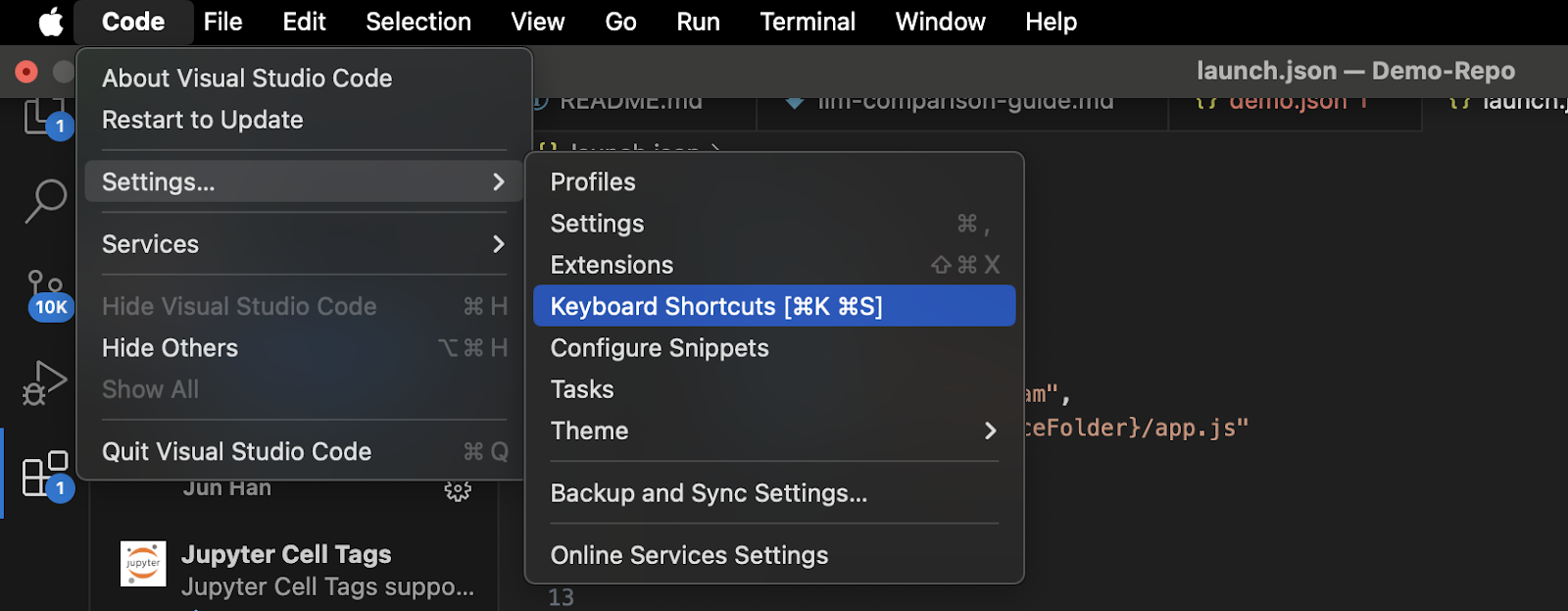
Keyboard Shortcuts

VSCode has many keyboard shortcuts. Here are the most essential ones:

  • Ctrl+P: Quick Open, Go to File
  • Ctrl+Shift+P: Show Command Palette
  • Ctrl+Space: Trigger suggestion
  • F12: Go to Definition
  • Alt+F12: Peek Definition
  • Shift+Alt+F: Format document
  • F5: Start debugging
  • Ctrl+`: Toggle terminal
  • Ctrl+B: Toggle sidebar
  • Ctrl+/: Toggle line comment
  • Ctrl+K Ctrl+C: Add line comment
  • Ctrl+K Ctrl+U: Remove line comment

Integrated Terminal

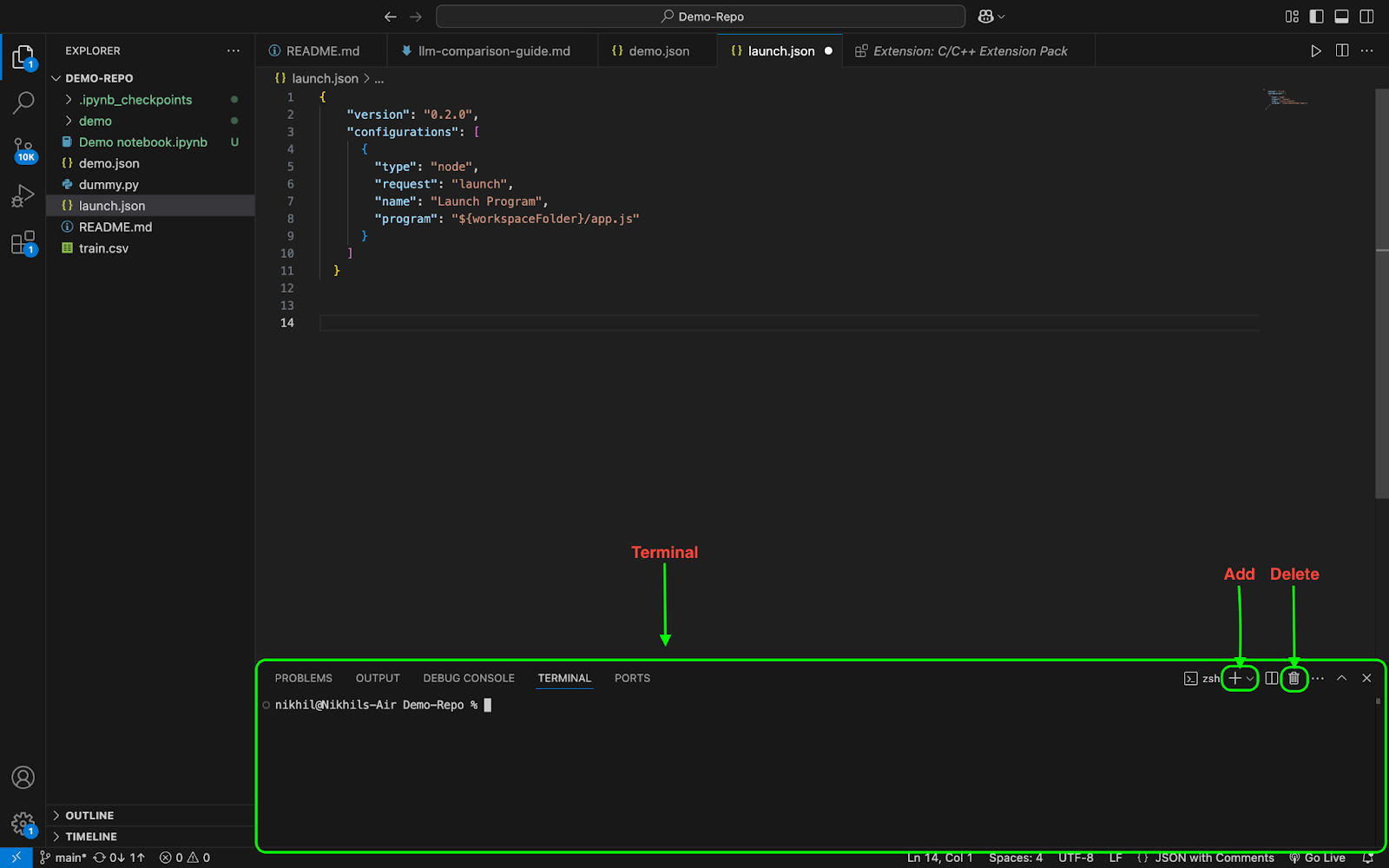
VSCode includes an integrated terminal:

  1. Open terminal: View > Terminal
  2. Multiple terminals: Click the plus icon
  3. Switch terminals: Use the dropdown

Source Control Integration

VSCode has built-in Git support:

  1. Initialize repository: Click the Source Control icon and “Initialize Repository”
  2. Stage changes: Click the + next to modified files
  3. Commit changes: Enter a message and press Ctrl+Enter
  4. Push/Pull: Use the ellipsis menu (…) for additional Git commands
  5. Visual diff: Click on a modified file to see changes

Debugging

Set up debugging for your project:

  1. Create a launch configuration:
    • Click the Run and Debug icon
    • Click “create a launch.json file”
    • Select your environment
  2. Set breakpoints: Click in the gutter next to line numbers
  3. Start debugging: Press F5
  4. Use debug controls: Continue, Step Over, Step Into, Step Out
  5. Watch variables: Add expressions to the Watch panel

Additional Resources


Nikhil is an intern consultant at Marktechpost. He is pursuing an integrated dual degree in Materials at the Indian Institute of Technology, Kharagpur. Nikhil is an AI/ML enthusiast who is always researching applications in fields like biomaterials and biomedical science. With a strong background in Material Science, he is exploring new advancements and creating opportunities to contribute.

Parlant: Build Reliable AI Customer Facing Agents with LLMs 💬 ✅ (Promoted)


Previous articleUnderstanding Generalization in Deep Learning: Beyond the Mysteries
Next articleRevolutionizing Code Generation: µCODE’s Single-Step Approach to Multi-Turn Feedback


Credit: Source link

ShareTweetSendSharePin

Related Posts

Consumers Sue Anthropic, OpenAI, SpaceXAI and Google Over Alleged AI Pact – Unite.AI
AI & Technology

Consumers Sue Anthropic, OpenAI, SpaceXAI and Google Over Alleged AI Pact – Unite.AI

September 19, 2026
How Focus Mode Has Changed In iOS 27
AI & Technology

How Focus Mode Has Changed In iOS 27

September 18, 2026
AI Almost Led The US Military To Start A War With China, Report Says
AI & Technology

AI Almost Led The US Military To Start A War With China, Report Says

September 18, 2026
Jina AI Releases jina-ocr-v1: A 3.4B MoE Document Parser With Built-In Speculative Decoding for Low-Budget GPUs
AI & Technology

Jina AI Releases jina-ocr-v1: A 3.4B MoE Document Parser With Built-In Speculative Decoding for Low-Budget GPUs

September 18, 2026
Next Post
Revolutionizing Code Generation: µCODE’s Single-Step Approach to Multi-Turn Feedback

Revolutionizing Code Generation: µCODE’s Single-Step Approach to Multi-Turn Feedback

Leave a Reply Cancel reply

Your email address will not be published. Required fields are marked *

Search

No Result
View All Result
Agent Harness vs Agent Framework vs MCP: Which Layer Owns the Loop, State, Tools, Permissions, and Recovery

Agent Harness vs Agent Framework vs MCP: Which Layer Owns the Loop, State, Tools, Permissions, and Recovery

September 14, 2026
Trump names Adam Telle as acting Army secretary

Trump names Adam Telle as acting Army secretary

September 17, 2026
Two Nepal flood survivors rescued from hydropower tunnel

Two Nepal flood survivors rescued from hydropower tunnel

September 17, 2026

About

Learn more

Our Services

Legal

Privacy Policy

Terms of Use

Bloggers

Learn more

Article Links

Contact

Advertise

Ask us anything

©2020- TradePoint.io - All rights reserved!

Tradepoint.io, being just a publishing and technology platform, is not a registered broker-dealer or investment adviser. So we do not provide investment advice. Rather, brokerage services are provided to clients of Tradepoint.io by independent SEC-registered broker-dealers and members of FINRA/SIPC. Every form of investing carries some risk and past performance is not a guarantee of future results. “Tradepoint.io“, “Instant Investing” and “My Trading Tools” are registered trademarks of Apperbuild, LLC.

This website is operated by Apperbuild, LLC. We have no link to any brokerage firm and we do not provide investment advice. Every information and resource we provide is solely for the education of our readers. © 2020 Apperbuild, LLC. All rights reserved.

No Result
View All Result
  • Main
  • AI & Technology
  • Stock Charts
  • Market & News
  • Business
  • Finance Tips
  • Trade Tube
  • Blog
  • Shop

© 2023 - TradePoint.io - All Rights Reserved!