















• bitcoinBitcoin(BTC)$64,531.00-1.26%
  • ethereumEthereum(ETH)$1,807.97-0.93%
  • tetherTether(USDT)$1.000.01%
  • binancecoinBNB(BNB)$590.220.70%
  • usd-coinUSDC(USDC)$1.000.00%
  • rippleXRP(XRP)$0.95-0.87%
  • solanaSolana(SOL)$71.20-1.88%
  • tronTRON(TRX)$0.304452-1.40%
  • Figure HelocFigure Heloc(FIGR_HELOC)$1.061.02%
  • HyperliquidHyperliquid(HYPE)$66.821.12%
  • zcashZcash(ZEC)$896.764.00%
  • moneroMonero(XMR)$493.91-3.40%
  • dogecoinDogecoin(DOGE)$0.058224-2.99%
  • USDSUSDS(USDS)$1.00-0.03%
  • leo-tokenLEO Token(LEO)$9.14-1.24%
  • whitebitWhiteBIT Coin(WBT)$62.45-1.83%
  • chainlinkChainlink(LINK)$9.160.84%
  • cardanoCardano(ADA)$0.152515-1.60%
  • Ethena USDeEthena USDe(USDE)$1.000.01%
  • stellarStellar(XLM)$0.1379890.53%
  • daiDai(DAI)$1.000.01%
  • bitcoin-cashBitcoin Cash(BCH)$207.27-0.52%
  • nearNEAR Protocol(NEAR)$3.130.69%
  • litecoinLitecoin(LTC)$44.84-1.83%
  • CantonCanton(CC)$0.0825192.04%
  • avalanche-2Avalanche(AVAX)$7.16-4.62%
  • uniswapUniswap(UNI)$5.133.57%
  • tether-goldTether Gold(XAUT)$3,821.22-0.22%
  • USD1USD1(USD1)$1.000.01%
  • the-open-networkGram (prev. Toncoin)(GRAM)$1.04-0.91%
  • suiSui(SUI)$0.72-1.33%
  • Ripple USDRipple USD(RLUSD)$1.00-0.01%
  • Global DollarGlobal Dollar(USDG)$1.00-0.01%
  • RainRain(RAIN)$0.0037051.00%
  • paypal-usdPayPal USD(PYUSD)$1.00-0.02%
  • hedera-hashgraphHedera(HBAR)$0.057789-0.27%
  • Ondo US Dollar YieldOndo US Dollar Yield(USDY)$1.150.02%
  • shiba-inuShiba Inu(SHIB)$0.000004-2.09%
  • quant-networkQuant(QNT)$153.921.52%
  • BittensorBittensor(TAO)$189.76-1.64%
  • crypto-com-chainCronos(CRO)$0.043211-0.75%
  • Circle USYCCircle USYC(USYC)$1.140.00%
  • Spiko Amundi Overnight Swap Fund (EUR)Spiko Amundi Overnight Swap Fund (EUR)(EURSAFO)$1.120.00%
  • MemeCoreMemeCore(M)$0.830.25%
  • okbOKB(OKB)$87.390.30%
  • pax-goldPAX Gold(PAXG)$3,824.97-0.12%
  • pepePepe(PEPE)$0.0000040.75%
  • aaveAave(AAVE)$106.663.58%
  • Falcon USDFalcon USD(USDF)$1.000.16%
  • BlackRock USD Institutional Digital Liquidity FundBlackRock USD Institutional Digital Liquidity Fund(BUIDL)$1.000.00%
TradePoint.io
  • Main
  • AI & Technology
  • Stock Charts
  • Market & News
  • Business
  • Finance Tips
  • Trade Tube
  • Blog
  • Shop
No Result
View All Result
TradePoint.io
No Result
View All Result

There’s A Hidden Way You Can Check Which Services Are Running On Your Android Phone

November 15, 2026
in AI & Technology
Reading Time: 4 mins read
A A
There’s A Hidden Way You Can Check Which Services Are Running On Your Android Phone
ShareShareShareShareShare

Just like a desktop PC, your Android phone has a built-in task manager. Here is how to find it, monitor your memory and safely limit background apps.


Pornpak Khunatorn/Getty Images

If you use a desktop PC, you may be familiar with the task manager, which lets you view all the processes running in the background of your computer and taking up resources. What you may not know is that Android phones (even budget models) have the same feature, but it’s kept hidden away from users, requiring a little digging to find it. If you want to keep an eye on what’s using your phone’s memory, it can be worth uncovering this hidden display, but you should proceed with caution before you start closing processes willy-nilly.

YOU MAY ALSO LIKE

Anthropic IPO Demand Surges as CoreWeave Calms AI Fears

Odd Lots: The AI Trade Shrugs Off a Blue Wave and a Tech Scandal

To check what processes are running, you first need to activate developer mode to make your phone faster. Under the Settings menu, scroll down to the bottom, tap About Phone and look for the Build number. If it’s not there, you may have to enter an additional Software information menu, depending on your phone’s model and Android version. Once you find it, keep tapping the Build number option until you get a message that developer mode has turned on or a dialog box asking you to confirm. Then, back out to the main Settings menu. You’ll find Developer options on this main screen, or under a System submenu. Tap the option, then open Running Services. You can also select the three dots in the top right of the screen to select Show cached processes and see what’s been recently suspended but still held in memory.

Use the Running Services menu with care
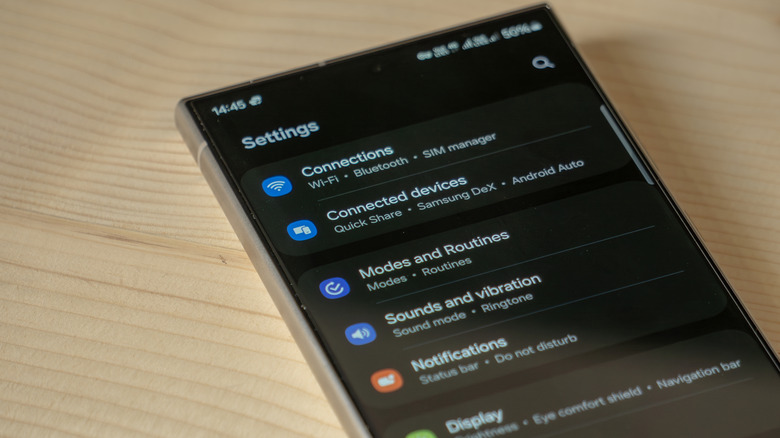

The Samsung S24 Ultra settings menu
lilgrapher/Shutterstock

This is Android’s version of the task manager, showing you all the running services currently providing frameworks for the apps on your phone, along with how much memory they’re using. But don’t start closing processes to free up that precious memory. While the task manager on PC often shows plenty of bloat that you can safely close, that’s not usually the case for Android phones. The processes you see here are more likely managing features like Bluetooth, your keyboard and location settings. Shutting these down can seriously hamper your phone.

Both the Running Services and Memory menus are more like diagnostic tools. If you’re having problems with your phone, it can be helpful to check here and see if anything seems wildly out of order, like a single process hogging the majority of your phone’s memory. You may want to stop the related process until you can fix the underlying issue, but be prepared to restart your phone if anything goes wrong.

There are better ways to control background processes


Hands holding smart phone.
Pornpak Khunatorn/Getty Images

A better way of controlling background processes is by limiting their use. In the Developer options menu, under the Apps heading, you’ll find Background process limit. This lets you limit the number of apps allowed to run in the background at one time. This default setting triggers an automatic limit based on how much RAM your phone has, which is a crucial factor in making older Android phones last longer. However, you can also change the limit to between one and four to free up memory.

Keep in mind that this will make multitasking harder and will cause a bigger performance hit at the moment you re-open apps, since your phone will have to fully restart them now.

You can also limit how individual apps behave in the background. In the Settings menu, head to Apps, select a specific app and tap Battery. The default Optimized option automatically adjusts the app’s background permissions based on how you use it, but switching to Restricted limits its activity when suspended.

Credit: Source link

ShareTweetSendSharePin

Related Posts

Anthropic IPO Demand Surges as CoreWeave Calms AI Fears
AI & Technology

Anthropic IPO Demand Surges as CoreWeave Calms AI Fears

November 15, 2026
Odd Lots: The AI Trade Shrugs Off a Blue Wave and a Tech Scandal
AI & Technology

Odd Lots: The AI Trade Shrugs Off a Blue Wave and a Tech Scandal

November 15, 2026
Bessent Gives Nvidia 10 Days to Address Export-Control Questions – Unite.AI
AI & Technology

Bessent Gives Nvidia 10 Days to Address Export-Control Questions – Unite.AI

November 15, 2026
What We Know About Nvidia’s Interim CEO Colette Kress
AI & Technology

What We Know About Nvidia’s Interim CEO Colette Kress

November 15, 2026
Next Post
Eagle Bancorp Montana, Inc. (EBMT) Presents at 2026 Hovde Group Financial Services Conference – Slideshow

Eagle Bancorp Montana, Inc. (EBMT) Presents at 2026 Hovde Group Financial Services Conference - Slideshow

Leave a Reply Cancel reply

Your email address will not be published. Required fields are marked *

Search

No Result
View All Result
Highest gas prices for Election Day in U.S. history

Highest gas prices for Election Day in U.S. history

November 11, 2026
Current with Christine Romans – Nov. 3 | NBC News NOW

Current with Christine Romans – Nov. 3 | NBC News NOW

November 11, 2026
Nikki Haley says Ramaswamy’s controversial Acton attack ad was ‘narcissistic and selfish’

Nikki Haley says Ramaswamy’s controversial Acton attack ad was ‘narcissistic and selfish’

November 11, 2026

About

Learn more

Our Services

Legal

Privacy Policy

Terms of Use

Bloggers

Learn more

Article Links

Contact

Advertise

Ask us anything

©2020- TradePoint.io - All rights reserved!

Tradepoint.io, being just a publishing and technology platform, is not a registered broker-dealer or investment adviser. So we do not provide investment advice. Rather, brokerage services are provided to clients of Tradepoint.io by independent SEC-registered broker-dealers and members of FINRA/SIPC. Every form of investing carries some risk and past performance is not a guarantee of future results. “Tradepoint.io“, “Instant Investing” and “My Trading Tools” are registered trademarks of Apperbuild, LLC.

This website is operated by Apperbuild, LLC. We have no link to any brokerage firm and we do not provide investment advice. Every information and resource we provide is solely for the education of our readers. © 2020 Apperbuild, LLC. All rights reserved.

No Result
View All Result
  • Main
  • AI & Technology
  • Stock Charts
  • Market & News
  • Business
  • Finance Tips
  • Trade Tube
  • Blog
  • Shop

© 2023 - TradePoint.io - All Rights Reserved!