















• bitcoinBitcoin(BTC)$60,241.00-1.48%
  • ethereumEthereum(ETH)$1,691.25-2.10%
  • tetherTether(USDT)$1.000.04%
  • binancecoinBNB(BNB)$551.65-0.97%
  • usd-coinUSDC(USDC)$1.000.03%
  • rippleXRP(XRP)$0.951.71%
  • solanaSolana(SOL)$71.140.06%
  • tronTRON(TRX)$0.3089921.37%
  • Figure HelocFigure Heloc(FIGR_HELOC)$1.040.00%
  • HyperliquidHyperliquid(HYPE)$63.020.76%
  • zcashZcash(ZEC)$756.03-4.37%
  • moneroMonero(XMR)$485.91-2.48%
  • dogecoinDogecoin(DOGE)$0.0558791.21%
  • leo-tokenLEO Token(LEO)$9.161.10%
  • chainlinkChainlink(LINK)$8.991.64%
  • whitebitWhiteBIT Coin(WBT)$56.99-2.85%
  • USDSUSDS(USDS)$1.000.02%
  • cardanoCardano(ADA)$0.1468331.97%
  • Ethena USDeEthena USDe(USDE)$1.000.06%
  • stellarStellar(XLM)$0.1299492.51%
  • daiDai(DAI)$1.000.00%
  • bitcoin-cashBitcoin Cash(BCH)$200.291.48%
  • nearNEAR Protocol(NEAR)$2.94-2.33%
  • litecoinLitecoin(LTC)$41.152.27%
  • CantonCanton(CC)$0.0782463.69%
  • avalanche-2Avalanche(AVAX)$6.741.19%
  • tether-goldTether Gold(XAUT)$3,619.080.73%
  • uniswapUniswap(UNI)$4.811.41%
  • USD1USD1(USD1)$1.000.02%
  • the-open-networkGram (prev. Toncoin)(GRAM)$0.980.22%
  • Ripple USDRipple USD(RLUSD)$1.000.01%
  • suiSui(SUI)$0.661.90%
  • Global DollarGlobal Dollar(USDG)$1.000.02%
  • Ondo US Dollar YieldOndo US Dollar Yield(USDY)$1.160.20%
  • paypal-usdPayPal USD(PYUSD)$1.000.07%
  • hedera-hashgraphHedera(HBAR)$0.0518611.43%
  • quant-networkQuant(QNT)$153.418.03%
  • BittensorBittensor(TAO)$188.93-0.65%
  • RainRain(RAIN)$0.003067-5.77%
  • shiba-inuShiba Inu(SHIB)$0.0000040.84%
  • crypto-com-chainCronos(CRO)$0.040291-0.57%
  • Spiko Amundi Overnight Swap Fund (EUR)Spiko Amundi Overnight Swap Fund (EUR)(EURSAFO)$1.11-0.62%
  • Circle USYCCircle USYC(USYC)$1.140.00%
  • MemeCoreMemeCore(M)$0.781.02%
  • okbOKB(OKB)$83.621.57%
  • Falcon USDFalcon USD(USDF)$1.00-0.07%
  • pax-goldPAX Gold(PAXG)$3,619.350.71%
  • United StablesUnited Stables(U)$1.00-0.01%
  • BlackRock USD Institutional Digital Liquidity FundBlackRock USD Institutional Digital Liquidity Fund(BUIDL)$1.000.00%
  • usddUSDD(USDD)$1.000.05%
TradePoint.io
  • Main
  • AI & Technology
  • Stock Charts
  • Market & News
  • Business
  • Finance Tips
  • Trade Tube
  • Blog
  • Shop
No Result
View All Result
TradePoint.io
No Result
View All Result

The Three DISM Commands You Should Know To Fix Your Windows System Images

November 24, 2026
in AI & Technology
Reading Time: 3 mins read
A A
The Three DISM Commands You Should Know To Fix Your Windows System Images
ShareShareShareShareShare

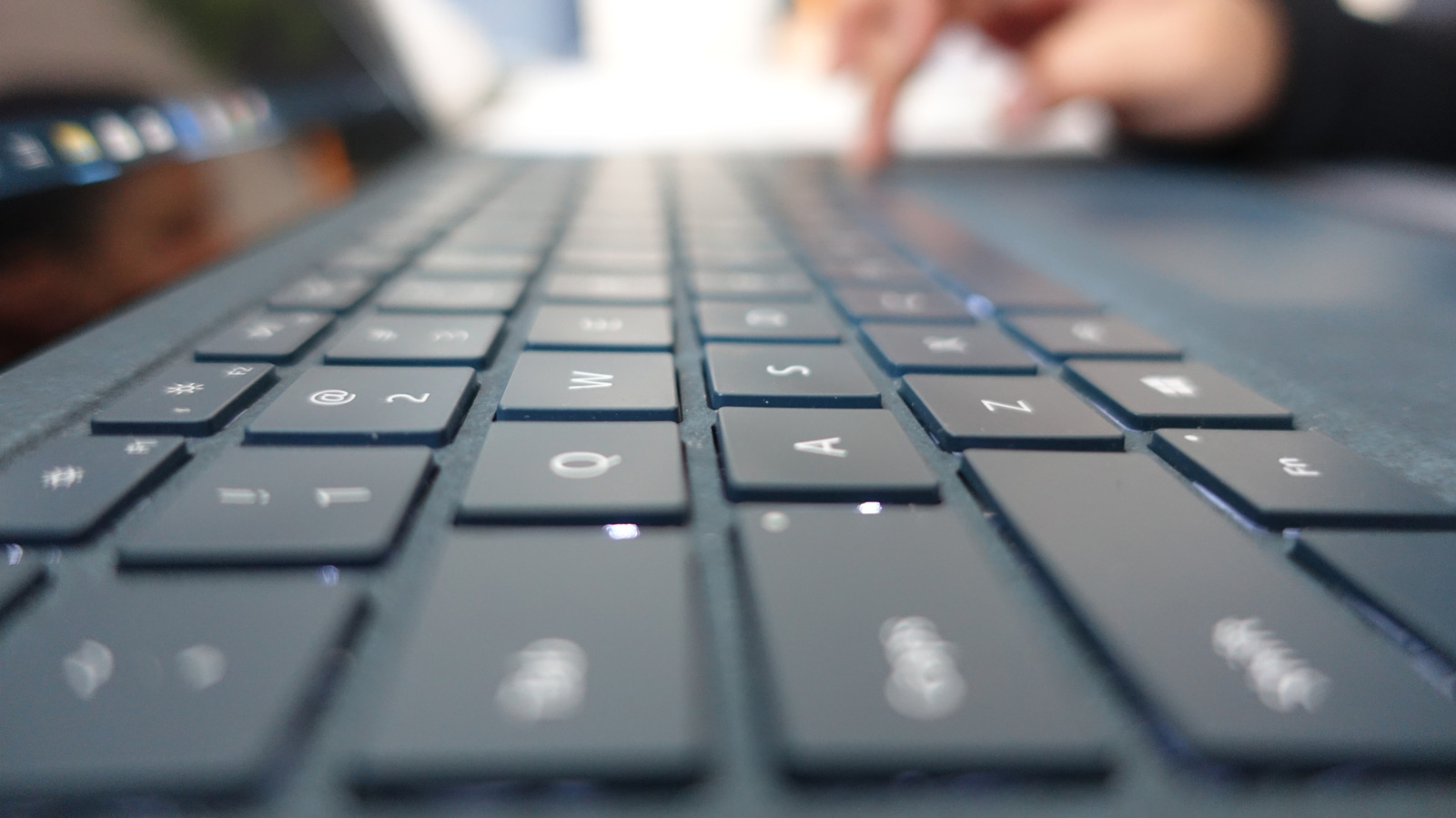
Check and repair damaged system files with these DISM commands.


ShotxArbaz/Shutterstock

Your Windows installation depends on a collection of important system files to run applications, install updates and perform everyday computing tasks. If these files get damaged or go missing, your system may behave erratically. You may encounter system errors, features not working as expected, freezes or other unexpected behavior. Sometimes restarting your computer or running the usual troubleshooting steps aren’t enough to restore damaged system files. For such cases, Windows provides a built-in repair utility called Deployment Image Servicing and Management (DISM).

YOU MAY ALSO LIKE

Prosecutors Detail Alleged Recordings of OpenAI Meetings in Bail Fight – Unite.AI

Anthropic CFO on ‘Democratizing Access’ to Company Stock

DISM is a command line tool that can scan Windows system images for corrupt system files and attempt repairs. Particularly, there are three useful DISM commands that achieve this purpose: CheckHealth, ScanHealth and RestoreHealth. You can run DISM commands in either the command prompt or the PowerShell, but both CLIs require administrator privileges to make system-level changes. It’s worth noting that DISM exclusively scans and repairs system files; your personal files remain untouched.

Three DISM commands that fix damaged Windows installation

All three DISM commands in question follow a specific syntax that begins with DISM /Online /Cleanup-Image. The parts following “DISM” in the syntax are called command-line options. The /Online CLI option specifies DISM to take action on the currently running Windows installation, while /Cleanup-Image performs recovery operations on the selected installation.

The first command is DISM /Online /Cleanup-Image /CheckHealth. It checks whether Windows has already flagged corrupt system files and whether the corruption is repairable. This is the first recommended step when investigating corrupt system files as it takes very little time to complete.

The next command is DISM /Online /Cleanup-Image /ScanHealth and it works slightly differently from the CheckHealth command. Unlike CheckHealth, the ScanHealth DISM command performs a fresh scan of your system files and reports any its findings. The ScanHealth operation may take several minutes to complete, but it provides you with a fresh report on the component store’s health.

Finally, the DISM /Online /Cleanup-Image /RestoreHealth command both scans the component store for corruption and attempts to repair them automatically. By default, RestoreHealth uses Windows Update to obtain the necessary system files needed to repair the component store. The Windows component store is a protected internal repository that contains important system files. Windows requires these files to service, update and customize the operating system.

What to do if DISM fails to repair your Windows installation?

Sometimes system file damage can also break Windows Update, preventing DISM from downloading replacement files. When this happens, you can use an official Windows installation media to supply DISM with the necessary repair files. You can download a Windows ISO from Microsoft’s official download page. Once downloaded, right click the ISO file and select mount. Windows will create a virtual drive for the ISO, assign it a drive letter and make its contents available.

Next, you’ll need to check the Windows editions available in the downloaded installation media. You can do that by launching the command prompt as an administrator and running the DISM /Get-ImageInfo /ImageFile:D:sourcesinstall.wim command. This command lists the Windows editions available on the installation media along with their index numbers. Make a note of the index number corresponding to your installed edition before proceeding to the next step.

Now, run the DISM /Online /Cleanup-Image /RestoreHealth /Source:WIM:D:sourcesinstall.wim:6 /LimitAccess command. Replace D: with the drive letter assigned to the mounted Windows ISO and 6 with the index number corresponding to your Windows edition. This directs DISM to use the installation media as its repair source instead of downloading files from Windows Update.

Once DISM completes its operation, run the sfc /scannow command to repair damaged or missing system files. Microsoft recommends running the DISM repair utility before System File Checker (SFC) because DISM repairs the Windows component store, which SFC relies on to replace corrupted system files.

Credit: Source link

ShareTweetSendSharePin

Related Posts

Prosecutors Detail Alleged Recordings of OpenAI Meetings in Bail Fight – Unite.AI
AI & Technology

Prosecutors Detail Alleged Recordings of OpenAI Meetings in Bail Fight – Unite.AI

November 24, 2026
Anthropic CFO on ‘Democratizing Access’ to Company Stock
AI & Technology

Anthropic CFO on ‘Democratizing Access’ to Company Stock

November 24, 2026
Supertake Raises M Seed, Adds Ex-Coinbase AI Leaders as CEO and CTO – Unite.AI
AI & Technology

Supertake Raises $20M Seed, Adds Ex-Coinbase AI Leaders as CEO and CTO – Unite.AI

November 24, 2026
Nasdaq Expects Smooth Anthropic IPO, Griggs Says
AI & Technology

Nasdaq Expects Smooth Anthropic IPO, Griggs Says

November 24, 2026
Next Post
Audiobooks for Less – Pay Only When Your Library Can’t Lend Them in Time

Audiobooks for Less – Pay Only When Your Library Can’t Lend Them in Time

Leave a Reply Cancel reply

Your email address will not be published. Required fields are marked *

Search

No Result
View All Result
Ant Group Begins Open-Weight Release of LingSante Medical AI Models – Unite.AI

Ant Group Begins Open-Weight Release of LingSante Medical AI Models – Unite.AI

November 23, 2026
Women in viral Conan O’Brien subway bit speaks out

Women in viral Conan O’Brien subway bit speaks out

November 18, 2026
Kornacki: Where Democrats see openings for Senate gains in deep-red states

Kornacki: Where Democrats see openings for Senate gains in deep-red states

November 17, 2026

About

Learn more

Our Services

Legal

Privacy Policy

Terms of Use

Bloggers

Learn more

Article Links

Contact

Advertise

Ask us anything

©2020- TradePoint.io - All rights reserved!

Tradepoint.io, being just a publishing and technology platform, is not a registered broker-dealer or investment adviser. So we do not provide investment advice. Rather, brokerage services are provided to clients of Tradepoint.io by independent SEC-registered broker-dealers and members of FINRA/SIPC. Every form of investing carries some risk and past performance is not a guarantee of future results. “Tradepoint.io“, “Instant Investing” and “My Trading Tools” are registered trademarks of Apperbuild, LLC.

This website is operated by Apperbuild, LLC. We have no link to any brokerage firm and we do not provide investment advice. Every information and resource we provide is solely for the education of our readers. © 2020 Apperbuild, LLC. All rights reserved.

No Result
View All Result
  • Main
  • AI & Technology
  • Stock Charts
  • Market & News
  • Business
  • Finance Tips
  • Trade Tube
  • Blog
  • Shop

© 2023 - TradePoint.io - All Rights Reserved!