






































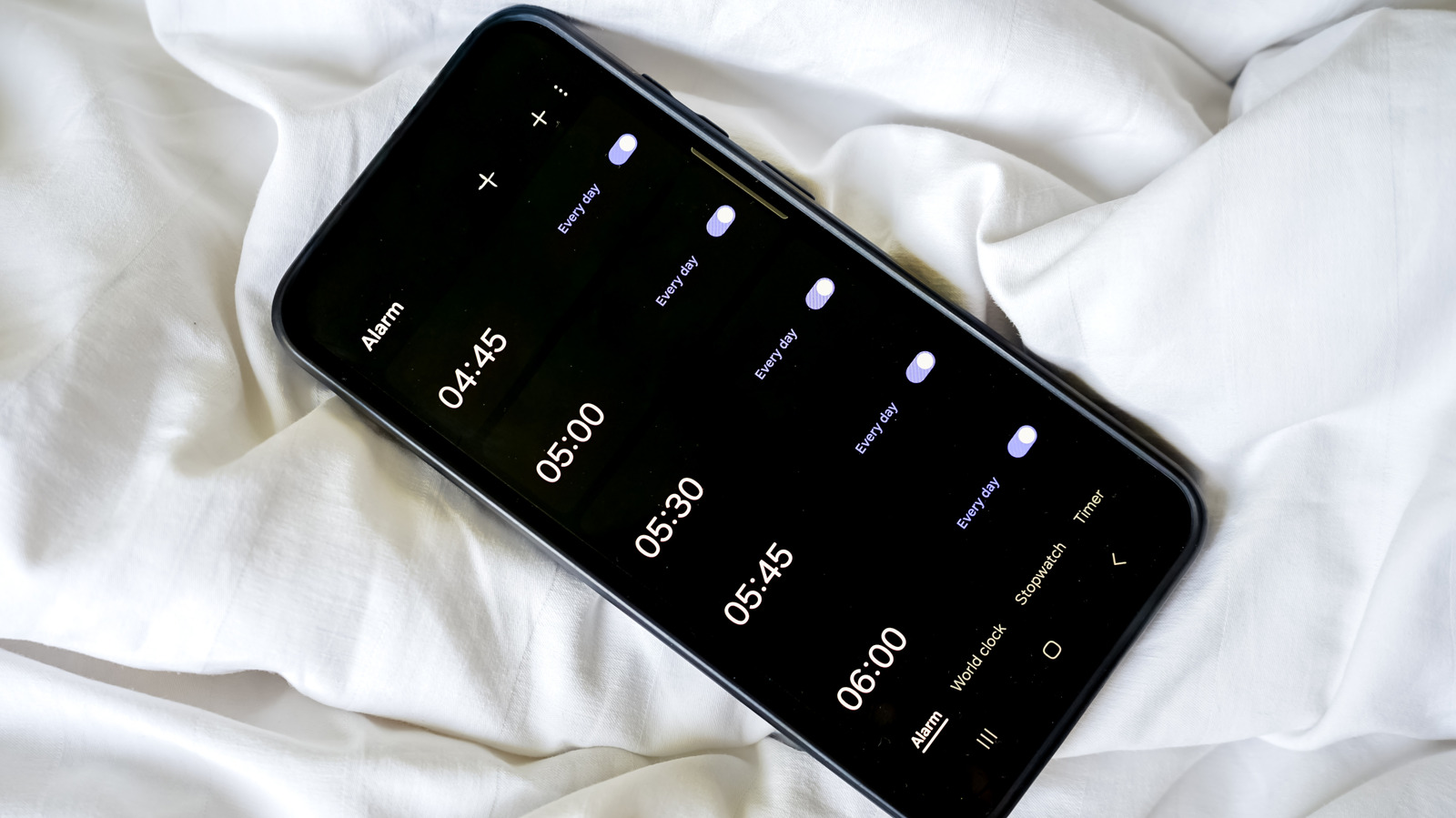

There’s no need to keep oversleeping (unless you want to).
After a stressful day at work, it can be nice to unwind and just hit that volume down button until your Android phone is completely silent. No calls, no meetings, no distraction — just you touching grass. Although a silent phone can be comforting, on some Android devices muting calls can unintentionally mute your incoming alarms as well, which is a rough way to find out you overslept and missed a meeting.
Thankfully, on most Android devices, there are a number of ways to keep your calls muted while your morning alarms still blast at full volume. But Android is a pretty broad ecosystem of different devices from different manufacturers, so there’s no one way to do this. On some devices, you can do everything in the volume slider; you can mute calls and manage your alarm’s volume right there. On others, you’ll likely have to rummage through your sound settings to find the right slider.
How to keep your alarm at full volume when your Android phone is on mute
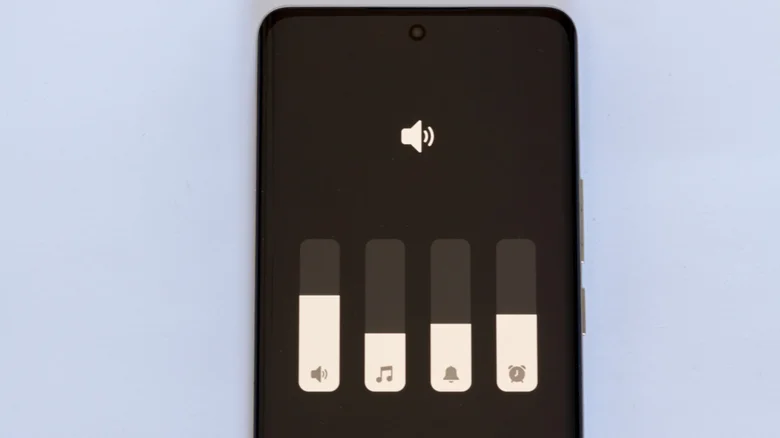
First, check your expanded volume menu. Tap any of your volume buttons to bring up your volume slider, then tap the three-dot icon. In the expanded menu, you’ll see sliders for different sounds like media, ringtone and notifications. If you see one for alarms, then adjust it to your preferred level.
If that doesn’t work for you, then you’ll have to head into your settings app. Go to Settings > Sound & vibration > Volume. In this menu, you’ll see separate sliders for media, ringtone, notifications and alarm. Drag the alarm slider to adjust its volume. Do note that, depending on your exact Android device, the steps and menu might not be exactly the same.
If you’re using a Samsung phone and don’t fancy a trip to your settings app, you can make the alarm volume slider appear in the expanded volume menu. Just go to your alarm app, set a short timer, and once that goes off, use your volume buttons and three-dot icon to open the volume menu. Now you’ll notice that your alarm’s slider is in the menu and you can adjust its volume.
The last place to look is your Do Not Disturb settings. Once again, open Settings and navigate to or search for your Do Not Disturb settings. Once there, make sure alarms are allowed during Do Not Disturb.
Still no alarm sound? Other things worth checking

A few other things can keep your alarms quiet even after you’ve tried all the fixes above. And one of the common culprits that easily flies under the radar is Bluetooth audio routing. In plain terms, look at whether your phone is connected to any Bluetooth audio device, like your earbuds or car speakers, and is routing your alarm’s audio through there instead of your phone.
Your phone’s battery optimization settings are another suspect that could be behind your alarm’s silence, especially if you’re using a third-party alarm app. Go through your settings and check if your alarm or clock app has been put to sleep or restricted from background activity. If you discover that’s the case, exclude the app and give it optimized or unrestricted background access for best results.
Talking about third-party alarm apps. If you’re using one, make sure it’s set as the default alarm app. Otherwise, your Android phone will keep using the native clock app instead. So no alarm you set will go off.
Credit: Source link