






































Your iPhone should send messages normally most of the time, but you can try easy fixes when it acts up.
Sending messages to friends and family on an iPhone is usually pretty easy: open a chat in the Messages app, type it out and you’re all set once you hit Send. But like anything in the tech world, even basic actions are prone to annoying bugs at times.
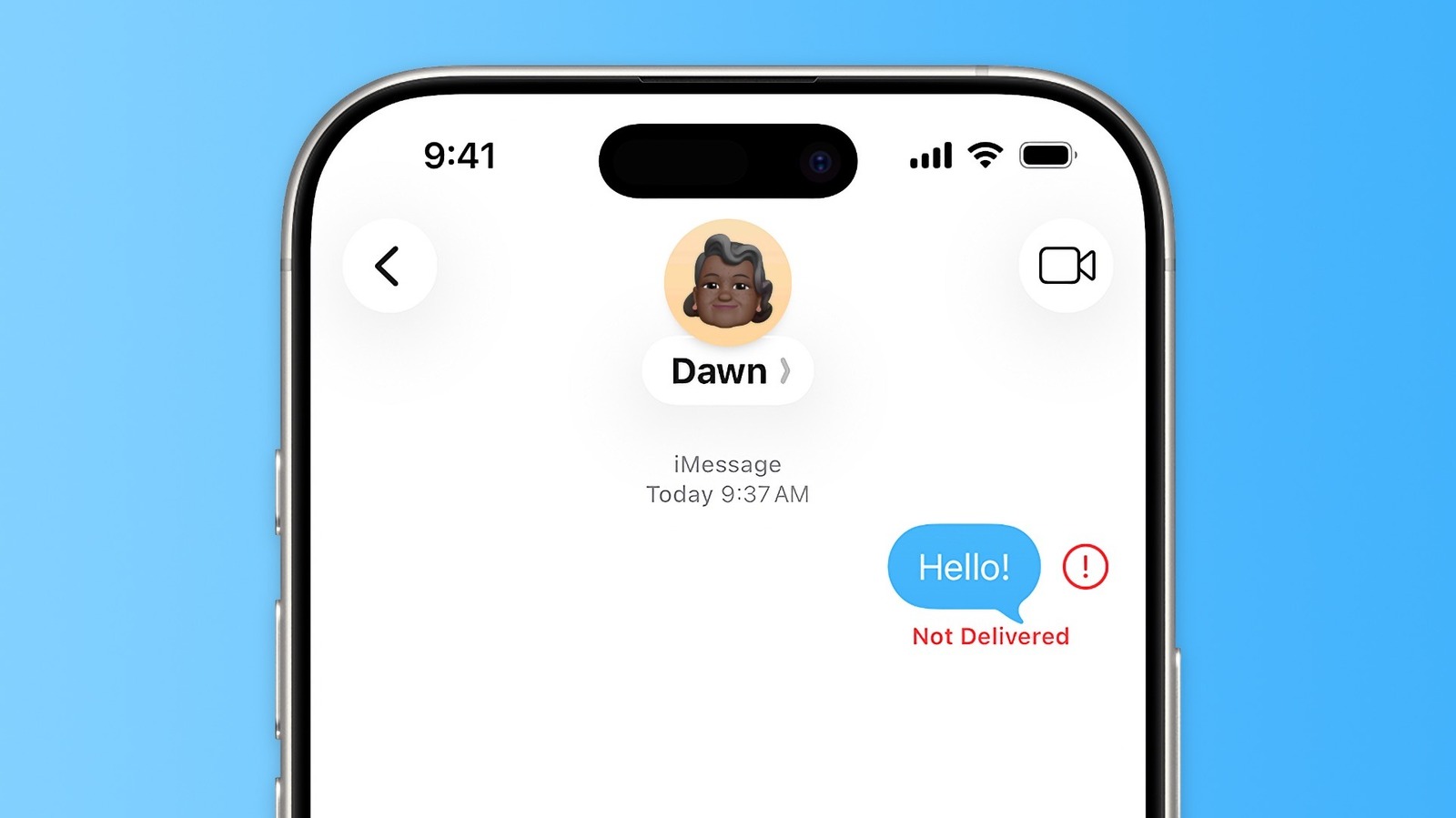
If that important message you need to send right away ends up not getting delivered, don’t give up just yet. When you see the “Not Delivered” error while sending a message from your iPhone, there are a few workarounds you can try.
But first, it’s worth noting that the iPhone’s Messages app is more complex than it seems. That’s because it handles not one, but three different services. The most popular is iMessage, which is the one with the blue bubbles. This is proprietary to Apple and works automatically when you message someone who also has an iPhone, iPad or Mac. The other two protocols are RCS and SMS — the green bubbles. They’re built into the Messages app and also work when messaging Android users. This is important, because they could be the reason your message isn’t sending.
The most common issues with the iPhone Messages app
The first workaround when you get a “Not Delivered” error in Messages is to tap the red exclamation point that appears next to your message. This will give you the option to try sending the message again. And while it sounds obvious, sometimes fixing a failed message is as simple as trying a second time. Perhaps you’re in an area with poor signal coverage. Because iMessage (and RCS) relies on the internet, lacking a connection means your message won’t be delivered. The same applies to regular SMS in an area with poor reception. Enabling airplane mode and then switching it off again can sometimes help your iPhone reconnect to the cellular network.
If you don’t have internet access but still have cellular reception, trying to send the message via SMS increases its chances of being sent. To do this, tap and hold your failed message, then select Send as Text Message. Your blue bubble becomes green and is sent over the cell network, without Wi-Fi or 5G. To make this process even easier, enable Retry as Text Message under Settings > Apps > Messages. With this, your iPhone will automatically resend messages as SMS when iMessage or RCS fails.
It’s also worth double-checking to make sure you have iMessage enabled. While it shouldn’t happen, sometimes iMessage fails to activate when you switch to a new iPhone. In the same Messages settings, look for the iMessage toggle and make sure it’s turned on. If you continue to have trouble, it’s worth disabling iMessage, waiting a minute, and then turning it back on to refresh your connection to the servers. Also check the Send & Receive section to make sure your correct phone number or email address is selected.
What else can prevent your messages from being delivered?
Other external factors may result in your messages not being sent or delivered. While rare, iMessage may go down due to instability on Apple’s servers. The good news is that you can check Apple’s System Status page for any performance issues. Turning on the MMS Messaging toggle in the Messages settings mentioned above is also a good way to prevent issues. Without MMS, you can’t send photos or videos via regular text messages to Android users, unless they have RCS enabled.
Rebooting your iPhone is always a good idea when you run into trouble, so make sure you’ve done that. Also, try sending a message to a different contact. If you only have trouble getting a message delivered to one person, it’s possible that their phone has no connection or is turned off, or they’ve blocked your number.
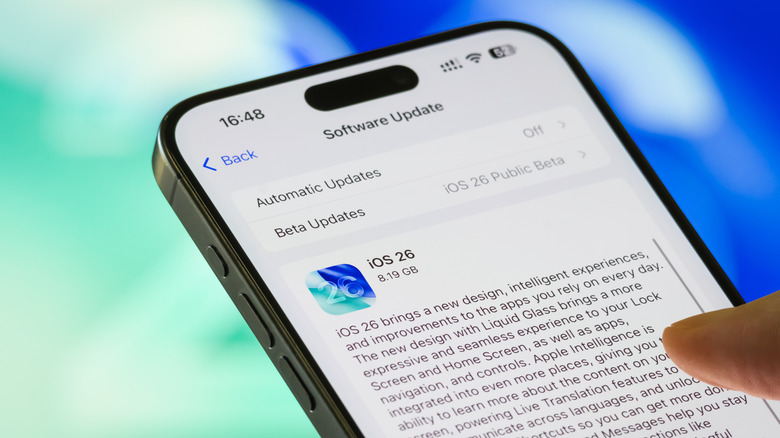
Of course, make sure your iPhone is updated to the latest version of iOS, since older software that isn’t maintained is more likely to have trouble with online services. In the Settings app, go to General and then Software Update. If an update is available, download and install it. And if your iPhone no longer gets software updates, it might be a good time to give the Apple Upgrade plan a try.
Credit: Source link