
















• bitcoinBitcoin(BTC)$60,400.002.41%
  • ethereumEthereum(ETH)$1,684.641.93%
  • tetherTether(USDT)$1.000.01%
  • binancecoinBNB(BNB)$554.952.52%
  • usd-coinUSDC(USDC)$1.00-0.01%
  • rippleXRP(XRP)$0.953.47%
  • solanaSolana(SOL)$70.803.37%
  • tronTRON(TRX)$0.303899-1.44%
  • Figure HelocFigure Heloc(FIGR_HELOC)$1.061.33%
  • HyperliquidHyperliquid(HYPE)$60.933.44%
  • zcashZcash(ZEC)$748.892.77%
  • moneroMonero(XMR)$524.043.27%
  • dogecoinDogecoin(DOGE)$0.0563833.27%
  • leo-tokenLEO Token(LEO)$8.98-1.34%
  • chainlinkChainlink(LINK)$9.154.77%
  • whitebitWhiteBIT Coin(WBT)$58.494.34%
  • USDSUSDS(USDS)$1.000.01%
  • cardanoCardano(ADA)$0.1479673.37%
  • Ethena USDeEthena USDe(USDE)$1.000.03%
  • stellarStellar(XLM)$0.1281523.63%
  • daiDai(DAI)$1.000.00%
  • bitcoin-cashBitcoin Cash(BCH)$208.105.78%
  • nearNEAR Protocol(NEAR)$3.067.92%
  • litecoinLitecoin(LTC)$43.327.36%
  • CantonCanton(CC)$0.0789175.56%
  • avalanche-2Avalanche(AVAX)$6.642.30%
  • tether-goldTether Gold(XAUT)$3,562.121.49%
  • USD1USD1(USD1)$1.00-0.02%
  • uniswapUniswap(UNI)$4.682.43%
  • Ripple USDRipple USD(RLUSD)$1.00-0.01%
  • the-open-networkGram (prev. Toncoin)(GRAM)$0.974.84%
  • suiSui(SUI)$0.674.05%
  • Global DollarGlobal Dollar(USDG)$1.000.01%
  • Ondo US Dollar YieldOndo US Dollar Yield(USDY)$1.150.10%
  • paypal-usdPayPal USD(PYUSD)$1.000.02%
  • hedera-hashgraphHedera(HBAR)$0.0531755.50%
  • quant-networkQuant(QNT)$148.383.87%
  • BittensorBittensor(TAO)$183.113.96%
  • shiba-inuShiba Inu(SHIB)$0.0000043.11%
  • Circle USYCCircle USYC(USYC)$1.150.02%
  • Spiko Amundi Overnight Swap Fund (EUR)Spiko Amundi Overnight Swap Fund (EUR)(EURSAFO)$1.120.24%
  • crypto-com-chainCronos(CRO)$0.0396822.49%
  • MemeCoreMemeCore(M)$0.8512.19%
  • RainRain(RAIN)$0.002665-5.92%
  • Falcon USDFalcon USD(USDF)$1.000.05%
  • okbOKB(OKB)$81.271.88%
  • United StablesUnited Stables(U)$1.000.00%
  • pax-goldPAX Gold(PAXG)$3,561.451.44%
  • BlackRock USD Institutional Digital Liquidity FundBlackRock USD Institutional Digital Liquidity Fund(BUIDL)$1.000.00%
  • usddUSDD(USDD)$1.000.17%
TradePoint.io
  • Main
  • AI & Technology
  • Stock Charts
  • Market & News
  • Business
  • Finance Tips
  • Trade Tube
  • Blog
  • Shop
No Result
View All Result
TradePoint.io
No Result
View All Result

How To Adjust The Audio Quality In Apple Music

October 3, 2026
in AI & Technology
Reading Time: 6 mins read
A A
How To Adjust The Audio Quality In Apple Music
ShareShareShareShareShare

The service offers both lossless streaming and EQ features, if you know where to look.


Wongsakorn 2468/Shutterstock

We may receive a commission on purchases made from links.

YOU MAY ALSO LIKE

DeepL Launches Aure V2 with End-to-End Speech Translation – Unite.AI

New York State Bans AI Chatbot Toys For Kids

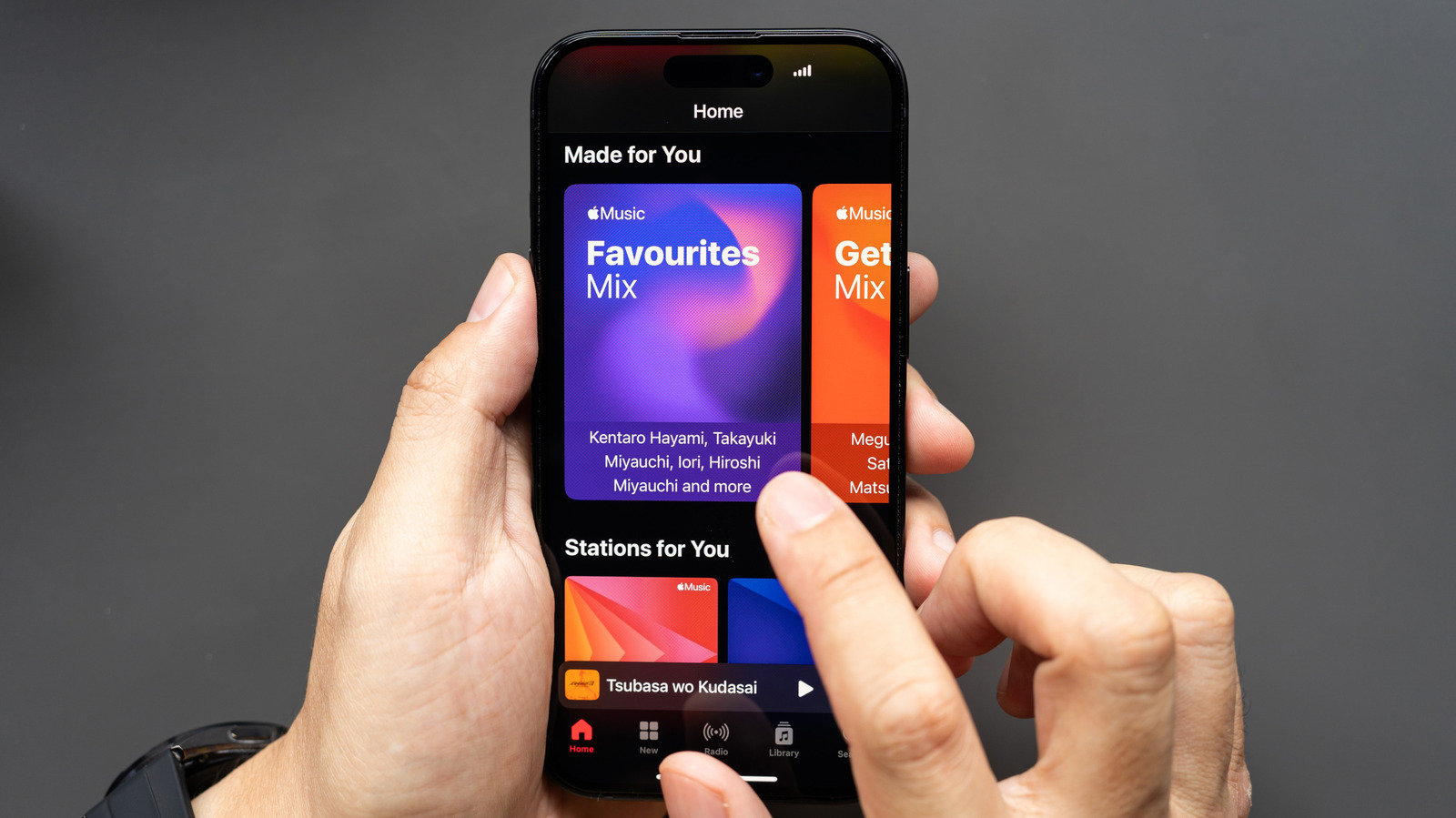
Apple Music has shockingly robust cross-platform support for an Apple service. Native apps are available for iOS and macOS, of course, but there are also very well-designed version for Android, Windows and other devices — including smart TVs and game consoles. Thankfully, there’s very little feature discrepancy between the Apple and non-Apple versions. Android users miss out on the nifty karaoke feature available on iOS, but still get all the marquee features, including lossless quality streaming. There are additional audio quality features, including an equalizer, which can help you fine-tune the sound further. All of this makes Apple Music a great Spotify alternative, especially once you activate its high quality audio.

Apple Music actually features two lossless tiers, with the basic lossless setting streaming in CD quality  — 24-bits at 48kHz. If you listen to music through most pairs of consumer headphones or earbuds, and especially if you use Bluetooth, this is the highest quality such products can deliver. You don’t need to waste data with Apple Music by turning on the even more extreme Hi-Res Lossless setting which delivers audio at 24-bits of depth and 192kHz. However, if you have dedicated hi-fi equipment, the latter option is recommended.

However, lossless audio isn’t enabled by default. Because it uses considerably more data, you’ll need to enable lossless playback from settings on each of your devices. If you’re looking to turn lossless audio off, either because it’s eating into your data plan or you don’t have the proper playback equipment to hear it properly, you can do so using the same process. It’s a straightforward process, but it’s easy to miss some of the necessary steps. So, here’s how to adjust the audio quality in Apple Music.

How to adjust Apple Music audio quality on iOS and Android

Close up of Apple Music app icon on iPhone home screen
Matthew Nichols1/Shutterstock

iOS:

  1. Open the Settings app and select Apps, then Music.
  2. Under the Audio section, choose Audio Quality, then enable the toggle alongside Lossless Audio to unlock hi-res streaming and downloads.
  3. Choose the quality you want to hear while listening over Wi-Fi or cellular data, as well as when music is downloaded locally, by changing those individual settings from the same screen.

To find the equalizer, go to Settings > Apps > Music, then tap EQ in the Audio section. Select one of the presets to adjust the EQ.

Android:

  1. Open the Apple Music app.
  2. Tap the vertical three dot menu icon in the top right of the Apple Music home page, then tap Settings.
  3. Tap Audio Quality.
  4. Enable the toggle next to Lossless Audio.

Choose the quality you want to hear while listening over Wi-Fi or cellular data, as well as when music is downloaded locally, by changing those individual settings on the same screen. If you enable Hi-Res Lossless, you will see a popup warning you that you need dedicated hardware to take advantage of it. Click OK to confirm.

There is not an in-app equalizer on Android. Going to Settings > Equalizer will instead redirect to your phone’s audio settings.

One caveat to be aware of is that, unlike Android, iOS does not support high resolution Bluetooth codecs. Android users can take advantage of Apple Music’s Lossless quality setting with certain wireless headphones or earbuds, whereas iPhone users can only experience it with a wired playback device. Unless you use wired headphones or buy a hi-res Bluetooth adapter dongle, you will not hear 24-bit, 48kHz audio with the Lossless setting (let alone sound produced by the even higher quality Hi-Res Lossless setting), even if your Bluetooth headphones advertise support for high-resolution playback.

How to adjust Apple Music audio quality on macOS and Windows 11
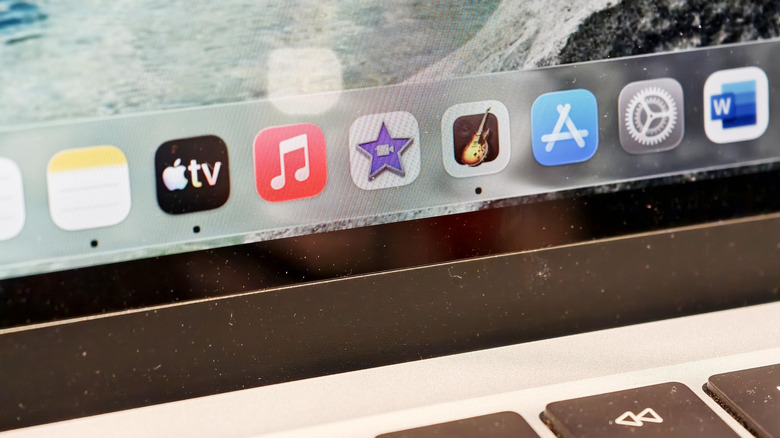

macOS: Open the Apple Music app. Click Music from the left side of the menu bar at the top of the screen, then click Settings. Click the Playback tab at the top of the settings menu. Click the checkbox to the left of Enable lossless audio if it is not already filled in and you wish to use lossless audio.  Windows 11: Open the Apple Music app. Click the three horizontal dots parallel with the Apple Music logo in the top of the left-hand navigation menu, then click Settings from the dropdown menu. Select the audio quality level you desire from the dropdown menus in the Streaming and Downloads section. The former will control the audio quality when you're playing songs over an Internet connection, while the latter controls the quality in which songs are stored on your device for later offline playback. You may need to confirm your decision the first time you enable Lossless or High Resolution Lossless. You can also find the equalizer on Apple Music's desktop apps. On both platforms, it's a ten-band EQ with a range of presets, a preamp and the ability to save custom settings as new presets. On Windows, you'll find it tucked into the same three-dot menu, while on Mac you can access it by choosing Window > Equalizer.
For East/Shutterstock

macOS:

  1. Open the Apple Music app.
  2. Click Music from the left side of the menu bar at the top of the screen, then click Settings.
  3. Click the Playback tab at the top of the settings menu.
  4. Click the checkbox to the left of Enable lossless audio if it is not already filled in and you wish to use lossless audio.

Windows 11:

  1. Open the Apple Music app.
  2. Click the three horizontal dots parallel with the Apple Music logo in the top of the left-hand navigation menu, then click Settings from the dropdown menu.
  3. Select the audio quality level you desire from the dropdown menus in the Streaming and Downloads section. The former will control the audio quality when you’re playing songs over an Internet connection, while the latter controls the quality in which songs are stored on your device for later offline playback. You may need to confirm your decision the first time you enable Lossless or High Resolution Lossless.

You can also find the equalizer on Apple Music’s desktop apps. On both platforms, it’s a ten-band EQ with a range of presets, a preamp and the ability to save custom settings as new presets. On Windows, you’ll find it tucked into the same three-dot menu, while on Mac you can access it by choosing Window > Equalizer.

Credit: Source link

ShareTweetSendSharePin

Related Posts

DeepL Launches Aure V2 with End-to-End Speech Translation – Unite.AI
AI & Technology

DeepL Launches Aure V2 with End-to-End Speech Translation – Unite.AI

November 26, 2026
New York State Bans AI Chatbot Toys For Kids
AI & Technology

New York State Bans AI Chatbot Toys For Kids

November 26, 2026
RoboSense LiDAR Sales Surge as Robotics and AI Sensing Expand – Unite.AI
AI & Technology

RoboSense LiDAR Sales Surge as Robotics and AI Sensing Expand – Unite.AI

November 26, 2026
We Reviewed These 10 Gadgets, And They’re Now On Sale For Black Friday
AI & Technology

We Reviewed These 10 Gadgets, And They’re Now On Sale For Black Friday

November 25, 2026
Next Post
U.S. is ‘studying’ role Iran may have played in air base incident in U.K., Trump says

U.S. is 'studying' role Iran may have played in air base incident in U.K., Trump says

Leave a Reply Cancel reply

Your email address will not be published. Required fields are marked *

Search

No Result
View All Result
Yankees boss rips Rep. Steve Scalise — along with Stephen A. Smith and Mike Florio — in controversy over reforming college sports 

Yankees boss rips Rep. Steve Scalise — along with Stephen A. Smith and Mike Florio — in controversy over reforming college sports 

November 20, 2026
Palvella Therapeutics, Inc. (PVLA) Discusses QTORIN Docetaxel for Extramammary Pagets Disease Prepared Remarks Transcript

Palvella Therapeutics, Inc. (PVLA) Discusses QTORIN Docetaxel for Extramammary Pagets Disease Prepared Remarks Transcript

November 19, 2026
The U.S. Army moves forward with Iowa detonation despite major health concerns

The U.S. Army moves forward with Iowa detonation despite major health concerns

November 25, 2026

About

Learn more

Our Services

Legal

Privacy Policy

Terms of Use

Bloggers

Learn more

Article Links

Contact

Advertise

Ask us anything

©2020- TradePoint.io - All rights reserved!

Tradepoint.io, being just a publishing and technology platform, is not a registered broker-dealer or investment adviser. So we do not provide investment advice. Rather, brokerage services are provided to clients of Tradepoint.io by independent SEC-registered broker-dealers and members of FINRA/SIPC. Every form of investing carries some risk and past performance is not a guarantee of future results. “Tradepoint.io“, “Instant Investing” and “My Trading Tools” are registered trademarks of Apperbuild, LLC.

This website is operated by Apperbuild, LLC. We have no link to any brokerage firm and we do not provide investment advice. Every information and resource we provide is solely for the education of our readers. © 2020 Apperbuild, LLC. All rights reserved.

No Result
View All Result
  • Main
  • AI & Technology
  • Stock Charts
  • Market & News
  • Business
  • Finance Tips
  • Trade Tube
  • Blog
  • Shop

© 2023 - TradePoint.io - All Rights Reserved!