
















• bitcoinBitcoin(BTC)$77,179.000.50%
  • ethereumEthereum(ETH)$2,271.800.88%
  • tetherTether(USDT)$1.000.03%
  • binancecoinBNB(BNB)$692.19-0.51%
  • rippleXRP(XRP)$1.271.31%
  • usd-coinUSDC(USDC)$1.000.03%
  • solanaSolana(SOL)$92.03-0.07%
  • tronTRON(TRX)$0.3219850.57%
  • Figure HelocFigure Heloc(FIGR_HELOC)$1.03-0.23%
  • zcashZcash(ZEC)$1,210.556.64%
  • HyperliquidHyperliquid(HYPE)$83.40-0.09%
  • moneroMonero(XMR)$628.953.90%
  • dogecoinDogecoin(DOGE)$0.073951-0.19%
  • USDSUSDS(USDS)$1.000.03%
  • whitebitWhiteBIT Coin(WBT)$74.180.55%
  • leo-tokenLEO Token(LEO)$9.30-0.44%
  • chainlinkChainlink(LINK)$10.90-1.83%
  • cardanoCardano(ADA)$0.187500-0.24%
  • stellarStellar(XLM)$0.160442-0.82%
  • bitcoin-cashBitcoin Cash(BCH)$270.02-1.87%
  • nearNEAR Protocol(NEAR)$3.80-0.75%
  • daiDai(DAI)$1.000.01%
  • Ethena USDeEthena USDe(USDE)$1.000.10%
  • RainRain(RAIN)$0.006211-1.31%
  • uniswapUniswap(UNI)$7.203.17%
  • litecoinLitecoin(LTC)$53.31-0.94%
  • CantonCanton(CC)$0.0963482.41%
  • USD1USD1(USD1)$1.000.08%
  • avalanche-2Avalanche(AVAX)$8.471.35%
  • suiSui(SUI)$0.881.71%
  • the-open-networkGram (prev. Toncoin)(GRAM)$1.16-1.60%
  • tether-goldTether Gold(XAUT)$3,947.170.93%
  • hedera-hashgraphHedera(HBAR)$0.068732-1.15%
  • quant-networkQuant(QNT)$193.15-0.89%
  • Global DollarGlobal Dollar(USDG)$1.000.02%
  • shiba-inuShiba Inu(SHIB)$0.0000050.75%
  • paypal-usdPayPal USD(PYUSD)$1.000.02%
  • BittensorBittensor(TAO)$224.400.38%
  • Ripple USDRipple USD(RLUSD)$1.000.01%
  • crypto-com-chainCronos(CRO)$0.049779-0.49%
  • Ondo US Dollar YieldOndo US Dollar Yield(USDY)$1.150.05%
  • EthenaEthena(ENA)$0.1739251.76%
  • okbOKB(OKB)$107.24-1.38%
  • Circle USYCCircle USYC(USYC)$1.140.01%
  • pepePepe(PEPE)$0.0000054.16%
  • BlackRock USD Institutional Digital Liquidity FundBlackRock USD Institutional Digital Liquidity Fund(BUIDL)$1.000.00%
  • aaveAave(AAVE)$127.621.38%
  • Pump.funPump.fun(PUMP)$0.0042347.84%
  • MemeCoreMemeCore(M)$0.840.86%
  • OndoOndo(ONDO)$0.3891991.33%
TradePoint.io
  • Main
  • AI & Technology
  • Stock Charts
  • Market & News
  • Business
  • Finance Tips
  • Trade Tube
  • Blog
  • Shop
No Result
View All Result
TradePoint.io
No Result
View All Result

Your Phone’s Apps Could Have More Permissions Than They Need – Here’s How To Check

November 4, 2026
in AI & Technology
Reading Time: 5 mins read
A A
Your Phone’s Apps Could Have More Permissions Than They Need – Here’s How To Check
ShareShareShareShareShare

Staying on top of what information your apps can access is always a good idea.


Adnan Ahmed for Engadget

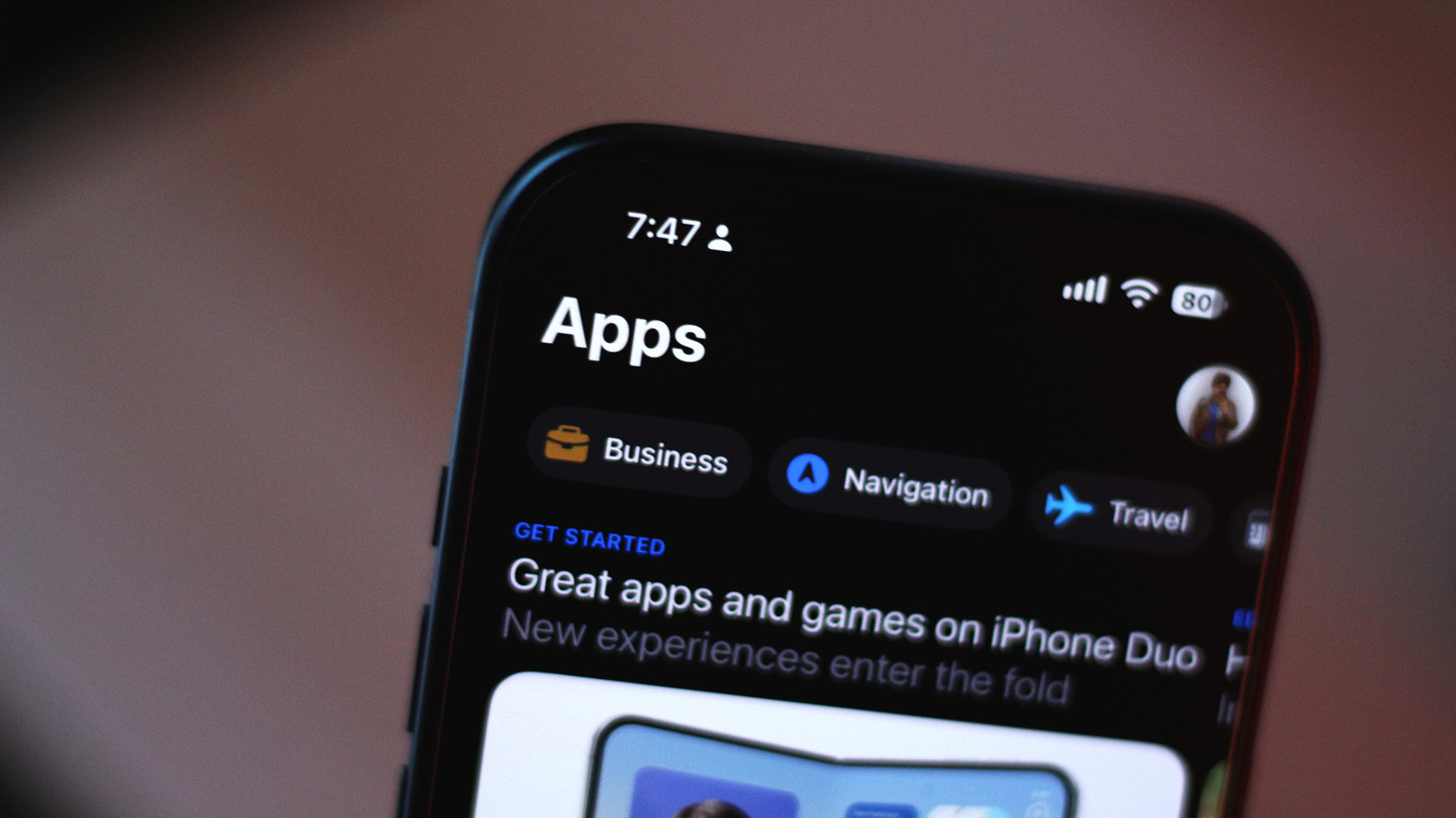
It’s great that we have access to hundreds of thousands of apps on our smartphones, but it’s always worth being mindful of which apps you install. Though Android and iOS have surprisingly effective built-in security measures to detect and block malicious apps, some apps may still pose a risk if they have access to sensitive information or device features. An app requesting permission to access your camera, location, text messages or files doesn’t necessarily mean it’s unsafe, but it’s worth asking why it needs them in the first place — especially if they have little to do with what the app is actually supposed to do.

YOU MAY ALSO LIKE

Cat Wu Steps Down as Claude Code Product Chief After Two Years – Unite.AI

iPad Mini OLED Vs. iPad Mini: What’s New?

Reviewing app permissions on your phone every once in a while is therefore a good way to keep your personal data secure, and thankfully, both Android and iOS let you do so fairly easily through their settings menus. If you don’t want an app to access your location in the background, for instance, you can revoke that permission or change it so the app can only access your location when you’re actively using it.

Your device’s camera and location details are especially sensitive, which is why Android and iOS show on-screen indicators when an app is actively using your camera, microphone or accessing location. The iPhone displays a green dot when your camera is in use, an orange dot when an app is listening via the microphone and a blue location icon when an app pings your whereabouts. Android phones use similar status bar icons, and you can swipe down to access the Control Center or the quick settings panel to see which app is accessing these features.

Manage app permissions on iOS
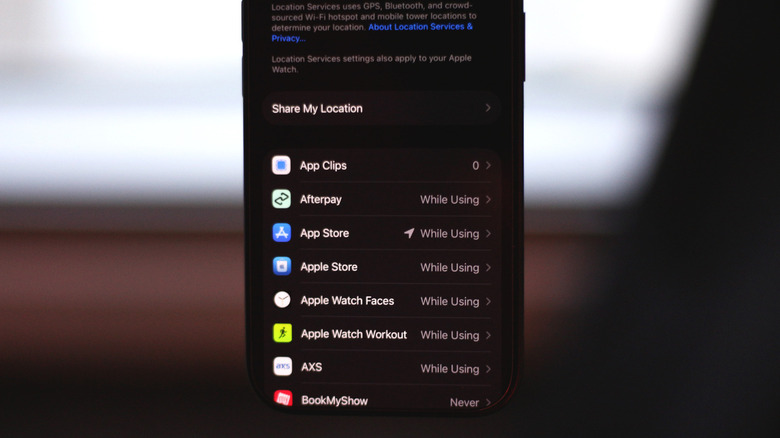

Managing location permissions on iOS.
Adnan Ahmed for Engadget

Apple is known for being privacy-oriented, so it’s no surprise that its operating systems have sophisticated privacy and security measures. Both iOS 27 and iPadOS 27 handle app permissions similarly. Any third-party app you install and use for the first time is required to request your permission before it can access information like your contacts, photos, location or microphone. When an app requests location access, you can tap Allow Once if you want to grant it temporarily, or select Allow While Using App if you trust the service.

You can also view and manage app permissions at any time by navigating to Settings > Privacy & Security. This section lists each permission type alongside the number of apps accessing it. For instance, tapping Microphone shows every app on your phone allowed to access it. You can revoke access for any app by turning the toggle off next to its name.

Certain apps like Google Maps or Uber might work optimally only if you’ve granted them the Precise Location permission and have set their location access to Always. You can dial these permissions back on a per-app basis, too. Similarly, when an app requests access to your camera roll, you can set the permission type to Limited Access and select only the photos and videos you want to share.

If you enable App Privacy Report, you can view which apps have accessed your phone’s data and sensors. This section also lets you monitor the network activity for apps so you can see which domains they’re contacting and when.

How to view app permissions on Android
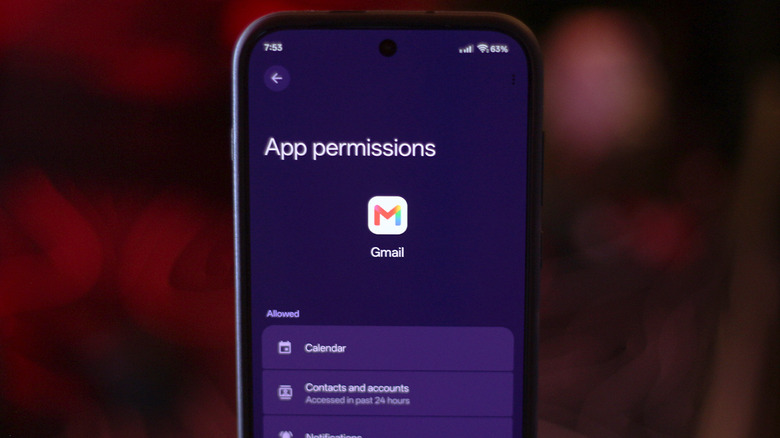

App permission settings on Android.
Adnan Ahmed for Engadget

Android’s privacy features have improved considerably over the years, and like iOS, you can view and manage permissions on a per-app basis. While the exact menu labels will vary depending on the manufacturer, you should be able to find detailed information on which apps have access to your camera, microphone, location, contacts and other data very easily.

The easiest way to revoke a specific app’s permissions is to open its App info page. You can get there by long-tapping the app’s icon and selecting the i icon. Alternatively, navigate to Settings > Apps > See all apps and select the app from the list. Tap on Permissions, select a data type and choose Allow or Don’t allow. Some device permissions, like location, let you set the access type to All the time or Allow only while using the app.

Android also offers the Privacy dashboard, which lets you view different permission types and which apps have accessed them in the past 24 hours. Once again, the exact steps to get to this menu will vary. Try looking for this feature in the Security and privacy submenu in the Settings app, or type it into the search box.

Android apps must ask for device permissions when you first launch them, and you can either allow or deny these requests. Both the Play Store and the App Store also list what information an app may request access to, giving you another way to review permissions before installing it.

Credit: Source link

ShareTweetSendSharePin

Related Posts

Cat Wu Steps Down as Claude Code Product Chief After Two Years – Unite.AI
AI & Technology

Cat Wu Steps Down as Claude Code Product Chief After Two Years – Unite.AI

November 4, 2026
iPad Mini OLED Vs. iPad Mini: What’s New?
AI & Technology

iPad Mini OLED Vs. iPad Mini: What’s New?

November 4, 2026
Docusign Buys Suplari to Add AI Procurement Intelligence – Unite.AI
AI & Technology

Docusign Buys Suplari to Add AI Procurement Intelligence – Unite.AI

November 4, 2026
Ouster Revenue Rises 50% as Physical AI Sensor Shipments Set Record – Unite.AI
AI & Technology

Ouster Revenue Rises 50% as Physical AI Sensor Shipments Set Record – Unite.AI

November 3, 2026
Next Post
iPad Mini OLED Vs. iPad Mini: What’s New?

iPad Mini OLED Vs. iPad Mini: What's New?

Leave a Reply Cancel reply

Your email address will not be published. Required fields are marked *

Search

No Result
View All Result
Power On: How Will a Touchscreen MacBook Impact the iPad?

Power On: How Will a Touchscreen MacBook Impact the iPad?

November 2, 2026
DHS Sec. Mullin: ‘I’m not sorry’ on continuing enforcement following ICE shooting in NYC

DHS Sec. Mullin: ‘I’m not sorry’ on continuing enforcement following ICE shooting in NYC

October 28, 2026
Coach Carl

Coach Carl

November 2, 2026

About

Learn more

Our Services

Legal

Privacy Policy

Terms of Use

Bloggers

Learn more

Article Links

Contact

Advertise

Ask us anything

©2020- TradePoint.io - All rights reserved!

Tradepoint.io, being just a publishing and technology platform, is not a registered broker-dealer or investment adviser. So we do not provide investment advice. Rather, brokerage services are provided to clients of Tradepoint.io by independent SEC-registered broker-dealers and members of FINRA/SIPC. Every form of investing carries some risk and past performance is not a guarantee of future results. “Tradepoint.io“, “Instant Investing” and “My Trading Tools” are registered trademarks of Apperbuild, LLC.

This website is operated by Apperbuild, LLC. We have no link to any brokerage firm and we do not provide investment advice. Every information and resource we provide is solely for the education of our readers. © 2020 Apperbuild, LLC. All rights reserved.

No Result
View All Result
  • Main
  • AI & Technology
  • Stock Charts
  • Market & News
  • Business
  • Finance Tips
  • Trade Tube
  • Blog
  • Shop

© 2023 - TradePoint.io - All Rights Reserved!