




























• bitcoinBitcoin(BTC)$81,622.00-0.97%
  • ethereumEthereum(ETH)$2,392.96-1.30%
  • tetherTether(USDT)$1.00-0.01%
  • binancecoinBNB(BNB)$727.920.25%
  • rippleXRP(XRP)$1.30-0.91%
  • usd-coinUSDC(USDC)$1.000.01%
  • solanaSolana(SOL)$104.64-0.32%
  • tronTRON(TRX)$0.331511-0.24%
  • Figure HelocFigure Heloc(FIGR_HELOC)$1.020.00%
  • zcashZcash(ZEC)$1,141.34-2.67%
  • HyperliquidHyperliquid(HYPE)$78.83-0.32%
  • dogecoinDogecoin(DOGE)$0.079137-0.87%
  • moneroMonero(XMR)$601.950.58%
  • USDSUSDS(USDS)$1.000.01%
  • whitebitWhiteBIT Coin(WBT)$79.77-1.03%
  • chainlinkChainlink(LINK)$11.94-2.04%
  • leo-tokenLEO Token(LEO)$9.02-0.22%
  • cardanoCardano(ADA)$0.216436-2.41%
  • nearNEAR Protocol(NEAR)$4.84-4.49%
  • stellarStellar(XLM)$0.176558-1.13%
  • RainRain(RAIN)$0.008753-6.27%
  • bitcoin-cashBitcoin Cash(BCH)$278.900.57%
  • Ethena USDeEthena USDe(USDE)$1.000.00%
  • litecoinLitecoin(LTC)$59.28-0.09%
  • uniswapUniswap(UNI)$7.25-0.34%
  • daiDai(DAI)$1.000.01%
  • avalanche-2Avalanche(AVAX)$9.51-2.72%
  • CantonCanton(CC)$0.1056383.20%
  • suiSui(SUI)$0.99-1.33%
  • USD1USD1(USD1)$1.00-0.05%
  • the-open-networkGram (prev. Toncoin)(GRAM)$1.350.51%
  • hedera-hashgraphHedera(HBAR)$0.082802-1.54%
  • tether-goldTether Gold(XAUT)$4,126.77-0.99%
  • Global DollarGlobal Dollar(USDG)$1.000.00%
  • BittensorBittensor(TAO)$266.07-2.21%
  • BitwayBitway(BTW)$1.97-15.42%
  • shiba-inuShiba Inu(SHIB)$0.000005-0.34%
  • crypto-com-chainCronos(CRO)$0.0570510.25%
  • paypal-usdPayPal USD(PYUSD)$1.000.03%
  • quant-networkQuant(QNT)$194.410.46%
  • EthenaEthena(ENA)$0.187956-2.30%
  • Ripple USDRipple USD(RLUSD)$1.00-0.01%
  • okbOKB(OKB)$114.02-0.09%
  • Circle USYCCircle USYC(USYC)$1.140.01%
  • Ondo US Dollar YieldOndo US Dollar Yield(USDY)$1.150.10%
  • aaveAave(AAVE)$148.62-2.96%
  • BlackRock USD Institutional Digital Liquidity FundBlackRock USD Institutional Digital Liquidity Fund(BUIDL)$1.000.00%
  • OndoOndo(ONDO)$0.432863-1.02%
  • worldcoin-wldWorldcoin(WLD)$0.538.52%
  • Pump.funPump.fun(PUMP)$0.0044002.64%
TradePoint.io
  • Main
  • AI & Technology
  • Stock Charts
  • Market & News
  • Business
  • Finance Tips
  • Trade Tube
  • Blog
  • Shop
No Result
View All Result
TradePoint.io
No Result
View All Result

What Can You Use The HDMI Port On Your Ugreen NAS For?

October 19, 2026
in AI & Technology
Reading Time: 3 mins read
A A
What Can You Use The HDMI Port On Your Ugreen NAS For?
ShareShareShareShareShare

You can use it to watch media files on the device, but you’ll need to use your phone as a remote.


Ugreen

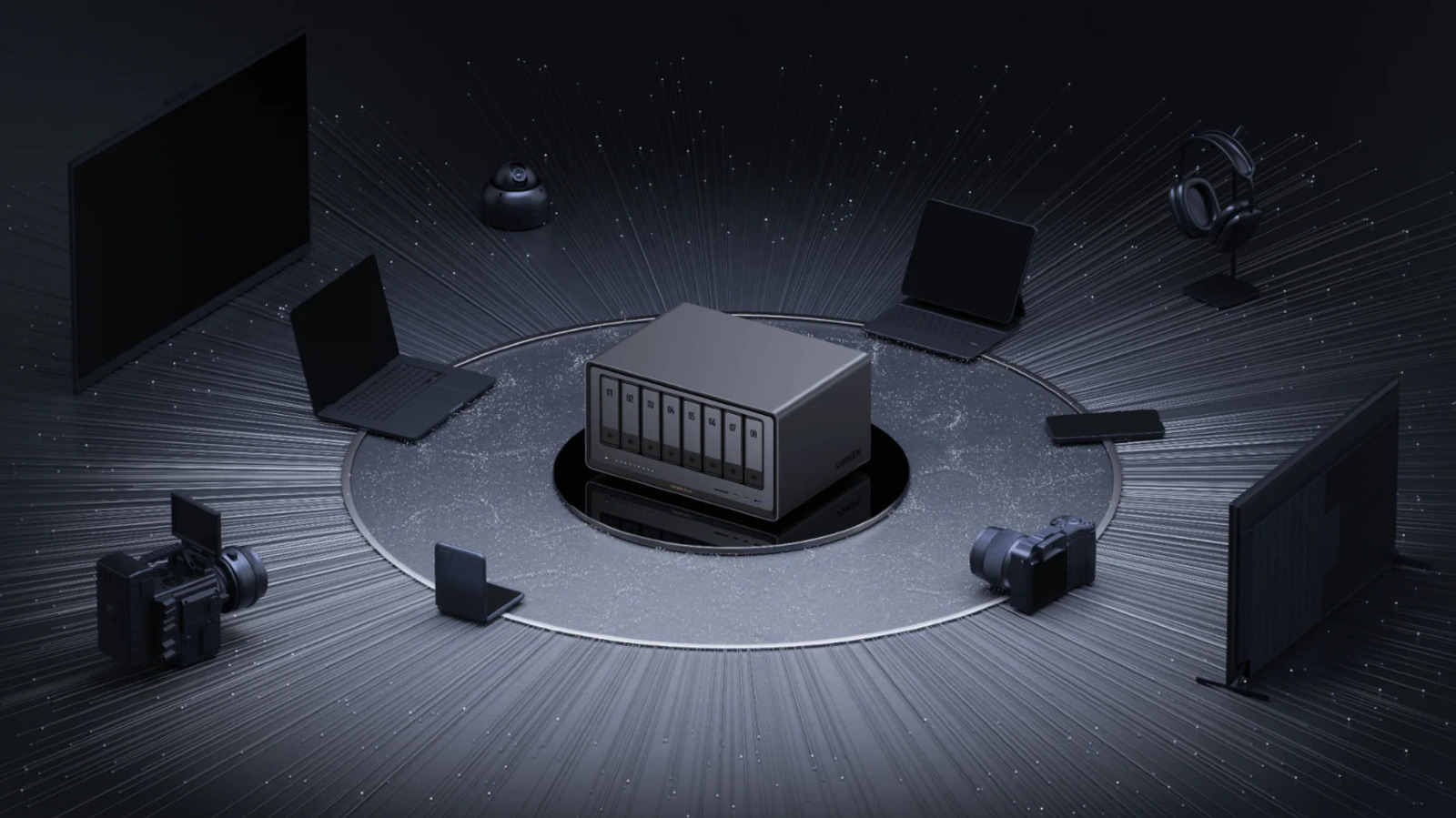
Setting up a network-attached storage server is a great way to access your files remotely without paying cloud storage fees. Among the most popular are Ugreen NAS units, which include an HDMI port that some users have found a bit baffling. Since the whole point of a NAS is to connect to them through the internet, it might seem a little strange to set one up and discover an HDMI port on the back, but it actually serves a few helpful functions.

YOU MAY ALSO LIKE

Cloudflare Releases Clairic, Its First System One Extraction Model – Unite.AI

Fal Debuts FLUX 3 Max Video Model Post-Trained With Black Forest Labs – Unite.AI

While any NAS server with an HDMI port offers broadly the same functions, the specifics for how to use them might be a little different. Ugreen NAS servers come with a few quirks of their own that can make using their HDMI ports a bit confusing, but they’re easy to navigate once you know what you’re doing. Getting to know the tricks for how to use your NAS’ HDMI port before you need them is a good idea because it’s useful for more than just accessing your files.

Connecting the NAS to an external monitor

The most straightforward use of a Ugreen NAS’ HDMI port is to watch media files stored on the device. It’s more common to stream from a NAS to a smart TV or a device like a Roku Streaming Stick, but using the HDMI port means you can get by without either of those options, or even connect the NAS to a PC monitor or projector. Unfortunately, it’s not quite as easy as connecting the NAS like you would any other device.

When you connect a Ugreen NAS to your screen via HDMI, it should display a notice telling you that you need to use the Ugreen phone app to actually play your media. On the app, you’ll see an option to cast your media to the screen using the HDMI cable. At this point, you can use the app as a remote to control playback. It’s a bit of a hassle to have to use an app when you’re already connected via HDMI, but since there’s no physical remote for your NAS, it’s the only way to actually navigate and play from your library.

Accessing the BIOS and terminal

The HDMI port also enables a few more advanced features. If you have both a screen and a keyboard connected, you’ll be able to access both the device’s BIOS and a terminal. You might never have to mess with either of these options, but they’re necessary if you want to replace the server’s operating system, troubleshoot boot issues or change advanced settings without a remote SSH connection.

To access the BIOS, boot up your NAS with a screen connected. As soon as startup begins, repeatedly press the Ctrl and F12 keys together and you should enter the BIOS setup screen. From here, you can navigate the BIOS screen using the keyboard. If you plan to change BIOS settings, you should start by searching for an option under the Advanced tab called Watchdog Settings and disable Watch Dog Control. With this enabled, the NAS will reboot after a set amount of time.

While it’s not officially documented, Ugreen NAS users online have reported that it’s possible to access the server’s terminal via HDMI as well. With a screen and keyboard connected, press Ctrl Alt F1, which should bring up the terminal, though different models of NAS may use different function keys. By default, the way to access a Ugreen NAS terminal is through an SSH client on another computer connected to your local network, so accessing the terminal directly from the NAS can be a simpler option. Either way you access it, you should only change settings in the terminal if you’re sure you know what you’re doing, as the advanced settings there can cause a lot of hard-to-fix problems if you’re not careful.

Credit: Source link

ShareTweetSendSharePin

Related Posts

Cloudflare Releases Clairic, Its First System One Extraction Model – Unite.AI
AI & Technology

Cloudflare Releases Clairic, Its First System One Extraction Model – Unite.AI

October 19, 2026
Fal Debuts FLUX 3 Max Video Model Post-Trained With Black Forest Labs – Unite.AI
AI & Technology

Fal Debuts FLUX 3 Max Video Model Post-Trained With Black Forest Labs – Unite.AI

October 19, 2026
Dream Labs Raises M Seed to Bring Robot AI Across Different Machines – Unite.AI
AI & Technology

Dream Labs Raises $90M Seed to Bring Robot AI Across Different Machines – Unite.AI

October 19, 2026
Here’s How We Would Build Out The Perfect Modular Electric Slate Truck
AI & Technology

Here’s How We Would Build Out The Perfect Modular Electric Slate Truck

October 19, 2026
Next Post
Australian prime minister says lawmaker critically injured by car is ‘no accident’ – AP News

Australian prime minister says lawmaker critically injured by car is ‘no accident’ - AP News

Leave a Reply Cancel reply

Your email address will not be published. Required fields are marked *

Search

No Result
View All Result
Here’s How We Would Build Out The Perfect Modular Electric Slate Truck

Here’s How We Would Build Out The Perfect Modular Electric Slate Truck

October 19, 2026
Morning News NOW Full Episode – Sept. 14

Morning News NOW Full Episode – Sept. 14

October 15, 2026
The Invisible Rules of Time | Choiceology Podcast Clip

The Invisible Rules of Time | Choiceology Podcast Clip

October 19, 2026

About

Learn more

Our Services

Legal

Privacy Policy

Terms of Use

Bloggers

Learn more

Article Links

Contact

Advertise

Ask us anything

©2020- TradePoint.io - All rights reserved!

Tradepoint.io, being just a publishing and technology platform, is not a registered broker-dealer or investment adviser. So we do not provide investment advice. Rather, brokerage services are provided to clients of Tradepoint.io by independent SEC-registered broker-dealers and members of FINRA/SIPC. Every form of investing carries some risk and past performance is not a guarantee of future results. “Tradepoint.io“, “Instant Investing” and “My Trading Tools” are registered trademarks of Apperbuild, LLC.

This website is operated by Apperbuild, LLC. We have no link to any brokerage firm and we do not provide investment advice. Every information and resource we provide is solely for the education of our readers. © 2020 Apperbuild, LLC. All rights reserved.

No Result
View All Result
  • Main
  • AI & Technology
  • Stock Charts
  • Market & News
  • Business
  • Finance Tips
  • Trade Tube
  • Blog
  • Shop

© 2023 - TradePoint.io - All Rights Reserved!