







































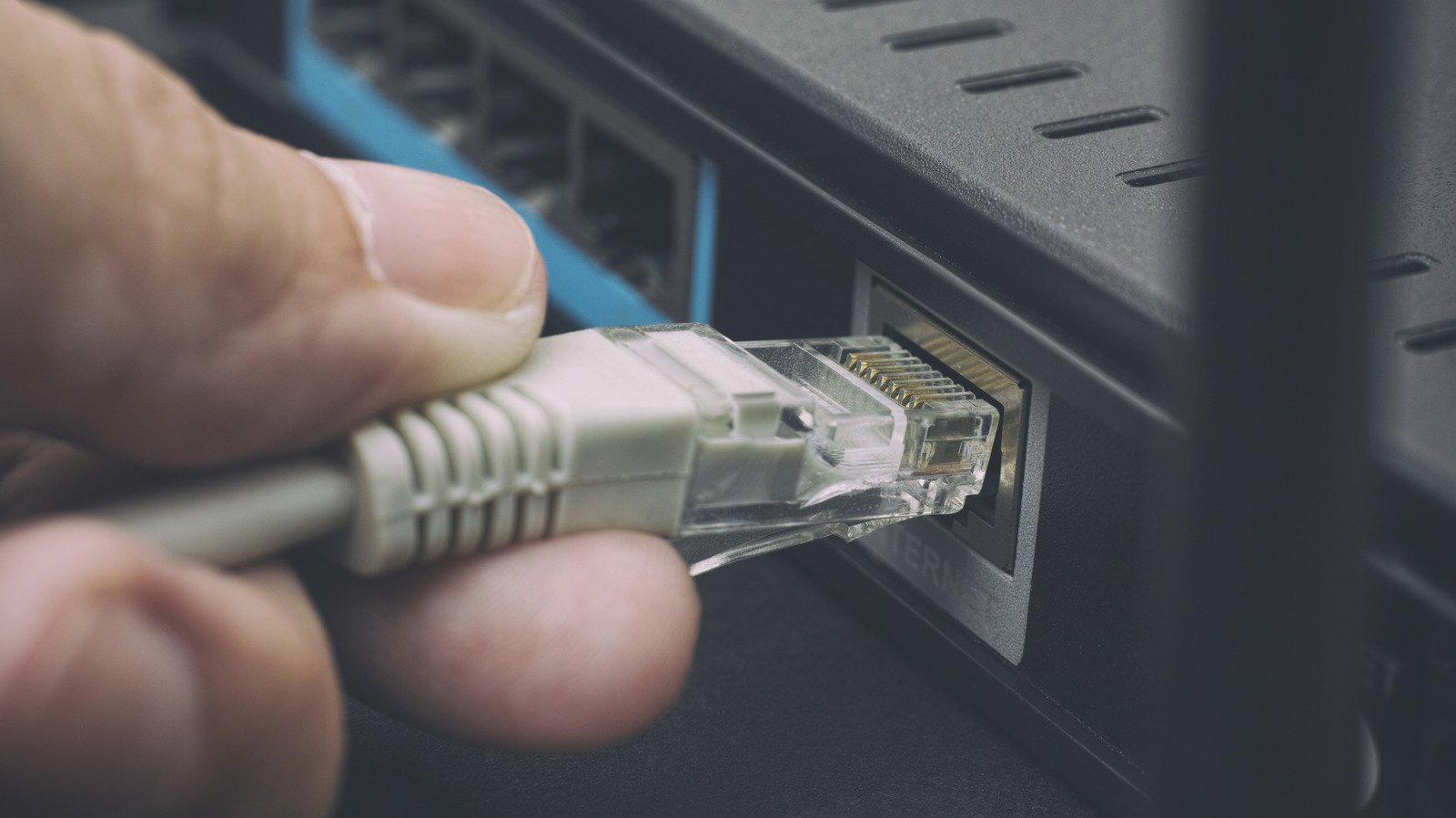

Your router has several Ethernet ports, but they might not all be for the same purpose.
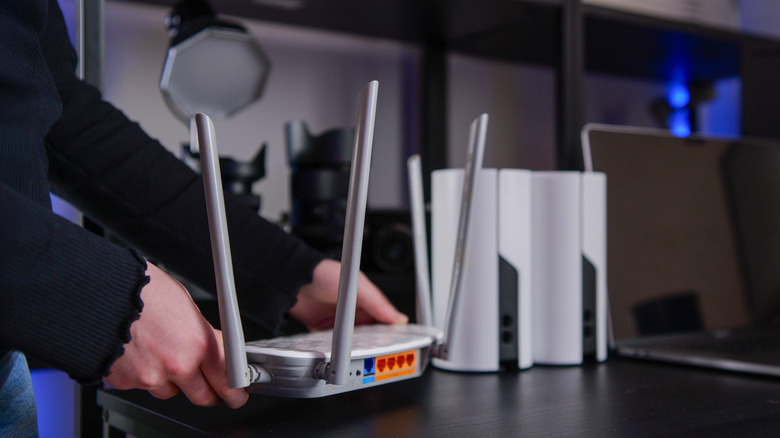
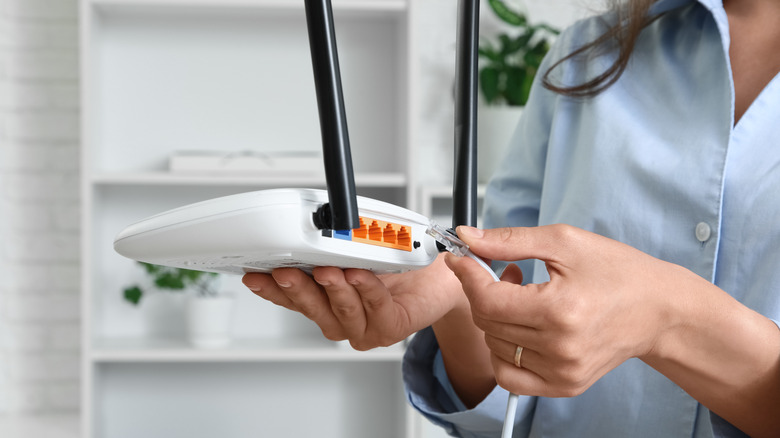
The Ethernet ports on the back of your router might seem interchangeable. On some routers they are, but others feature a mix of ports with different jobs and maximum speeds. One may connect the router to your modem or fiber terminal, while the others provide a wired connection for PCs, consoles and other devices around your home.
Deciding on the right port depends first on what you’re plugging in, then on how fast the devices at both ends can communicate. Start with WAN versus LAN; speed comes after that.
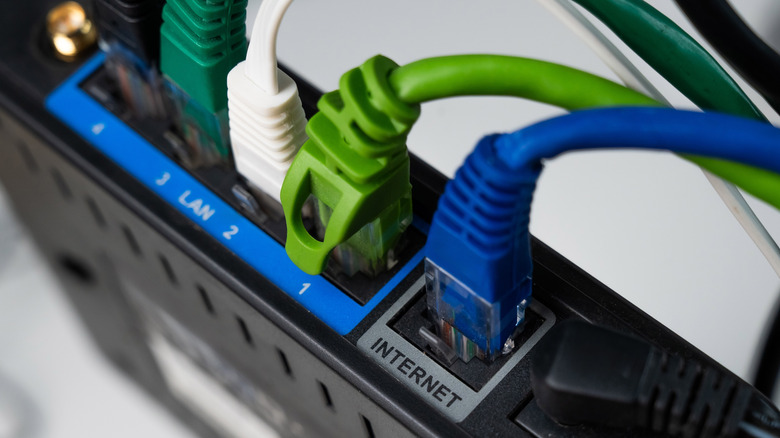
Start with the WAN or Internet port
If your router connects to a separate modem or optical network terminal (ONT), the Ethernet cable from that device normally plugs into the router’s WAN or Internet port. WAN stands for wide area network; here, it is the router’s connection to your internet service. For router/modem combo units, you won’t need this connection since one device performs both functions.
The other Ethernet connections are generally LAN (local area network) ports. These are where you connect devices inside your home, such as a desktop PC, game console, smart TV or network-attached storage (NAS). Four LAN ports don’t give the router four separate internet connections; they let you connect up to four wired devices directly (rather than using wireless connections).
Not every router uses that exact arrangement. Some have ports marked WAN/LAN that can perform either job, while other models use auto-sensing Ethernet ports instead of a dedicated WAN jack. If your router doesn’t clearly identify one port for an Internet or WAN connection, its setup guide or specifications should tell you which port to use.
The number of LAN ports you need depends on how many devices you want to wire directly to the router. If you run out, an Ethernet switch can add more connections without requiring another router. Much like an HDMI switch, these plug into one of the LAN ports on your router and provide additional ports for other devices. You might need more than you’d think, given there are ways to use wired Ethernet without running long cables.
Not every LAN port on a router offers the same speed
Once you’re considering the LAN side, the next question is speed. Some routers feature identical LAN ports, while others (like the Netgear Orbi 870) mix gigabit and multi-gigabit connections on the same device.
Labels such as 1G, 2.5G, 5G and 10G refer to maximum link speeds of 1Gbps, 2.5Gbps, 5Gbps and 10Gbps. A manual or specification sheet may instead use Ethernet standard names such as 1000BASE-T for 1Gbps, 2.5GBASE-T for 2.5Gbps or 10GBASE-T for 10Gbps.
For example, the TP-Link Archer BE900 shows why checking matters. It has four 2.5Gbps LAN ports as well as 10Gbps connections that can handle either WAN or LAN duties. There is no general rule that port 1 will be faster than port 4 simply because of its position or number.
If all your router’s LAN ports support the same speed and none has a special function, moving a device to a different one generally won’t make the connection faster. The choice starts to matter when the ports have different speed ratings or roles.
A faster Ethernet port won’t make a slower device faster
A 10Gbps port doesn’t automatically give every device plugged into it a 10Gbps connection. The rest of the Ethernet hardware has to support the faster speed as well.
If your computer has a 1Gbps Ethernet adapter, connecting it to a faster multi-gigabit router port doesn’t upgrade what your computer offers. Copper Ethernet hardware typically uses auto-negotiation to determine a link configuration supported by both ends. The practical result is simple: a 1Gbps device can’t become 2.5Gbps-compatible just because the router port is faster.
The reverse applies as well. Upon connecting a computer with 2.5Gbps Ethernet to a 1Gbps LAN port, the slower port becomes the limiting factor. To establish a faster link, the router port, the Ethernet interface on the connected device and the cable between them all have to support the higher standard.
Cable names can cause some confusion here. Cat5e, Cat6 and Cat6A are cable categories, not router port speeds, so there is no such thing as choosing a “Cat6 port” on the router. The cable category, quality, length and installation can all affect which Ethernet speeds a setup will reliably support.
Your internet plan isn’t necessarily the limit for everything you do over Ethernet, either. Two devices communicating inside your home (on a LAN) don’t need to send that traffic through your internet connection. A PC and network-attached storage device connected over 2.5Gbps Ethernet, for example, can transfer files across the local network at speeds far faster than your broadband connection likely supports.
Before plugging a device into your router, check the port’s label, what speed the device supports and which Ethernet cable you’re using. If every LAN port on your router is identical, the choice usually doesn’t matter. If they aren’t, use the fastest compatible port where the extra bandwidth will actually be useful. Check the router’s manual for any manufacturer-specific functions.
Credit: Source link