


























• bitcoinBitcoin(BTC)$70,453.00-2.77%
  • ethereumEthereum(ETH)$2,064.27-3.03%
  • tetherTether(USDT)$1.00-0.01%
  • binancecoinBNB(BNB)$650.59-2.50%
  • rippleXRP(XRP)$1.39-3.08%
  • usd-coinUSDC(USDC)$1.000.00%
  • solanaSolana(SOL)$86.66-3.54%
  • tronTRON(TRX)$0.2940131.62%
  • Figure HelocFigure Heloc(FIGR_HELOC)$1.021.40%
  • dogecoinDogecoin(DOGE)$0.094148-4.76%
  • whitebitWhiteBIT Coin(WBT)$55.09-2.75%
  • USDSUSDS(USDS)$1.00-0.02%
  • cardanoCardano(ADA)$0.259716-5.51%
  • bitcoin-cashBitcoin Cash(BCH)$455.08-3.14%
  • HyperliquidHyperliquid(HYPE)$36.75-1.65%
  • leo-tokenLEO Token(LEO)$9.06-0.02%
  • moneroMonero(XMR)$361.200.45%
  • chainlinkChainlink(LINK)$8.93-3.89%
  • Ethena USDeEthena USDe(USDE)$1.00-0.03%
  • CantonCanton(CC)$0.1531195.17%
  • stellarStellar(XLM)$0.162415-1.71%
  • USD1USD1(USD1)$1.00-0.17%
  • daiDai(DAI)$1.00-0.05%
  • RainRain(RAIN)$0.008919-1.18%
  • litecoinLitecoin(LTC)$54.45-2.65%
  • avalanche-2Avalanche(AVAX)$9.55-4.40%
  • paypal-usdPayPal USD(PYUSD)$1.00-0.01%
  • hedera-hashgraphHedera(HBAR)$0.092678-5.26%
  • suiSui(SUI)$0.98-6.26%
  • shiba-inuShiba Inu(SHIB)$0.000006-3.28%
  • zcashZcash(ZEC)$207.66-4.31%
  • the-open-networkToncoin(TON)$1.30-0.16%
  • crypto-com-chainCronos(CRO)$0.076758-0.71%
  • World Liberty FinancialWorld Liberty Financial(WLFI)$0.103070-1.59%
  • tether-goldTether Gold(XAUT)$4,998.08-1.16%
  • MemeCoreMemeCore(M)$1.525.18%
  • pax-goldPAX Gold(PAXG)$5,030.36-1.15%
  • uniswapUniswap(UNI)$3.91-4.55%
  • polkadotPolkadot(DOT)$1.43-6.16%
  • mantleMantle(MNT)$0.71-2.05%
  • Circle USYCCircle USYC(USYC)$1.120.00%
  • BittensorBittensor(TAO)$234.43-2.32%
  • Pi NetworkPi Network(PI)$0.207285-23.80%
  • BlackRock USD Institutional Digital Liquidity FundBlackRock USD Institutional Digital Liquidity Fund(BUIDL)$1.000.00%
  • okbOKB(OKB)$93.46-1.98%
  • Global DollarGlobal Dollar(USDG)$1.00-0.01%
  • SkySky(SKY)$0.076291-7.87%
  • Falcon USDFalcon USD(USDF)$1.00-0.05%
  • AsterAster(ASTER)$0.69-2.78%
  • nearNEAR Protocol(NEAR)$1.31-3.46%
TradePoint.io
  • Main
  • AI & Technology
  • Stock Charts
  • Market & News
  • Business
  • Finance Tips
  • Trade Tube
  • Blog
  • Shop
No Result
View All Result
TradePoint.io
No Result
View All Result

Visual Studio Code Setup Guide

March 10, 2025
in AI & Technology
Reading Time: 11 mins read
A A
Visual Studio Code Setup Guide
ShareShareShareShareShare


Visual Studio Code (VSCode) is a lightweight but powerful source code editor that runs on your desktop. It comes with built-in support for JavaScript, TypeScript, and Node.js and has a rich ecosystem of extensions for other languages and tools.

Table of Contents

  1. Installation
  2. First Launch and Interface Overview
  3. Essential Settings
  4. Extensions
  5. Workspace Setup
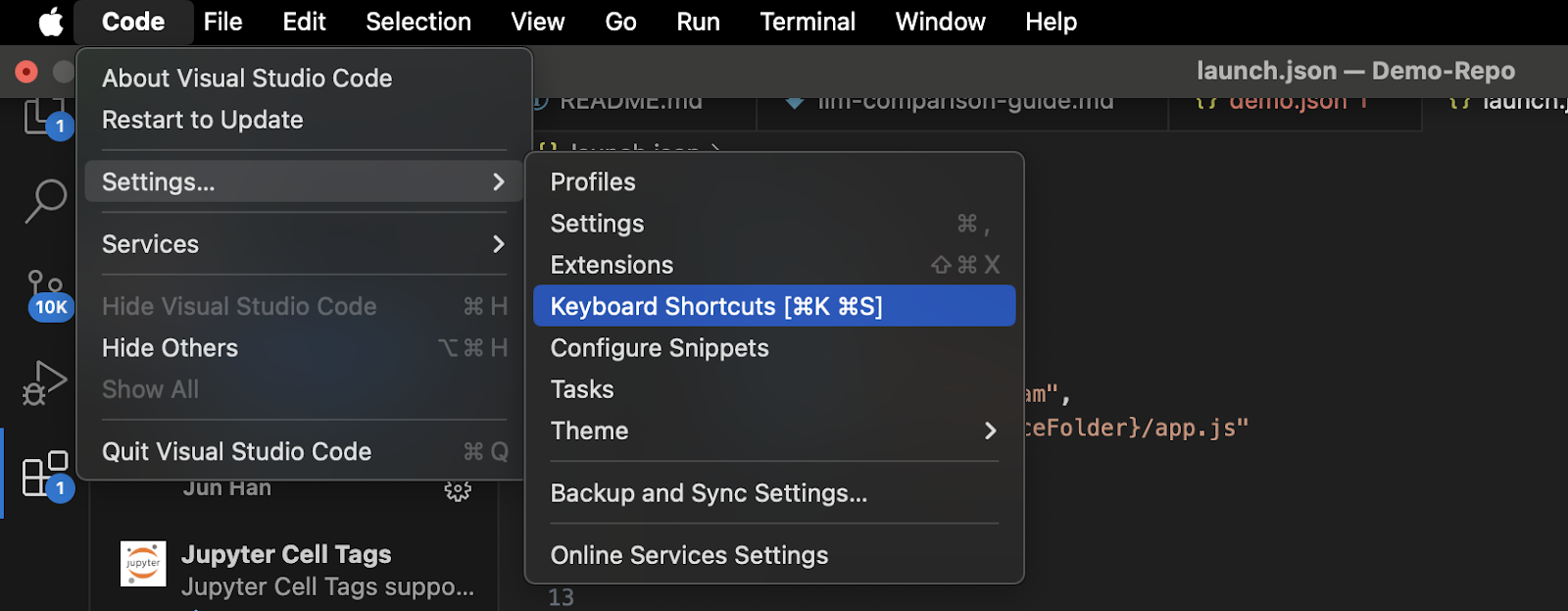
  6. Keyboard Shortcuts
  7. Integrated Terminal
  8. Source Control Integration
  9. Debugging
  10. Additional Resources

Installation

Windows

  1. Visit the VSCode download page
  2. Click on the Windows download button
  3. Run the installer (.exe file)
  4. Follow the installation wizard
  5. Check the options to:
    • Create a desktop icon
    • Add “Open with Code” to Windows Explorer context menu
    • Register Code as an editor for supported file types

macOS

  1. Visit the VSCode download page
  2. Click on the Mac download button
  3. Open the downloaded .zip file
  4. Drag Visual Studio Code.app to the Applications folder
  5. Optional: Add VSCode to your Dock

Linux

  1. Visit the VSCode download page
  2. Choose the appropriate package for your distribution (.deb, .rpm, etc.)
  3. For Debian/Ubuntu:
  1. For Red Hat/Fedora:

First Launch and Interface Overview

When you first open VSCode, you’ll see:

YOU MAY ALSO LIKE

OpenAI reportedly plans to add Sora video generation to ChatGPT

Meta is bringing more international news to its AI

  1. Welcome Page: Contains quick links to common commands and recent projects
  2. Activity Bar: Left sidebar with icons for different views:
    • Explorer: File browser
    • Search: Find and replace
    • Source Control: Git integration
    • Run and Debug: Debug panel
    • Extensions: Manage extensions
  3. Status Bar: Bottom bar showing information about the current file and editor
  4. Editor Area: Main coding area (can be split into multiple editors)
  5. Panel: Bottom panel that can show terminal, output, problems, etc.

Essential Settings

Access settings by:

  • Windows/Linux: File > Preferences > Settings
  • macOS: Code > Preferences > Settings

Recommended settings to consider:

  1. Theme:
    • File > Preferences > Color Theme (or Ctrl+K Ctrl+T)
    • Popular choices: Dark+, Light+, Monokai, Solarized
  2. Font:
  1. Auto Save:
  1. Tab Size:
  1. Formatting:

Extensions

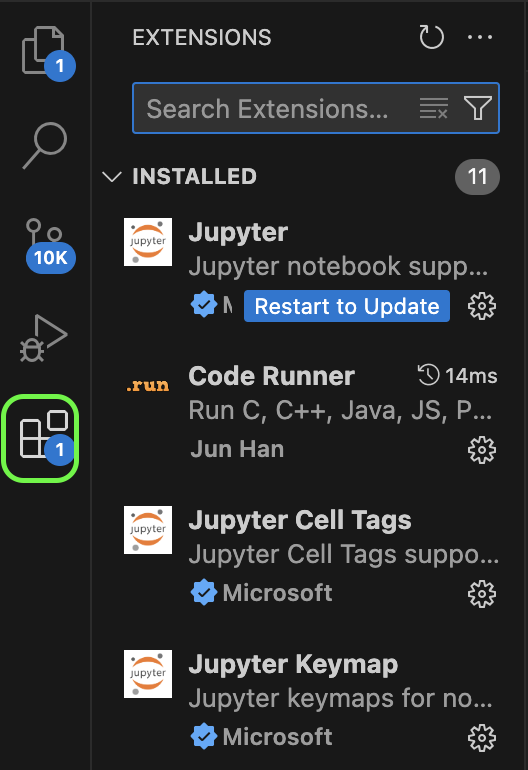
VSCode’s power comes from its extensions. To install extensions:

  1. Click the Extensions icon in the Activity Bar (or press Ctrl+Shift+X)
  2. Search for extensions by name
  3. Click Install

Essential extensions by category:

General

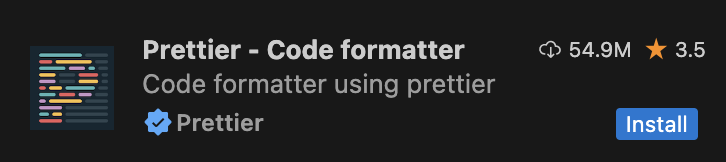
  • Prettier – Code formatter: Consistent code formatting
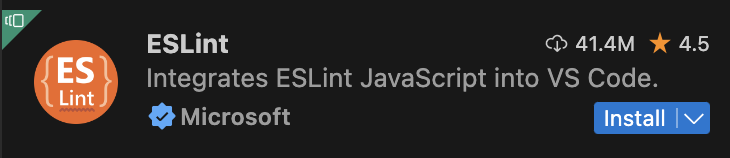
  • ESLint: JavaScript linting
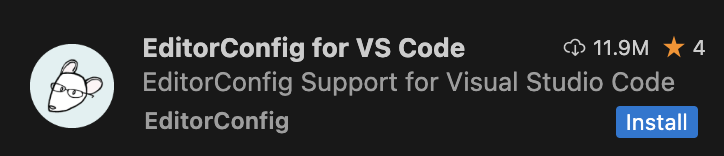
  • EditorConfig: Maintain consistent coding styles
Languages

  • Python: Full Python support
  • C/C++: C and C++ intellisense, debugging

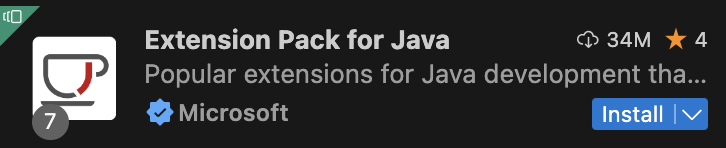
  • Java Extension Pack: Java development tools
  • JavaScript (ES6) code snippets: Snippets for JavaScript

Themes

  • Material Theme: Popular theme pack
  • One Dark Pro: Atom’s iconic theme

Productivity

  • GitLens: Supercharge Git capabilities
  • Live Share: Collaborative editing
  • Path Intellisense: Autocomplete filenames

Workspace Setup

A workspace in VSCode represents one or more folders that are opened in an editor window.

  1. Open a folder: File > Open Folder (Ctrl+K Ctrl+O)
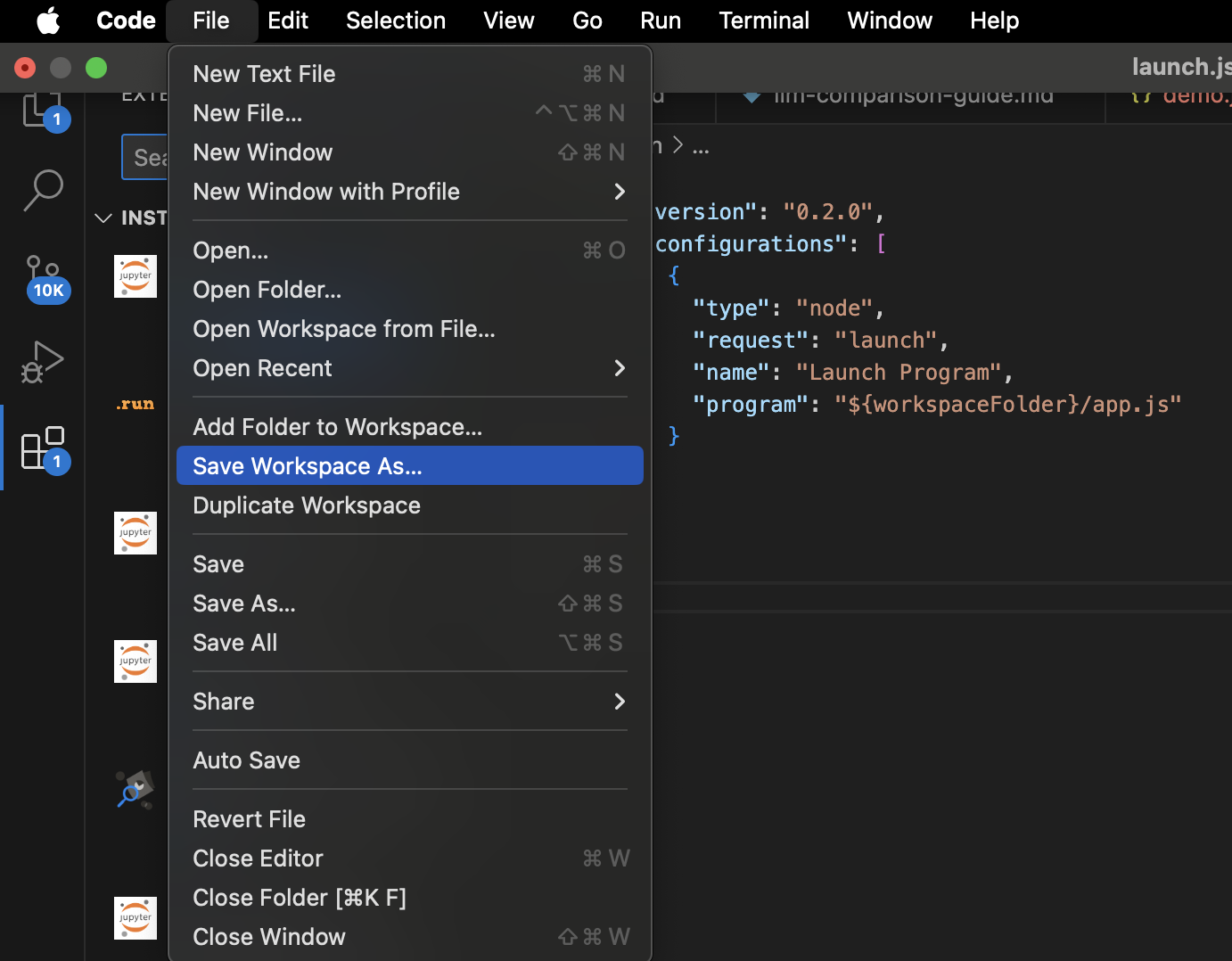
  2. Save workspace: File > Save Workspace As…
  1. Workspace settings: Create a .vscode folder in your project with:
    • settings.json: Project-specific settings
    • launch.json: Debugging configurations
    • tasks.json: Build task configurations
    • extensions.json: Recommended extensions

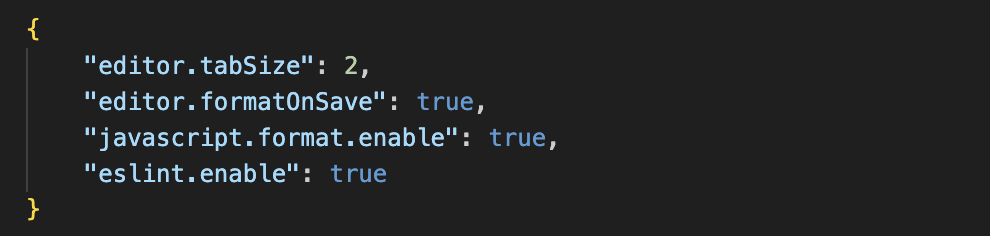
Example settings.json for a JavaScript project:
Keyboard Shortcuts

VSCode has many keyboard shortcuts. Here are the most essential ones:

  • Ctrl+P: Quick Open, Go to File
  • Ctrl+Shift+P: Show Command Palette
  • Ctrl+Space: Trigger suggestion
  • F12: Go to Definition
  • Alt+F12: Peek Definition
  • Shift+Alt+F: Format document
  • F5: Start debugging
  • Ctrl+`: Toggle terminal
  • Ctrl+B: Toggle sidebar
  • Ctrl+/: Toggle line comment
  • Ctrl+K Ctrl+C: Add line comment
  • Ctrl+K Ctrl+U: Remove line comment

Integrated Terminal

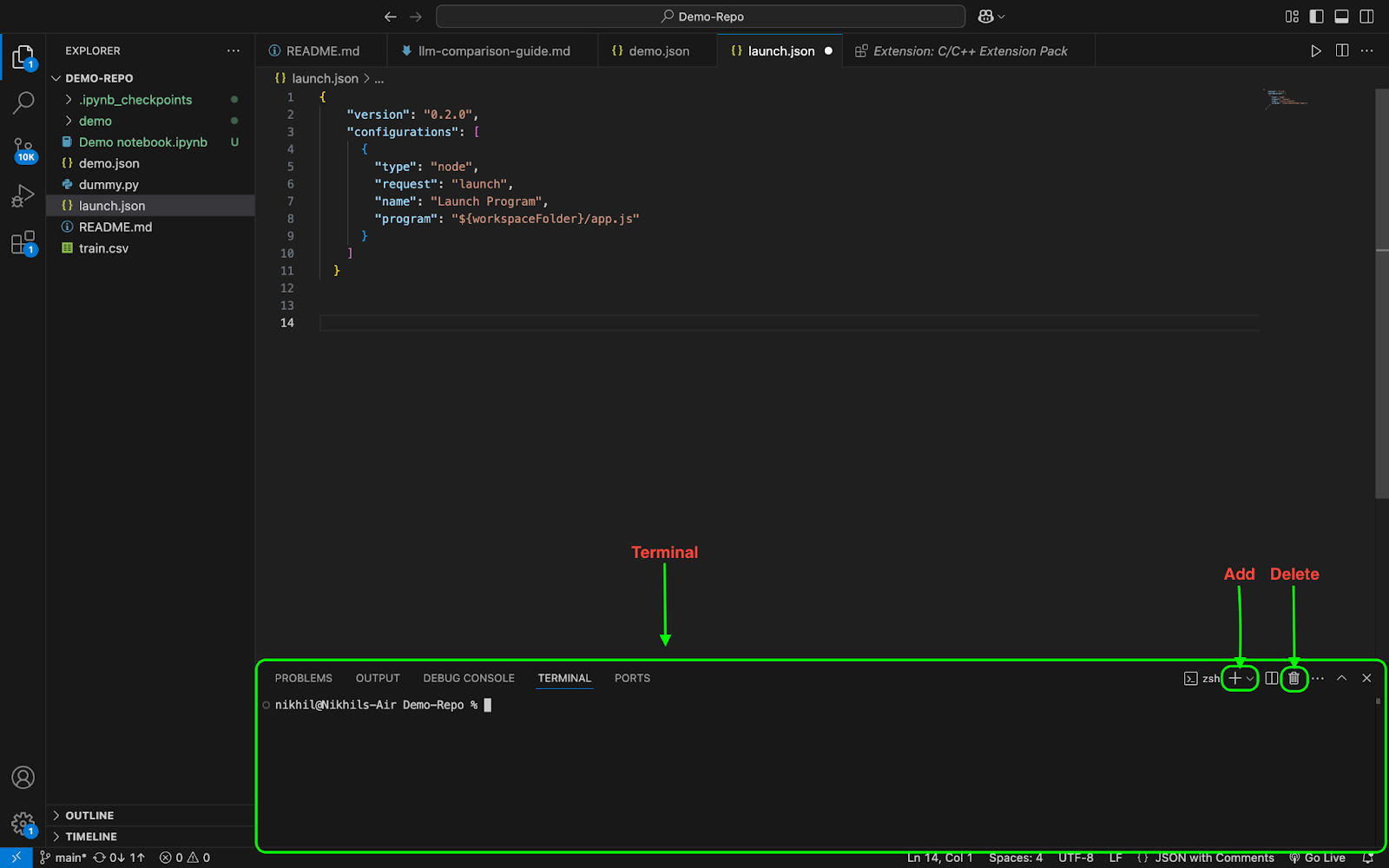
VSCode includes an integrated terminal:

  1. Open terminal: View > Terminal
  2. Multiple terminals: Click the plus icon
  3. Switch terminals: Use the dropdown

Source Control Integration

VSCode has built-in Git support:

  1. Initialize repository: Click the Source Control icon and “Initialize Repository”
  2. Stage changes: Click the + next to modified files
  3. Commit changes: Enter a message and press Ctrl+Enter
  4. Push/Pull: Use the ellipsis menu (…) for additional Git commands
  5. Visual diff: Click on a modified file to see changes

Debugging

Set up debugging for your project:

  1. Create a launch configuration:
    • Click the Run and Debug icon
    • Click “create a launch.json file”
    • Select your environment
  2. Set breakpoints: Click in the gutter next to line numbers
  3. Start debugging: Press F5
  4. Use debug controls: Continue, Step Over, Step Into, Step Out
  5. Watch variables: Add expressions to the Watch panel

Additional Resources


Nikhil is an intern consultant at Marktechpost. He is pursuing an integrated dual degree in Materials at the Indian Institute of Technology, Kharagpur. Nikhil is an AI/ML enthusiast who is always researching applications in fields like biomaterials and biomedical science. With a strong background in Material Science, he is exploring new advancements and creating opportunities to contribute.

Parlant: Build Reliable AI Customer Facing Agents with LLMs 💬 ✅ (Promoted)


Previous articleUnderstanding Generalization in Deep Learning: Beyond the Mysteries
Next articleRevolutionizing Code Generation: µCODE’s Single-Step Approach to Multi-Turn Feedback


Credit: Source link

ShareTweetSendSharePin

Related Posts

OpenAI reportedly plans to add Sora video generation to ChatGPT
AI & Technology

OpenAI reportedly plans to add Sora video generation to ChatGPT

March 13, 2026
Meta is bringing more international news to its AI
AI & Technology

Meta is bringing more international news to its AI

March 13, 2026
Adobe agrees to pay settlement for making its subscriptions hard to cancel
AI & Technology

Adobe agrees to pay settlement for making its subscriptions hard to cancel

March 13, 2026
Nothing updates its AI app with semantic search and a new way to track events
AI & Technology

Nothing updates its AI app with semantic search and a new way to track events

March 13, 2026
Next Post
Revolutionizing Code Generation: µCODE’s Single-Step Approach to Multi-Turn Feedback

Revolutionizing Code Generation: µCODE’s Single-Step Approach to Multi-Turn Feedback

Leave a Reply Cancel reply

Your email address will not be published. Required fields are marked *

Search

No Result
View All Result
Small businesses that successfully sued over Trump tariffs relaunch fight against new levies

Small businesses that successfully sued over Trump tariffs relaunch fight against new levies

March 9, 2026
Missing Florida man found alive in ‘quick sand’

Missing Florida man found alive in ‘quick sand’

March 10, 2026
Ro Khanna urges Trump to testify ‘voluntarily’ in Epstein probe after Bill Clinton did

Ro Khanna urges Trump to testify ‘voluntarily’ in Epstein probe after Bill Clinton did

March 8, 2026

About

Learn more

Our Services

Legal

Privacy Policy

Terms of Use

Bloggers

Learn more

Article Links

Contact

Advertise

Ask us anything

©2020- TradePoint.io - All rights reserved!

Tradepoint.io, being just a publishing and technology platform, is not a registered broker-dealer or investment adviser. So we do not provide investment advice. Rather, brokerage services are provided to clients of Tradepoint.io by independent SEC-registered broker-dealers and members of FINRA/SIPC. Every form of investing carries some risk and past performance is not a guarantee of future results. “Tradepoint.io“, “Instant Investing” and “My Trading Tools” are registered trademarks of Apperbuild, LLC.

This website is operated by Apperbuild, LLC. We have no link to any brokerage firm and we do not provide investment advice. Every information and resource we provide is solely for the education of our readers. © 2020 Apperbuild, LLC. All rights reserved.

No Result
View All Result
  • Main
  • AI & Technology
  • Stock Charts
  • Market & News
  • Business
  • Finance Tips
  • Trade Tube
  • Blog
  • Shop

© 2023 - TradePoint.io - All Rights Reserved!