













• bitcoinBitcoin(BTC)$64,613.000.32%
  • ethereumEthereum(ETH)$1,811.25-0.55%
  • tetherTether(USDT)$1.00-0.02%
  • binancecoinBNB(BNB)$591.720.07%
  • usd-coinUSDC(USDC)$1.00-0.01%
  • rippleXRP(XRP)$0.982.99%
  • solanaSolana(SOL)$74.843.41%
  • tronTRON(TRX)$0.3089160.96%
  • Figure HelocFigure Heloc(FIGR_HELOC)$1.01-3.08%
  • HyperliquidHyperliquid(HYPE)$69.05-0.78%
  • zcashZcash(ZEC)$959.125.23%
  • moneroMonero(XMR)$507.791.93%
  • dogecoinDogecoin(DOGE)$0.0593721.01%
  • leo-tokenLEO Token(LEO)$9.330.38%
  • USDSUSDS(USDS)$1.000.00%
  • whitebitWhiteBIT Coin(WBT)$62.390.06%
  • chainlinkChainlink(LINK)$9.231.12%
  • cardanoCardano(ADA)$0.1538690.73%
  • stellarStellar(XLM)$0.1409332.68%
  • Ethena USDeEthena USDe(USDE)$1.00-0.02%
  • nearNEAR Protocol(NEAR)$3.395.66%
  • daiDai(DAI)$1.00-0.01%
  • bitcoin-cashBitcoin Cash(BCH)$208.380.32%
  • litecoinLitecoin(LTC)$44.490.07%
  • CantonCanton(CC)$0.0844103.57%
  • RainRain(RAIN)$0.004532-24.41%
  • avalanche-2Avalanche(AVAX)$7.16-0.01%
  • uniswapUniswap(UNI)$5.23-0.90%
  • the-open-networkGram (prev. Toncoin)(GRAM)$1.073.25%
  • tether-goldTether Gold(XAUT)$3,772.49-2.18%
  • suiSui(SUI)$0.731.62%
  • USD1USD1(USD1)$1.000.02%
  • Ripple USDRipple USD(RLUSD)$1.000.00%
  • Global DollarGlobal Dollar(USDG)$1.00-0.01%
  • hedera-hashgraphHedera(HBAR)$0.0573541.38%
  • paypal-usdPayPal USD(PYUSD)$1.00-0.01%
  • Ondo US Dollar YieldOndo US Dollar Yield(USDY)$1.15-0.06%
  • BittensorBittensor(TAO)$196.012.01%
  • crypto-com-chainCronos(CRO)$0.0438440.27%
  • shiba-inuShiba Inu(SHIB)$0.000004-0.20%
  • quant-networkQuant(QNT)$155.232.21%
  • MemeCoreMemeCore(M)$0.890.66%
  • Circle USYCCircle USYC(USYC)$1.140.01%
  • Spiko Amundi Overnight Swap Fund (EUR)Spiko Amundi Overnight Swap Fund (EUR)(EURSAFO)$1.12-0.27%
  • okbOKB(OKB)$86.910.02%
  • aaveAave(AAVE)$111.54-0.46%
  • pax-goldPAX Gold(PAXG)$3,774.34-2.23%
  • Falcon USDFalcon USD(USDF)$1.000.12%
  • United StablesUnited Stables(U)$1.00-0.07%
  • BlackRock USD Institutional Digital Liquidity FundBlackRock USD Institutional Digital Liquidity Fund(BUIDL)$1.000.00%
TradePoint.io
  • Main
  • AI & Technology
  • Stock Charts
  • Market & News
  • Business
  • Finance Tips
  • Trade Tube
  • Blog
  • Shop
No Result
View All Result
TradePoint.io
No Result
View All Result

You Can Now See And Edit What Google Gemini Remembers About You

November 18, 2026
in AI & Technology
Reading Time: 5 mins read
A A
You Can Now See And Edit What Google Gemini Remembers About You
ShareShareShareShareShare

Editing the AI’s memory is one way you can shape its responses.


mundissima/Shutterstock

Besides the ability to connect and use other applications and services, a lot of AI assistants’ utility comes from their capacity to shape their responses based on what they learn and remember about you. Google’s Personal Intelligence feature allows Gemini to pull in context from Gmail, YouTube, Search and other Google apps, and the AI also builds out its memory based on your preferences and other personal facts that come up in chats. For example, if you share with Gemini that you’re lactose intolerant, the bot will avoid recommending milk-based products.

YOU MAY ALSO LIKE

Recast Brings AI Troubleshooting to Right Click Tools With MCP Server – Unite.AI

Nexalus and RENDA Launch Nova8 Liquid-Cooled AI Server for Data Center Retrofits – Unite.AI

Depending on what you share, Gemini’s picture of you can be fairly intimate, which makes the ability to edit the AI’s memory all the more important. If you’re curious about what Gemini knows or you want to edit what the AI can draw from to personalize its responses, Google is rolling out a way to see and change Gemini’s memory directly from the settings menu.

Gemini’s two layers of memory

Google has two layers of settings for what you could call Gemini’s memory, though the company only refers to one of them by that name. The first layer, the Keep Activity toggle, determines whether chats with Gemini are saved and associated with your Google Account. If you’re 18 or older and you’re logged into your personal account while using Gemini, the toggle is on by default. With Keep Activity enabled, whenever you sign in with your account you can pull up and re-engage past chats. If you disable it, chats won’t be saved to your account, meaning they’ll disappear after 72 hours and won’t follow you across devices.

The second layer is what Google actually calls the AI’s Memory. Using the content of past chats, Gemini is able to build out a profile of you that it can reference to personalize its responses. The AI isn’t able to create any memories unless it can remember and access your inputs, so Keep Activity needs to be on for this to work. If it is, you may notice Gemini taking your preferences and personal information into account in its responses. That’s the AI’s memory at work.

How to view and edit Gemini’s memory summary
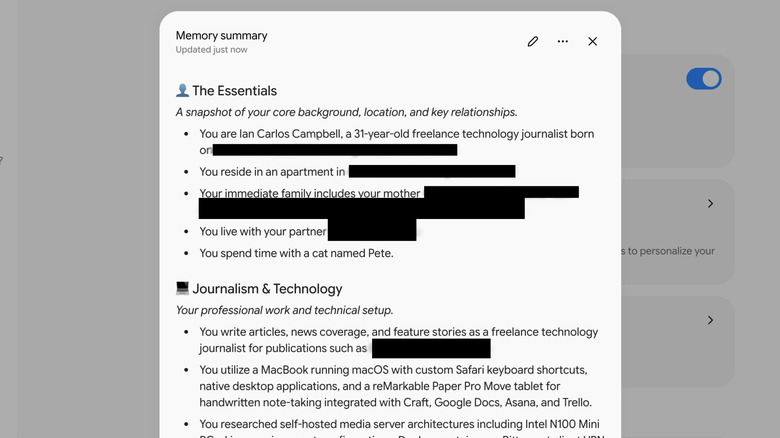

The Memory summary windows in Gemini's Settings menu.
Ian Carlos Campbell for Engadget

If you’re in the US, have a paid Google AI plan and memory is on, you can access Gemini’s memory summary to see what it’s compiled about you and edit this information to your liking. In the Gemini web app, click the Settings button (the gear icon) in the bottom left corner, click Personal Intelligence and then click Memory summary. Gemini will then generate a bulleted list of the major details it’s gleaned about you, sorted into categories focused on things like your personal data, career information and various interests. It tends to know your pets’ names, too.

You can stop there if you only care about what Gemini knows, or you can tweak the AI’s memory by clicking on the Edit button (the pen icon) in the top-right corner of the Memory summary window. In edit mode, any line in the summary can be rewritten or deleted, just like a Google Doc. If you’d prefer to prompt Gemini to make additions or subtractions, you can alternatively enter a prompt via the text box at the bottom of the window. Once you’re happy with your changes, you can click Save to commit them to Gemini’s memory. Gemini also saves a memory history of these changes and when they were made. So, while you can easily alter your personal timeline as it pertains to Gemini’s reality, any adjustments will be tracked.

How to turn off or limit Gemini’s memory
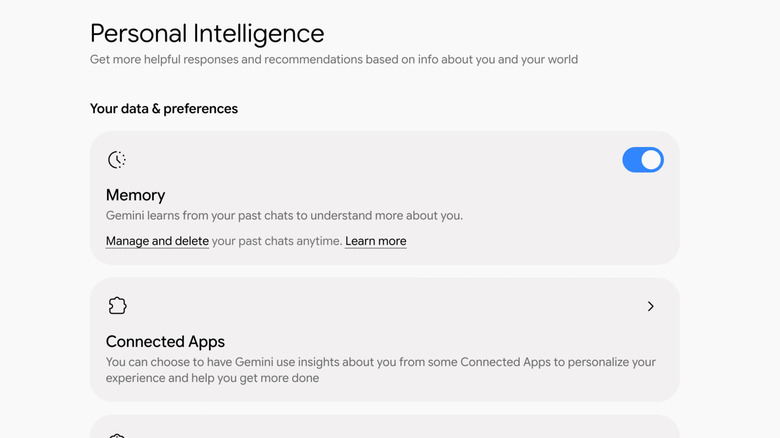

The Memory toggle in Gemini's Personal Intelligence menu.
Ian Carlos Campbell for Engadget

If you’d prefer to turn off the memory system entirely rather than simply edit it, you can do so by clicking on the Memory toggle in the Personal Intelligence menu. Deselecting the toggle will stop Gemini from committing new facts to memory, but it doesn’t delete old things it’s learned. You can edit those details using the Memory summary, or delete chats completely from the Activity menu.

To delete chats, head to the Gemini web app, click Settings and then select Activity. From the Activity menu, you can scroll through interactions you’ve had with Gemini by date and delete whichever ones you’d like by clicking on the “X” next to them. Deleting them removes those chats from the context pool that Gemini uses to personalize its responses. 

By combining all of these options, you can exert more control over what Google’s AI knows and how it responds to your inputs, and ideally get more useful outputs in the process.

Credit: Source link

ShareTweetSendSharePin

Related Posts

Recast Brings AI Troubleshooting to Right Click Tools With MCP Server – Unite.AI
AI & Technology

Recast Brings AI Troubleshooting to Right Click Tools With MCP Server – Unite.AI

November 18, 2026
Nexalus and RENDA Launch Nova8 Liquid-Cooled AI Server for Data Center Retrofits – Unite.AI
AI & Technology

Nexalus and RENDA Launch Nova8 Liquid-Cooled AI Server for Data Center Retrofits – Unite.AI

November 18, 2026
Flowtica Launches Verso, an E-Paper AI Recorder for Meeting Notes – Unite.AI
AI & Technology

Flowtica Launches Verso, an E-Paper AI Recorder for Meeting Notes – Unite.AI

November 18, 2026
Here’s What You Can Do If Your PC Won’t Read An External Hard Drive
AI & Technology

Here’s What You Can Do If Your PC Won’t Read An External Hard Drive

November 18, 2026
Next Post
Massive 7.0 earthquake strikes China’s Tibet region

Massive 7.0 earthquake strikes China's Tibet region

Leave a Reply Cancel reply

Your email address will not be published. Required fields are marked *

Search

No Result
View All Result
Trump travels to Texas to boost Ken Paxton’s campaign

Trump travels to Texas to boost Ken Paxton’s campaign

November 15, 2026
Bank of Montreal Remains A Buy After 4 Earnings Beats In A Row (NYSE:BMO)

Bank of Montreal Remains A Buy After 4 Earnings Beats In A Row (NYSE:BMO)

November 13, 2026
Tesla vehicles involved in self-driving accidents

Tesla vehicles involved in self-driving accidents

November 18, 2026

About

Learn more

Our Services

Legal

Privacy Policy

Terms of Use

Bloggers

Learn more

Article Links

Contact

Advertise

Ask us anything

©2020- TradePoint.io - All rights reserved!

Tradepoint.io, being just a publishing and technology platform, is not a registered broker-dealer or investment adviser. So we do not provide investment advice. Rather, brokerage services are provided to clients of Tradepoint.io by independent SEC-registered broker-dealers and members of FINRA/SIPC. Every form of investing carries some risk and past performance is not a guarantee of future results. “Tradepoint.io“, “Instant Investing” and “My Trading Tools” are registered trademarks of Apperbuild, LLC.

This website is operated by Apperbuild, LLC. We have no link to any brokerage firm and we do not provide investment advice. Every information and resource we provide is solely for the education of our readers. © 2020 Apperbuild, LLC. All rights reserved.

No Result
View All Result
  • Main
  • AI & Technology
  • Stock Charts
  • Market & News
  • Business
  • Finance Tips
  • Trade Tube
  • Blog
  • Shop

© 2023 - TradePoint.io - All Rights Reserved!