














• bitcoinBitcoin(BTC)$74,738.00-1.38%
  • ethereumEthereum(ETH)$2,136.04-4.34%
  • tetherTether(USDT)$1.000.01%
  • binancecoinBNB(BNB)$687.14-1.18%
  • usd-coinUSDC(USDC)$1.00-0.02%
  • rippleXRP(XRP)$1.10-4.85%
  • solanaSolana(SOL)$87.28-1.89%
  • tronTRON(TRX)$0.317781-0.72%
  • Figure HelocFigure Heloc(FIGR_HELOC)$1.06-0.89%
  • zcashZcash(ZEC)$1,229.36-1.90%
  • HyperliquidHyperliquid(HYPE)$74.46-3.43%
  • moneroMonero(XMR)$599.040.15%
  • dogecoinDogecoin(DOGE)$0.069526-2.23%
  • USDSUSDS(USDS)$1.00-0.02%
  • whitebitWhiteBIT Coin(WBT)$72.24-0.76%
  • leo-tokenLEO Token(LEO)$9.310.10%
  • chainlinkChainlink(LINK)$10.56-1.68%
  • cardanoCardano(ADA)$0.175835-2.19%
  • stellarStellar(XLM)$0.146972-1.93%
  • Ethena USDeEthena USDe(USDE)$1.000.00%
  • bitcoin-cashBitcoin Cash(BCH)$240.72-2.65%
  • nearNEAR Protocol(NEAR)$3.60-1.60%
  • daiDai(DAI)$1.000.02%
  • uniswapUniswap(UNI)$6.90-2.43%
  • litecoinLitecoin(LTC)$50.79-2.38%
  • CantonCanton(CC)$0.090541-2.55%
  • avalanche-2Avalanche(AVAX)$7.99-2.02%
  • RainRain(RAIN)$0.004930-12.43%
  • suiSui(SUI)$0.83-2.16%
  • USD1USD1(USD1)$1.000.00%
  • tether-goldTether Gold(XAUT)$4,107.581.32%
  • hedera-hashgraphHedera(HBAR)$0.0667160.48%
  • quant-networkQuant(QNT)$200.863.26%
  • the-open-networkGram (prev. Toncoin)(GRAM)$1.01-4.42%
  • paypal-usdPayPal USD(PYUSD)$1.00-0.04%
  • Global DollarGlobal Dollar(USDG)$1.000.00%
  • Ripple USDRipple USD(RLUSD)$1.00-0.01%
  • shiba-inuShiba Inu(SHIB)$0.000004-1.68%
  • BittensorBittensor(TAO)$217.17-1.63%
  • crypto-com-chainCronos(CRO)$0.047891-1.47%
  • Ondo US Dollar YieldOndo US Dollar Yield(USDY)$1.150.21%
  • pepePepe(PEPE)$0.0000053.41%
  • Circle USYCCircle USYC(USYC)$1.140.00%
  • okbOKB(OKB)$99.40-2.37%
  • EthenaEthena(ENA)$0.152638-0.67%
  • aaveAave(AAVE)$130.24-0.27%
  • Spiko Amundi Overnight Swap Fund (EUR)Spiko Amundi Overnight Swap Fund (EUR)(EURSAFO)$1.130.10%
  • pax-goldPAX Gold(PAXG)$4,109.951.35%
  • Falcon USDFalcon USD(USDF)$1.000.10%
  • MemeCoreMemeCore(M)$0.78-4.60%
TradePoint.io
  • Main
  • AI & Technology
  • Stock Charts
  • Market & News
  • Business
  • Finance Tips
  • Trade Tube
  • Blog
  • Shop
No Result
View All Result
TradePoint.io
No Result
View All Result

Why Your USB Device Isn’t Showing Up On Your MacBook And How You Can Fix It

November 9, 2026
in AI & Technology
Reading Time: 5 mins read
A A
Why Your USB Device Isn’t Showing Up On Your MacBook And How You Can Fix It
ShareShareShareShareShare

Fix hardware and software issues with some simple solutions.


Habanero Pixel/Shutterstock

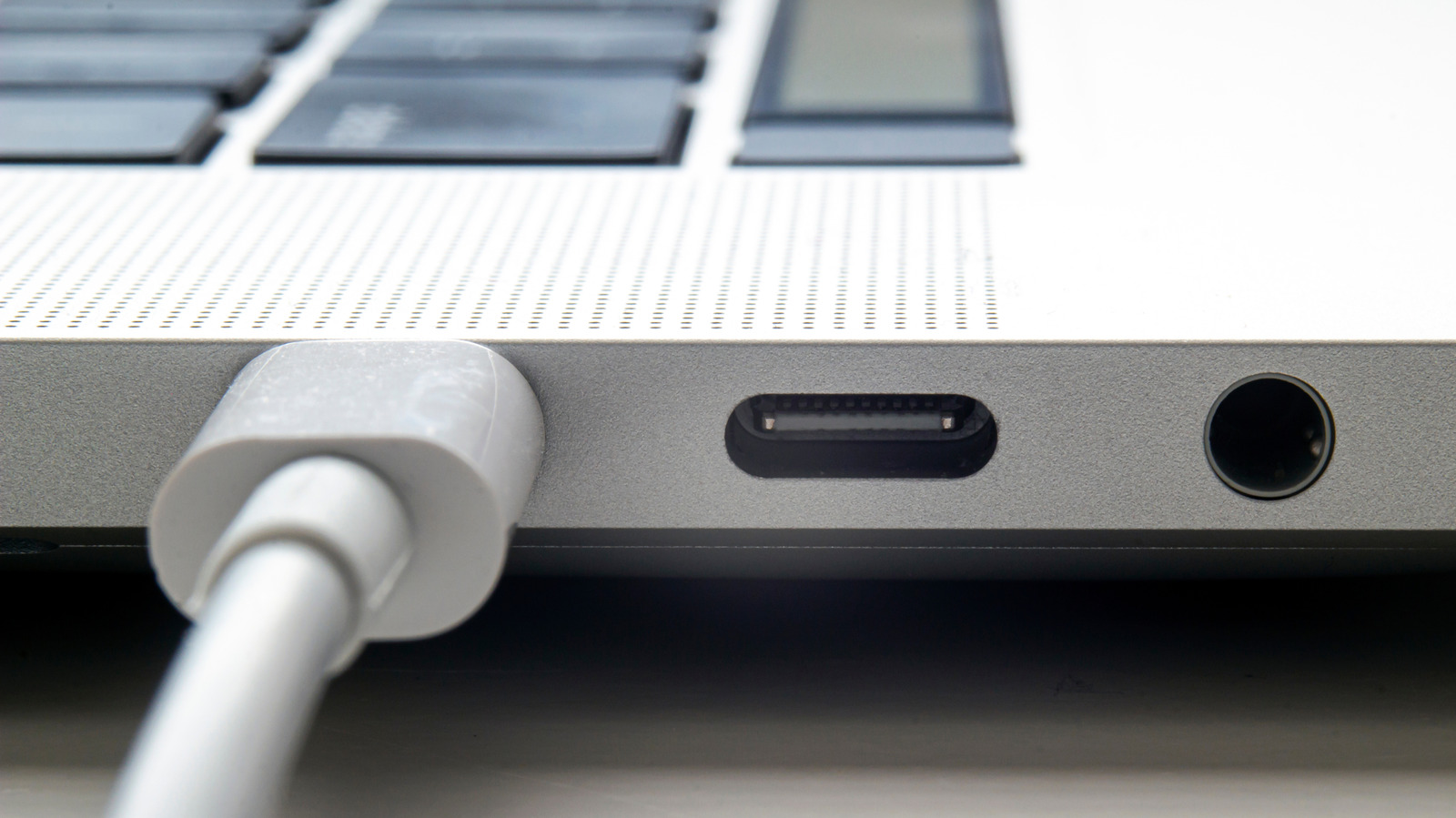
USB wouldn’t be what it is today without Apple. The format predates the original iconic iMac — but Apple’s gumdrop-shaped computer helped popularize it by ditching all the legacy connectors that had been haunting the industry. USB became so commonplace, in fact, that the push came back to bite the company, with European Union regulations forcing it to ditch Lightning ports on iPhones. The days of Apple-exclusive ports are effectively over, MagSafe being the major remaining holdout.

YOU MAY ALSO LIKE

From Resistance to Results by Gleb Tsipursky – Unite.AI

LG AI Research Opens Free API Access to Its K-EXAONE 2.5 Model – Unite.AI

Modern USB Mac accessories tend to be well-behaved. On occasion, though, macOS can fail to detect them, which is understandably maddening. With USB being as widespread as it is, anything less than a seamless experience feels unacceptable.

The good news is that there are known hardware and software explanations for why this happens, like damaged cords or an accessory that requires more power. In many situations the fixes are remarkably simple, particularly on the macOS side. There are rare instances, however, where you may need to seek outside help.

How to solve missing USB devices on your Mac
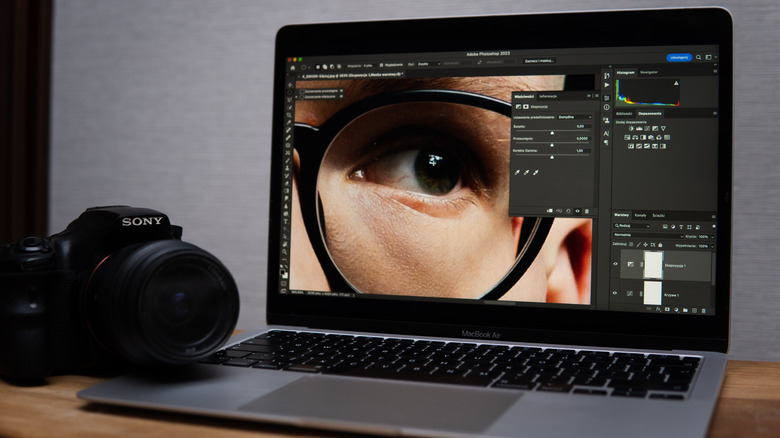

Charging up a MacBook Pro over MagSafe.
Kamil Zajaczkowski/Shutterstock

The first thing to remember is that by default, macOS requires you to give permission for accessories to connect. This prevents malware from being injected. At the same time, if you accidentally reject a permission prompt, a legitimate accessory won’t transmit data until you give the green light. Charging should still work in either direction.

Typically, you can force macOS to re-display the permission prompt by unplugging an accessory and plugging it back in again. To minimize future hassle, though, go to Apple menu > System Settings > Privacy & Security, then scroll down to the Accessories section. Here you can choose Ask for new accessories, Automatically allow when unlocked or Always allow. It’s best to skip that third option unless you’re always around your Mac or in a very secure environment.

If that doesn’t change anything, you might want to verify that macOS sees your device in the first place. Hold down the Option key, then click on Apple menu > System Information. If you see the accessory listed under Hardware, you may need to check the manufacturer’s online support info. If it’s invisible, or if it’s detected but you keep getting an error message when plugging in, there may be more we can help with.

A probable cause in that regard is power. Some accessories may require more than a Mac’s USB port can supply, in which case you should get a related message, and there may be a separate power cable you need to plug in. If there’s no separate power on your accessory, however, the USB port itself may be the issue. Try alternate ports on your Mac or connecting directly if you were using a hub or dock as an intermediary. If you keep getting power-related warnings, you may want to talk to Apple tech support — it could be that your Mac just isn’t feeding power to USB.

Other potential USB flaws and their fixes
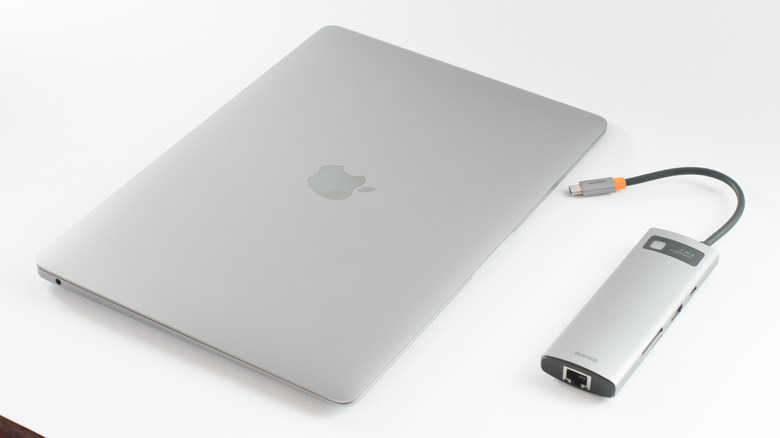

A MacBook paired with a third-party USB-C hub.
Andrii Anna photographers/Shutterstock

Speaking of hubs and docks, don’t forget that those often require their own power supplies. And even if they don’t, things can go wrong with device chains, since of course they have to successfully transmit power or data across multiple hops. We recently had an experience with a Thunderbolt dock in which a wireless mouse receiver became unusable until it was plugged directly into a laptop — never mind that an SSD on the dock was doing just fine. It’s always safer to skip the middleman if you have enough ports free.

Make sure that macOS is fully up-to-date by going to Apple menu > System Settings > General, then clicking on Software Update. Bugs or driver compatibility issues could hypothetically be interfering. Some accessories may also rely on proprietary software to do much of anything, in which case you’ll want to make sure the latest version of that is installed. Check the Mac App Store or a manufacturer’s website. External cards and drives need to use file system formats compatible with macOS, namely APFS, FAT or ExFAT. 

Lastly, be sure that you’re using the right type of USB cable for a device’s power and bandwidth requirements and that there’s no damage or debris interfering with either cables or ports. Things like lint and bent pins may be all it takes to block something from working. Lint, dust and grime can typically be cleaned out with an air can or by gently swiping a soft-tipped tool. As for damage, you’ll likely just need to swap in a new cable, especially if there are any signs of browning or exposed wires. Those signal a fire hazard.

Credit: Source link

ShareTweetSendSharePin

Related Posts

From Resistance to Results by Gleb Tsipursky – Unite.AI
AI & Technology

From Resistance to Results by Gleb Tsipursky – Unite.AI

November 9, 2026
LG AI Research Opens Free API Access to Its K-EXAONE 2.5 Model – Unite.AI
AI & Technology

LG AI Research Opens Free API Access to Its K-EXAONE 2.5 Model – Unite.AI

November 9, 2026
How To Use Your Laptop As A Second Monitor
AI & Technology

How To Use Your Laptop As A Second Monitor

November 9, 2026
Should You Make The Switch To Google Pixel From Samsung Galaxy?
AI & Technology

Should You Make The Switch To Google Pixel From Samsung Galaxy?

November 8, 2026
Next Post
Gov. Newsom commutes all death sentences in California

Gov. Newsom commutes all death sentences in California

Leave a Reply Cancel reply

Your email address will not be published. Required fields are marked *

Search

No Result
View All Result
Data Center Buildout Could Help Energy Prices

Data Center Buildout Could Help Energy Prices

November 7, 2026
Arkane And Its Blade Game May End Up At Ubisoft As Xbox Considers Offers

Arkane And Its Blade Game May End Up At Ubisoft As Xbox Considers Offers

November 3, 2026
In Argentina, Pope Leo to Meet Church at Odds With President Milei – The New York Times

In Argentina, Pope Leo to Meet Church at Odds With President Milei – The New York Times

November 8, 2026

About

Learn more

Our Services

Legal

Privacy Policy

Terms of Use

Bloggers

Learn more

Article Links

Contact

Advertise

Ask us anything

©2020- TradePoint.io - All rights reserved!

Tradepoint.io, being just a publishing and technology platform, is not a registered broker-dealer or investment adviser. So we do not provide investment advice. Rather, brokerage services are provided to clients of Tradepoint.io by independent SEC-registered broker-dealers and members of FINRA/SIPC. Every form of investing carries some risk and past performance is not a guarantee of future results. “Tradepoint.io“, “Instant Investing” and “My Trading Tools” are registered trademarks of Apperbuild, LLC.

This website is operated by Apperbuild, LLC. We have no link to any brokerage firm and we do not provide investment advice. Every information and resource we provide is solely for the education of our readers. © 2020 Apperbuild, LLC. All rights reserved.

No Result
View All Result
  • Main
  • AI & Technology
  • Stock Charts
  • Market & News
  • Business
  • Finance Tips
  • Trade Tube
  • Blog
  • Shop

© 2023 - TradePoint.io - All Rights Reserved!