

















• bitcoinBitcoin(BTC)$78,012.002.00%
  • ethereumEthereum(ETH)$2,298.222.42%
  • tetherTether(USDT)$1.000.01%
  • binancecoinBNB(BNB)$699.901.34%
  • rippleXRP(XRP)$1.271.92%
  • usd-coinUSDC(USDC)$1.000.01%
  • solanaSolana(SOL)$92.901.43%
  • tronTRON(TRX)$0.3216460.41%
  • Figure HelocFigure Heloc(FIGR_HELOC)$1.03-0.21%
  • zcashZcash(ZEC)$1,273.6113.01%
  • HyperliquidHyperliquid(HYPE)$84.751.69%
  • moneroMonero(XMR)$638.732.86%
  • dogecoinDogecoin(DOGE)$0.0747001.34%
  • USDSUSDS(USDS)$1.000.01%
  • whitebitWhiteBIT Coin(WBT)$75.012.05%
  • leo-tokenLEO Token(LEO)$9.300.00%
  • chainlinkChainlink(LINK)$11.060.01%
  • cardanoCardano(ADA)$0.1903442.11%
  • stellarStellar(XLM)$0.1625021.26%
  • bitcoin-cashBitcoin Cash(BCH)$274.960.25%
  • nearNEAR Protocol(NEAR)$3.955.20%
  • daiDai(DAI)$1.000.01%
  • Ethena USDeEthena USDe(USDE)$1.000.08%
  • RainRain(RAIN)$0.006269-8.01%
  • uniswapUniswap(UNI)$7.375.69%
  • litecoinLitecoin(LTC)$54.331.37%
  • CantonCanton(CC)$0.0987385.79%
  • avalanche-2Avalanche(AVAX)$8.522.94%
  • USD1USD1(USD1)$1.000.05%
  • suiSui(SUI)$0.904.19%
  • the-open-networkGram (prev. Toncoin)(GRAM)$1.171.00%
  • tether-goldTether Gold(XAUT)$4,005.142.76%
  • hedera-hashgraphHedera(HBAR)$0.0699131.35%
  • quant-networkQuant(QNT)$194.491.07%
  • Global DollarGlobal Dollar(USDG)$1.000.02%
  • shiba-inuShiba Inu(SHIB)$0.0000052.62%
  • paypal-usdPayPal USD(PYUSD)$1.000.00%
  • BittensorBittensor(TAO)$227.763.11%
  • Ripple USDRipple USD(RLUSD)$1.000.00%
  • crypto-com-chainCronos(CRO)$0.0505971.36%
  • EthenaEthena(ENA)$0.1829678.92%
  • Ondo US Dollar YieldOndo US Dollar Yield(USDY)$1.150.01%
  • okbOKB(OKB)$108.240.84%
  • Circle USYCCircle USYC(USYC)$1.140.01%
  • pepePepe(PEPE)$0.0000055.76%
  • Pump.funPump.fun(PUMP)$0.00436411.15%
  • aaveAave(AAVE)$129.783.49%
  • BlackRock USD Institutional Digital Liquidity FundBlackRock USD Institutional Digital Liquidity Fund(BUIDL)$1.000.00%
  • MemeCoreMemeCore(M)$0.852.34%
  • OndoOndo(ONDO)$0.3996864.90%
TradePoint.io
  • Main
  • AI & Technology
  • Stock Charts
  • Market & News
  • Business
  • Finance Tips
  • Trade Tube
  • Blog
  • Shop
No Result
View All Result
TradePoint.io
No Result
View All Result

Your Desktop’s Front USB Ports May Be Slowing Down Every Device You Plug Into Them

November 4, 2026
in AI & Technology
Reading Time: 4 mins read
A A
Your Desktop’s Front USB Ports May Be Slowing Down Every Device You Plug Into Them
ShareShareShareShareShare

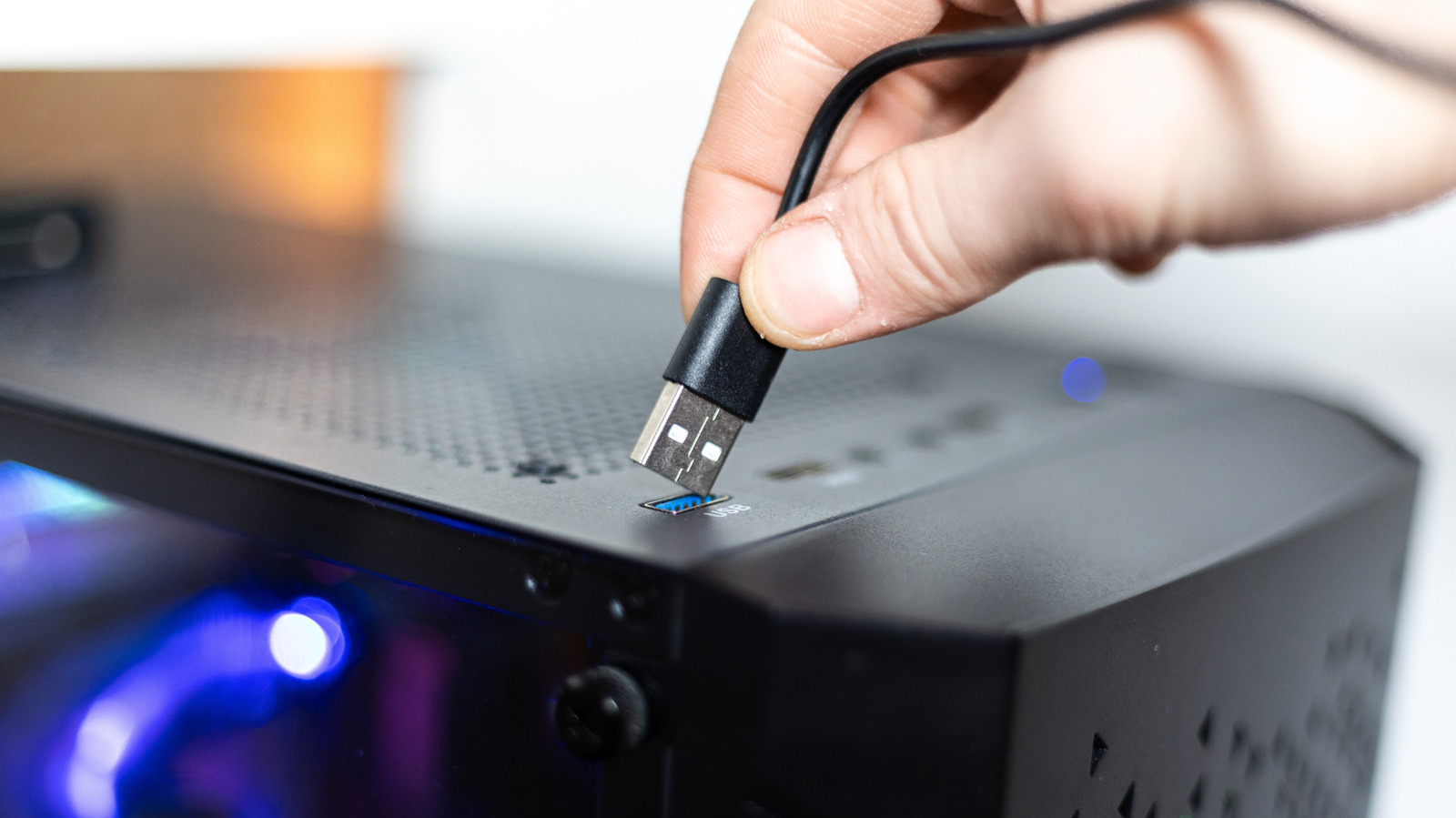
Having USB ports on the front of your desktop is convenient, but they might cost you power and speed.


KirillovIgor/Shutterstock

Most desktop computers have USB ports on the front, which is convenient. Instead of reaching around to the back of the case and fumbling for the right port every time you need to connect a device, you can plug in and unplug your accessories in no time. 

YOU MAY ALSO LIKE

Fractal Analytics Profit Climbs 139% as Healthcare Leads Growth – Unite.AI

Cat Wu Steps Down as Claude Code Product Chief After Two Years – Unite.AI

This convenience comes with a catch, though. Depending on what you connect to these ports, you may notice that the external device runs slower than it should: your files will take longer to copy and your phone won’t juice up as quickly. This isn’t a problem with your computer, but rather stems from how front-facing USB ports are engineered in your machine. It’s also not a universal rule, as there are modern PCs with high-end ports on the front.

In a lot of cases, you probably won’t realize the difference. But if you do notice it, there’s a reason why the front ports of your computer are a little bit slower.

Why front USB ports can be slower than the ones on the back
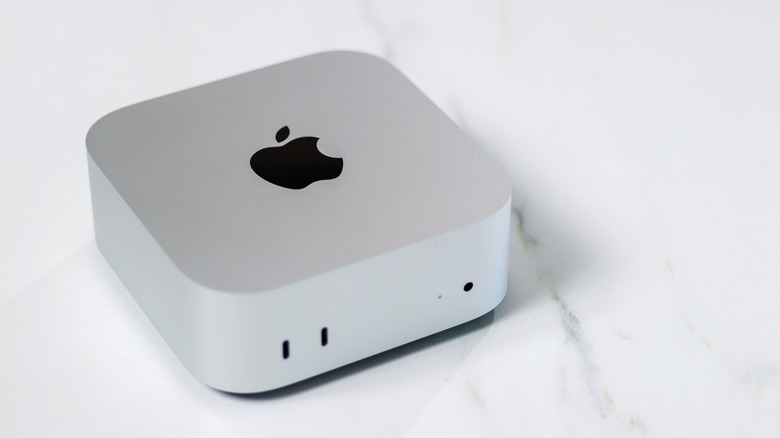

Apple's Mac mini with two front-facing USB-C ports.
M21Perfect/Shutterstock

To understand this issue, we need to take a closer look at USB specifications and how motherboards are built. The USB ports on the back of your computer are usually soldered directly to the motherboard, so power and data travel a shorter path over them. Front ports, on the other hand, are connected via extension cables to reach the I/O controllers. Each additional layer in this connection results in signal loss, even if minimal.

Also, most high-end motherboards have more headers for USB ports, which means you can have multiple ports running at higher speeds. But front-panel ports are a different story; in many cases, they share a single connector, which means speed and power are split among all the ports on the front of your PC case. That’s all in addition to manufacturers often using slower USB standards for at least some of the front ports.

Take the ASUS ROG Maximus Z790 Hero motherboard as an example — its rear has two 40 Gbps Thunderbolt 4 ports, as well as six 10 Gbps USB 3.2 Gen 2 ports and four more 5 Gbps USB 3.2 Gen 1 ports. While the front panel does have one USB 3.2 Gen 2×2 (theoretically 20 Gbps) port, it also has four USB 3.2 Gen 1 (5 Gbps) ports powered by two headers. That means the available speed is split among the connected devices as a shared pool. On some boards, if you connect two external SSDs to the front at the same time, they will share the same 5 Gbps data transfer rate.

Even Macs have these limitations. The current baseline Mac mini with the M6 chip has two USB-C ports on the front that offer speeds of up to 10 Gbps. But on the back, it has Thunderbolt 4 ports that reach speeds of up to 40 Gbps. The same applies to the latest Mac Studio, with the base model featuring two 10 Gbps USB-C ports on the front and Thunderbolt ports only on the back. The front USB ports are useful, but slower.

What to plug into the front and back of your desktop
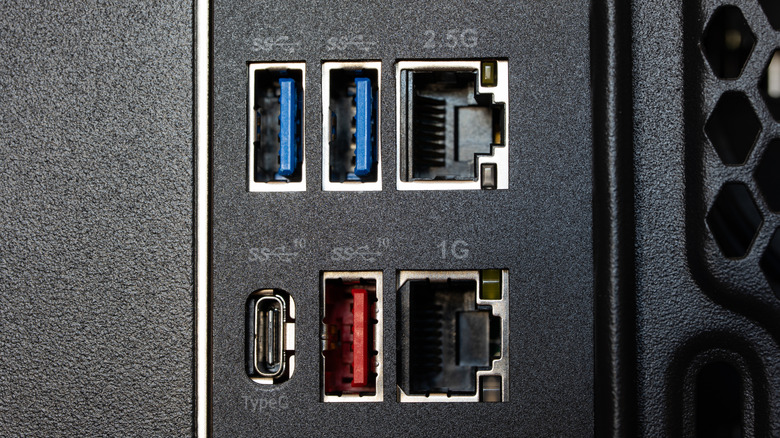

The back of a desktop computer with multiple USB-A, USB-C and Ethernet ports.
Octavian Lazar/Shutterstock

Whether this difference in power and speed will actually affect your peripherals depends on what you’re using and what you need. For common devices like a mouse, keyboard or headphones, the ports on the front of your computer handle them just fine. These devices use very little power and don’t require high speeds to run. Even a regular USB flash drive is fine to use with them if you don’t plan on transferring huge amounts of data or constantly reading and writing.

Choose the rear ports when you’re connecting bandwidth-intensive or latency-sensitive peripherals, such as external SSDs, capture cards or VR headsets. Plugging these into high-speed ports will definitely make a difference, and some of them may not even work on slower ports. It’s definitely worth checking the specs of your motherboard or computer to see the exact speeds of each USB port so you’ll know which one to plug each accessory into. Symbols or colors can give you a hint, but they aren’t always consistent.

Credit: Source link

ShareTweetSendSharePin

Related Posts

Fractal Analytics Profit Climbs 139% as Healthcare Leads Growth – Unite.AI
AI & Technology

Fractal Analytics Profit Climbs 139% as Healthcare Leads Growth – Unite.AI

November 4, 2026
Cat Wu Steps Down as Claude Code Product Chief After Two Years – Unite.AI
AI & Technology

Cat Wu Steps Down as Claude Code Product Chief After Two Years – Unite.AI

November 4, 2026
iPad Mini OLED Vs. iPad Mini: What’s New?
AI & Technology

iPad Mini OLED Vs. iPad Mini: What’s New?

November 4, 2026
Your Phone’s Apps Could Have More Permissions Than They Need – Here’s How To Check
AI & Technology

Your Phone’s Apps Could Have More Permissions Than They Need – Here’s How To Check

November 4, 2026
Next Post
Napa Valley Italian hotspot Oenotri to close after 17-year run

Napa Valley Italian hotspot Oenotri to close after 17-year run

Leave a Reply Cancel reply

Your email address will not be published. Required fields are marked *

Search

No Result
View All Result
Firefighter survives blaze in New Hampshire

Firefighter survives blaze in New Hampshire

October 30, 2026
OpenAI Now Lets You Text Your Dot Agent

OpenAI Now Lets You Text Your Dot Agent

October 28, 2026
Are experts worried about a potential plague outbreak?

Are experts worried about a potential plague outbreak?

October 31, 2026

About

Learn more

Our Services

Legal

Privacy Policy

Terms of Use

Bloggers

Learn more

Article Links

Contact

Advertise

Ask us anything

©2020- TradePoint.io - All rights reserved!

Tradepoint.io, being just a publishing and technology platform, is not a registered broker-dealer or investment adviser. So we do not provide investment advice. Rather, brokerage services are provided to clients of Tradepoint.io by independent SEC-registered broker-dealers and members of FINRA/SIPC. Every form of investing carries some risk and past performance is not a guarantee of future results. “Tradepoint.io“, “Instant Investing” and “My Trading Tools” are registered trademarks of Apperbuild, LLC.

This website is operated by Apperbuild, LLC. We have no link to any brokerage firm and we do not provide investment advice. Every information and resource we provide is solely for the education of our readers. © 2020 Apperbuild, LLC. All rights reserved.

No Result
View All Result
  • Main
  • AI & Technology
  • Stock Charts
  • Market & News
  • Business
  • Finance Tips
  • Trade Tube
  • Blog
  • Shop

© 2023 - TradePoint.io - All Rights Reserved!