







































That “critical Microsoft alert” is a scam that tricks you into installing actual malware.
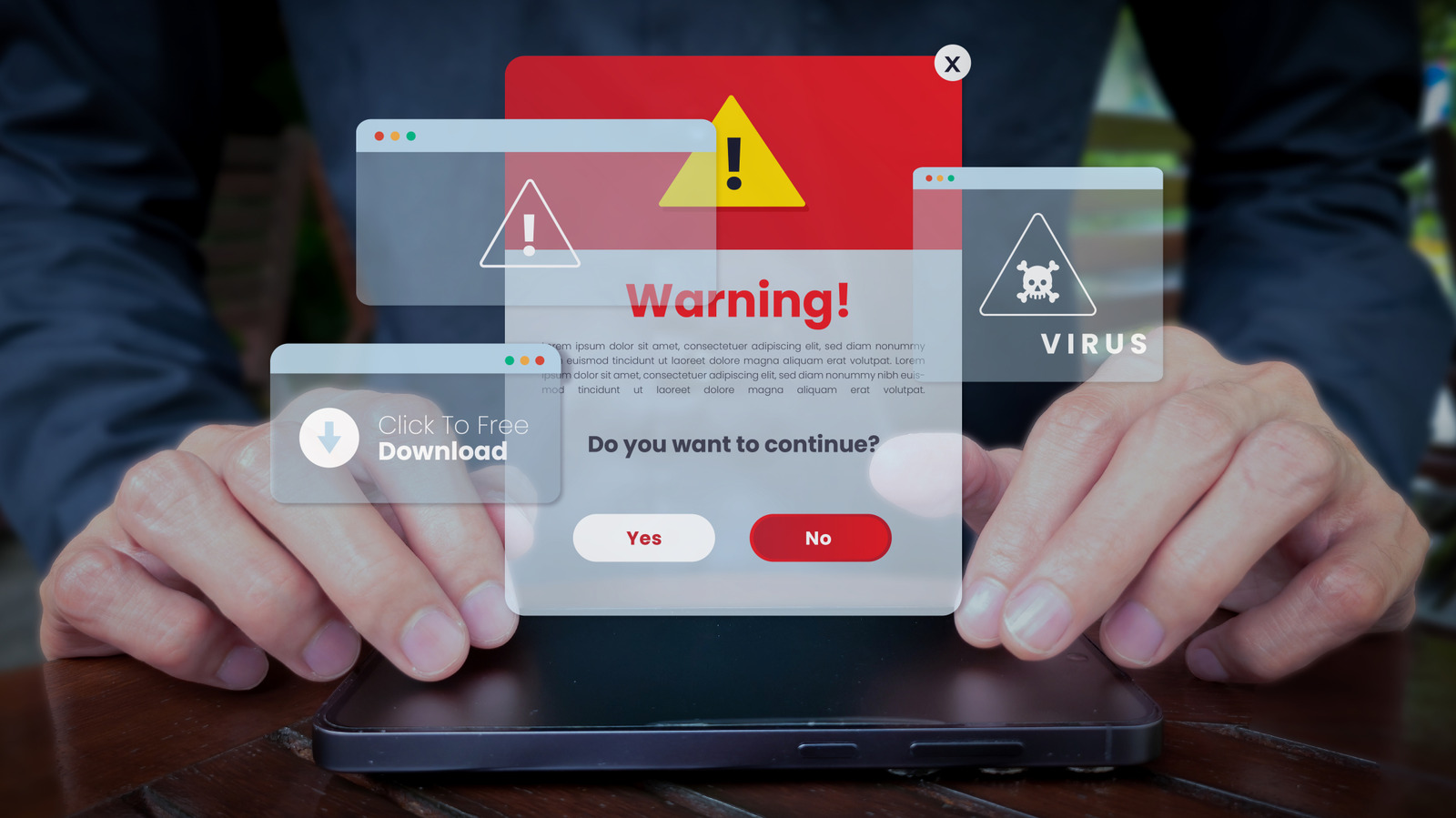
You’re browsing as normal, when all of a sudden you see an urgent pop-up flashing an alarming warning that your computer has been infected with a virus. The good news is these alerts are almost always fake: they sometimes occur when websites have been compromised and send notifications to make you think your computer is infected. But if you fall for this, you may actually download malware.
Cybersecurity researchers call these tactics “scareware,” because they induce a state of panic for those on the receiving end. They’re not uncommon: one strain of browser-based scareware called CypherLoc has hit more than 2.8 million people since the start of 2026, according to a study from security firm Barracuda.
Like many attacks, the goal here is gaining access to your computer or stealing your money. They will usually direct you to call a bogus tech support phone number, convince you to download an anti-malware scanner that’s itself malicious or have you hand over payment information. Some malicious pop-ups can even be cloaked as security features; one scam flagged by the FTC involves using fake CAPTCHA requests to install malware on devices.
While these screens are scary, they are thankfully not difficult to thwart once you know where they’re coming from and how to close them.
Why do I keep getting notifications that I have a virus?
Pop-ups involved in these scams create urgency with dramatic wording like “Critical Threat Detected!” and often use flashing lights, bright colors and even alarm sounds to increase the “scare” factor. You might hear a robotic voice announcing a “critical Microsoft security alert,” or the site could even show you your IP address.
Sometimes these scams use the names of legitimate security companies to increase the likelihood that you’ll fall for them, sporting titles like McAfee Security Software or Windows Defender. But why are you getting them?
Fake virus attacks can either be delivered through browser pop-ups or your computer’s notification center. Both methods typically result from opening an unsafe link or visiting a malicious website, though rogue ads can sneak through even on legitimate pages. Cybercriminals abuse advertising spaces so when you click a compromised banner, it redirects you to a fake security warning page. The pop-ups are forced into full-screen mode, often with your mouse cursor hidden, to make you think you’re stuck.
Alternatively, you might see smaller alerts in the corner of your screen if you’ve inadvertently granted a website permission to send notifications. When you visit a new site that wants to send notifications — even a legitimate one — you’ll be asked to click Allow to provide this permission in your browser. This is often given under false pretense, with the website saying something like “Click Allow to read more.” The site then gains permission to send push notifications directly through Windows’ notification center, making the alerts look like official warnings. And sites you’ve approved can send notifications even if you don’t have them open.
How can I get rid of scareware pop-ups?
If you get a full-screen pop-up saying you have a virus, do not click anything on the page. These pop-ups often hijack the browser and make it difficult to close without clicking on unsafe links. If possible, the most efficient response is to terminate the offending tab using your browser’s built-in task manager; the shortcut is Shift + Escape for Chrome, Edge and Firefox. Look for a tab with an outlandish label like “Security Alert!” and close it using End Task or the X button to the right of the process. F11 is the shortcut to get the browser out of full-screen mode.
If that doesn’t work, you’ll need to force-quit your browser entirely. Open the Task Manager by pressing Ctrl + Shift + Esc, then click the Processes tab on the left. Should that fail, hit Ctrl + Alt + Del and open the Task Manager from that menu. Click Name to sort with active apps at the top, then right-click your browser and choose End task. If you have the option enabled to start from your last session when reopening your browser, don’t accept the option to reopen closed tabs since that will load the scam page again.
In case the notifications persist, delete recent cookies and other site data from your browser (Ctrl + Shift + Del on Chrome and Edge). You should also go through the list of sites that are allowed to send notifications to check for any you don’t recognize. In Chrome, click the three vertical dots at the top-right of the browser, choose Settings, then go to Privacy and security > Site settings > Notifications. In the Allowed to send notifications section, click the three-dot menu on the right for any unknown websites and choose Remove or Block. To silence all pings, pick Don’t allow sites to send notifications at the top.
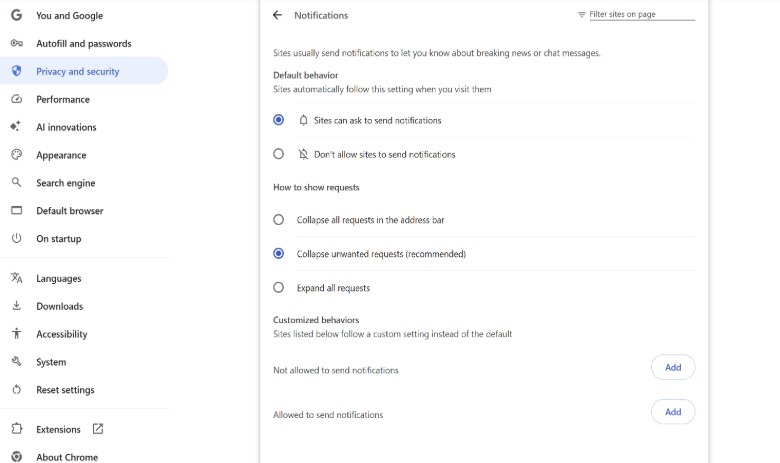 Kari Paul for Engadget
Browser extensions can also be the source of these schemes. Click the puzzle piece icon at the top-right of your browser and then choose Manage extensions to see a list of everything you have installed. Remove any unknown items or those you haven’t used in a while. Restart your browser when done to ensure your changes take effect.
Further pop-ups could be caused by junk apps installed on your computer. Press Win + I to open Settings, then navigate to Apps > Installed apps. Go through the list and uninstall anything that looks shady.
How to avoid actual malware in the future
Ironically, when your computer is actually infected, it typically doesn’t come with flashing warnings. Regular computer scans are the key to detecting subtle malware that could be silently running on your device. Windows offers built-in protection with Microsoft Defender, which is good enough for most people. You can download additional software for a second opinion; Malwarebytes, which is free and features an on-demand scanner, is a good backup option.
Malwarebytes also offers a browser extension called Browser Guard, which can add another layer of protection against malicious pop-ups in your browser. This service also stops general trackers and obnoxious advertising. These measures, coupled with your computer’s built-in protection, should be sufficient for keeping yourself safe online.
Credit: Source link