

























• bitcoinBitcoin(BTC)$84,862.001.65%
  • ethereumEthereum(ETH)$2,724.912.95%
  • tetherTether(USDT)$1.000.01%
  • binancecoinBNB(BNB)$779.761.34%
  • rippleXRP(XRP)$1.587.69%
  • usd-coinUSDC(USDC)$1.000.01%
  • solanaSolana(SOL)$120.956.79%
  • tronTRON(TRX)$0.337047-0.63%
  • zcashZcash(ZEC)$1,603.507.99%
  • Figure HelocFigure Heloc(FIGR_HELOC)$1.030.00%
  • HyperliquidHyperliquid(HYPE)$93.642.95%
  • dogecoinDogecoin(DOGE)$0.0980405.78%
  • moneroMonero(XMR)$568.444.13%
  • chainlinkChainlink(LINK)$14.0114.60%
  • whitebitWhiteBIT Coin(WBT)$84.681.37%
  • USDSUSDS(USDS)$1.000.00%
  • cardanoCardano(ADA)$0.2558668.41%
  • RainRain(RAIN)$0.011931-0.45%
  • leo-tokenLEO Token(LEO)$8.83-0.91%
  • stellarStellar(XLM)$0.22288311.81%
  • bitcoin-cashBitcoin Cash(BCH)$337.010.97%
  • nearNEAR Protocol(NEAR)$5.0518.76%
  • uniswapUniswap(UNI)$9.586.02%
  • litecoinLitecoin(LTC)$70.566.28%
  • Ethena USDeEthena USDe(USDE)$1.000.00%
  • CantonCanton(CC)$0.12198813.00%
  • avalanche-2Avalanche(AVAX)$10.614.36%
  • suiSui(SUI)$1.1419.57%
  • daiDai(DAI)$1.000.00%
  • USD1USD1(USD1)$1.000.02%
  • hedera-hashgraphHedera(HBAR)$0.0959457.05%
  • the-open-networkGram (prev. Toncoin)(GRAM)$1.431.48%
  • shiba-inuShiba Inu(SHIB)$0.0000066.28%
  • BittensorBittensor(TAO)$307.949.29%
  • crypto-com-chainCronos(CRO)$0.0660058.48%
  • Global DollarGlobal Dollar(USDG)$1.000.00%
  • BitwayBitway(BTW)$1.108.43%
  • MemeCoreMemeCore(M)$1.20-2.91%
  • paypal-usdPayPal USD(PYUSD)$1.000.01%
  • OndoOndo(ONDO)$0.5528.99%
  • tether-goldTether Gold(XAUT)$4,301.090.86%
  • okbOKB(OKB)$120.742.03%
  • EthenaEthena(ENA)$0.24211918.53%
  • Circle USYCCircle USYC(USYC)$1.140.01%
  • Ripple USDRipple USD(RLUSD)$1.000.00%
  • BlackRock USD Institutional Digital Liquidity FundBlackRock USD Institutional Digital Liquidity Fund(BUIDL)$1.000.00%
  • aaveAave(AAVE)$148.198.25%
  • Ondo US Dollar YieldOndo US Dollar Yield(USDY)$1.150.03%
  • mantleMantle(MNT)$0.681.50%
  • MorphoMorpho(MORPHO)$2.917.47%
TradePoint.io
  • Main
  • AI & Technology
  • Stock Charts
  • Market & News
  • Business
  • Finance Tips
  • Trade Tube
  • Blog
  • Shop
No Result
View All Result
TradePoint.io
No Result
View All Result

How to pair controllers with the Nintendo Switch 2

December 22, 2025
in AI & Technology
Reading Time: 5 mins read
A A
How to pair controllers with the Nintendo Switch 2
ShareShareShareShareShare

The Nintendo Switch 2 supports a wide range of controllers, from Nintendo’s own Pro Controller to many Bluetooth gamepads you might already have. Whether you’re setting up your new console for the first time or adding extra controllers for multiplayer games, pairing them is simple as long as you know where to look. Here’s how to connect the Switch 2 Pro Controller, how to sync additional Bluetooth controllers and what to do if something doesn’t pair correctly.

Before you start: What you’ll need

To pair any controller with the Switch 2 you’ll need the console powered on and updated to the latest system software. Navigate to System Settings, System then System Update to check. It also helps to have the controller charged, since some models need enough battery to begin pairing.

YOU MAY ALSO LIKE

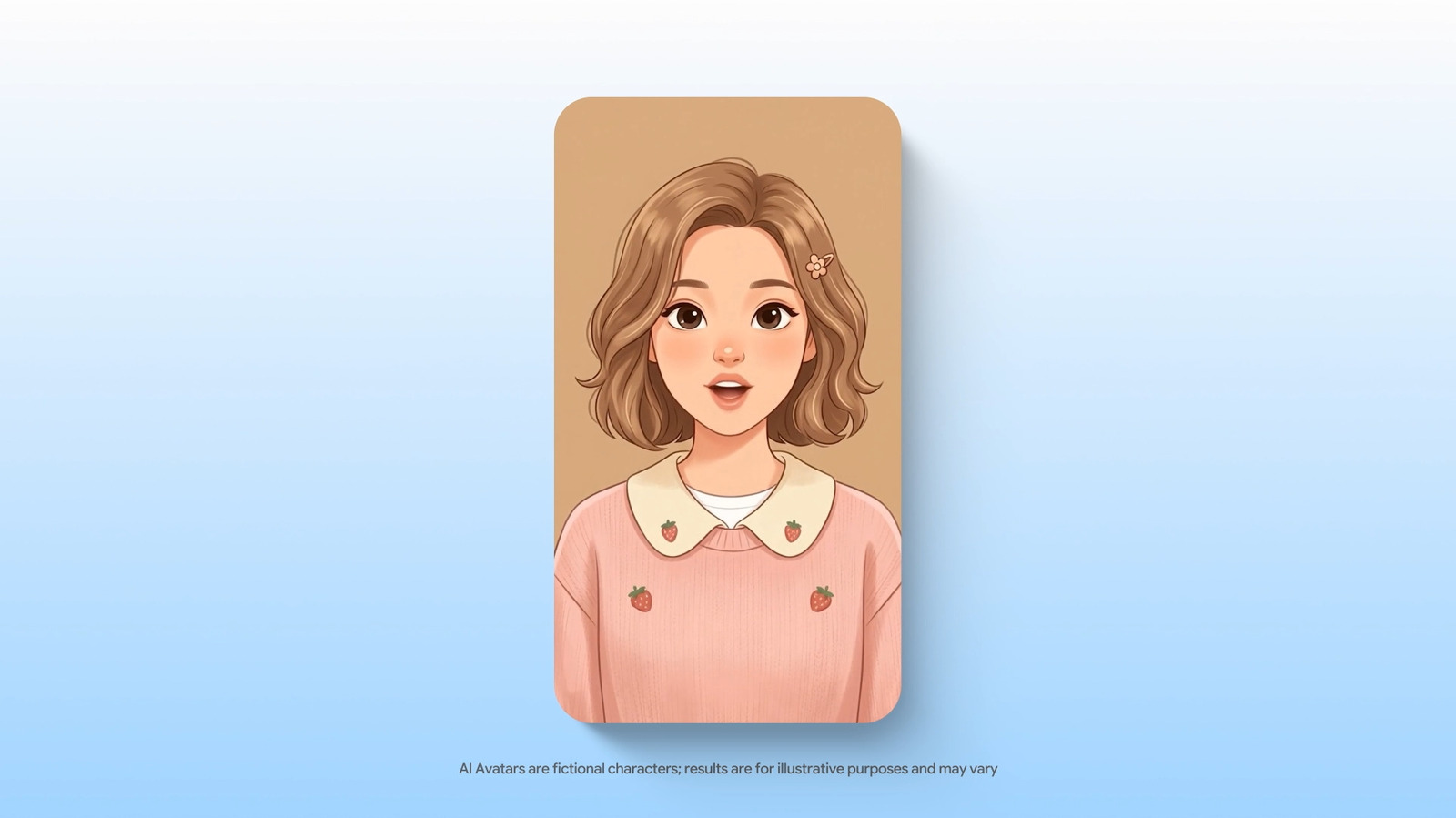
Google Adds Creepy Avatars To Gemini 3.8 Live’s Agents

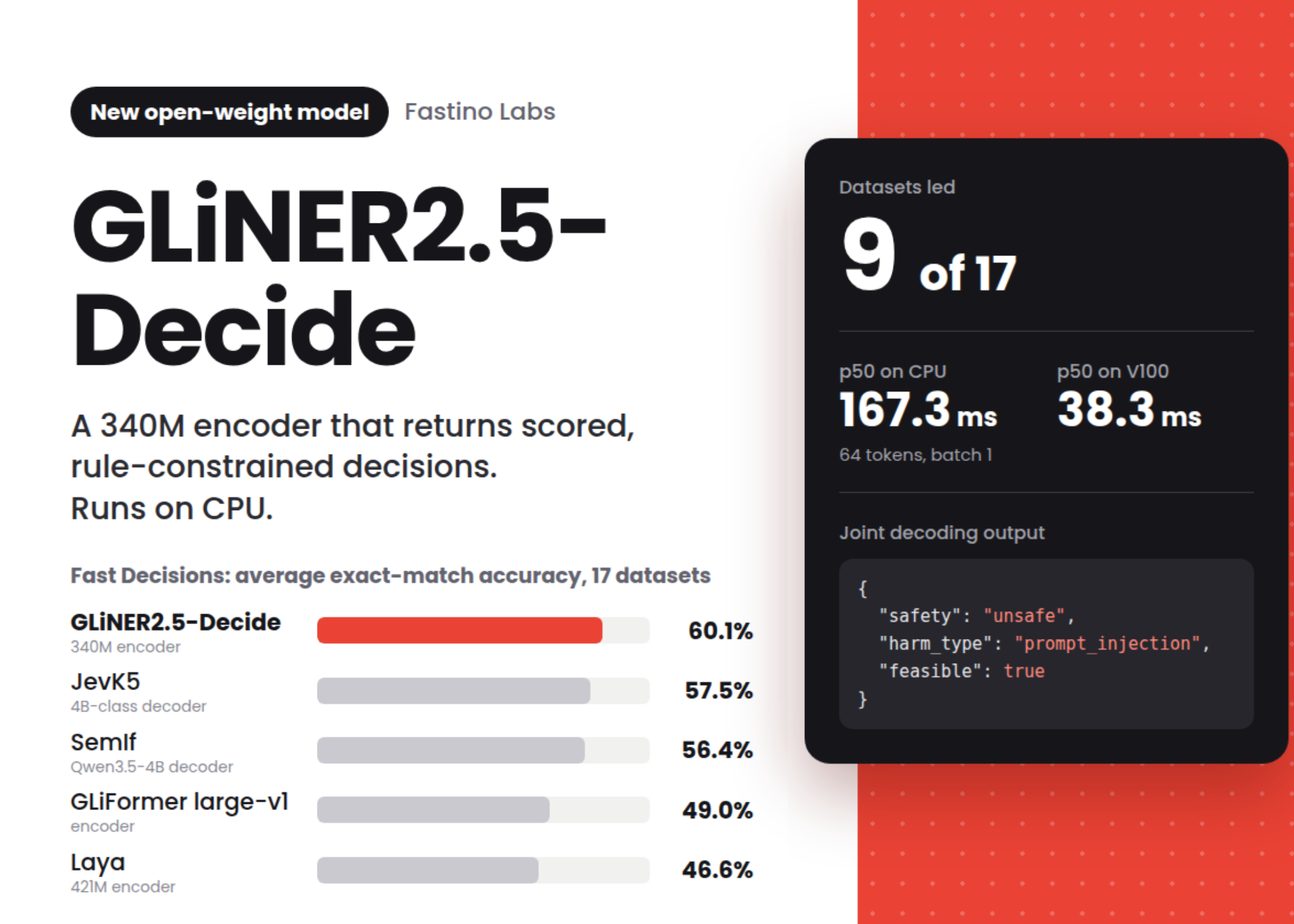
Fastino Releases GLiNER2.5-Decide: A 340M Open-Weight Decision Model That Runs on CPU

On the Switch 2, all controller settings reside in the Controllers & Sensors section of System Settings. You can pair up to four controllers depending on the game and the controller type.

How to pair the Switch 2 Pro Controller

Nintendo’s Switch 2 Pro Controller is the simplest device to connect, and it can be paired in two different ways: wired and wireless. If you’re setting it up for the first time, the wired method is the fastest and most reliable.

To pair the Switch 2 Pro Controller using a USB cable:

  • Connect the Pro Controller to the Switch 2 using a USB-C cable.

  • Wake the console and open the Controllers menu from the Home screen.

  • The console will automatically detect the controller and pair it.

Once the controller is paired, you can unplug the cable and continue using it wirelessly. This method ensures an instant connection and is useful if the controller has low battery.

To pair wirelessly:

  • Turn on the Switch 2 and navigate to System Settings, Controllers & Sensors then Change Grip/Order.

  • Press and hold the small Sync button on top of the Pro Controller until the indicator lights begin flashing.

  • The Switch 2 will detect the controller and confirm the pairing.

How to pair other Bluetooth controllers to Switch 2

The Switch 2 supports a wide range of Bluetooth controllers, including many gamepads designed for PC, Android and iOS devices. Pairing these controllers uses a similar process, but you’ll start by putting the controller into Bluetooth pairing mode.

Each controller handles this differently. On most models, you’ll hold a dedicated sync button or press a combination of buttons until lights begin flashing. If you’re not sure which buttons to press, check the controller’s manual.

On the Switch 2, navigate to the Home Menu and select Controllers then Change Grip/Order. This page is always used for wireless pairing. The console will search for available Bluetooth devices as soon as it opens.

Once your controller appears on the screen, select it to finish the pairing process. The lights on the controller should stop blinking and settle into an assigned player slot. Some controllers may prompt you to confirm the button layout or adjust settings after pairing.

The Switch 2 can use up to four wireless controllers at once. For local multiplayer games, each controller will automatically be assigned a player number once connected.

Troubleshooting pairing issues

If your controller doesn’t appear in the pairing menu, make sure Bluetooth is enabled on the Switch 2 by navigating to System Settings then Controllers & Sensors. It’s also worth restarting the controller and checking that it has enough battery to stay in pairing mode. Moving closer to the console can help reduce interference as well. If you’re trying to connect a controller that supports multiple device profiles, verify that it’s set to Nintendo Switch mode or a standard Bluetooth gamepad mode.

With Pro Controllers, a wired connection usually solves pairing problems. Plug the controller into the Switch 2 using a USB-C cable and allow it to sync before trying wireless mode again.

Reconnecting paired controllers

Once you’ve paired a controller, reconnecting it is as simple as pressing any button. The Switch 2 will wake and recognize it automatically as long as the controller is still linked to the console. If you pair the controller with another device later, you may need to repeat the pairing process.

Pairing controllers with the Switch 2 is quick once you know where the settings live. The Pro Controller offers the most seamless experience, especially if you start with a wired connection, but the console’s Bluetooth support gives you plenty of flexibility for multiplayer games or different play styles.

Credit: Source link

ShareTweetSendSharePin

Related Posts

Google Adds Creepy Avatars To Gemini 3.8 Live’s Agents
AI & Technology

Google Adds Creepy Avatars To Gemini 3.8 Live’s Agents

September 25, 2026
Fastino Releases GLiNER2.5-Decide: A 340M Open-Weight Decision Model That Runs on CPU
AI & Technology

Fastino Releases GLiNER2.5-Decide: A 340M Open-Weight Decision Model That Runs on CPU

September 25, 2026
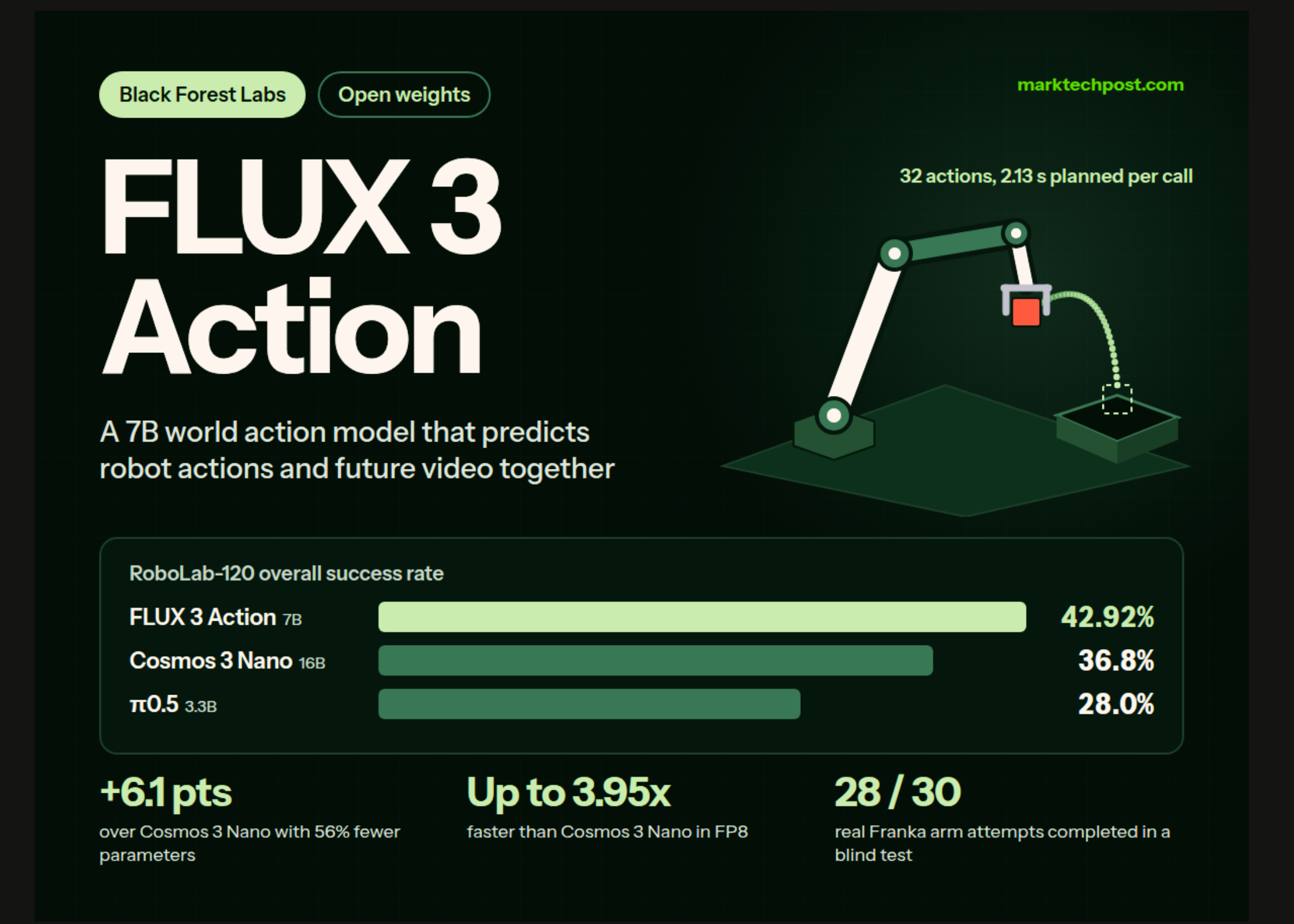
Black Forest Labs Releases FLUX 3 Action: A 7B Open-Weights World Action Model That Tops RoboLab-120
AI & Technology

Black Forest Labs Releases FLUX 3 Action: A 7B Open-Weights World Action Model That Tops RoboLab-120

September 25, 2026
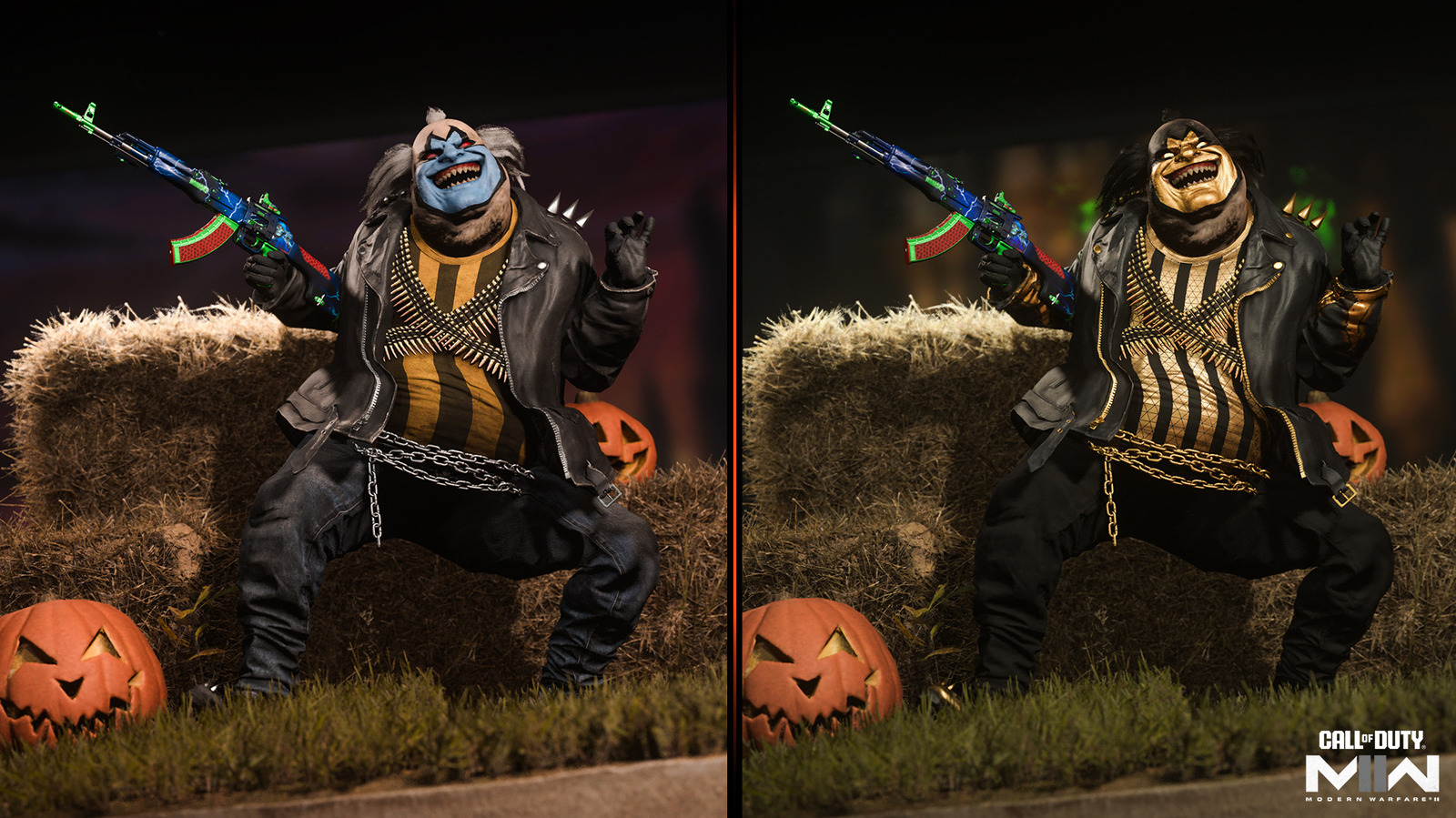
Warzone Is Adding A Button To Hide All The Goofy Skins
AI & Technology

Warzone Is Adding A Button To Hide All The Goofy Skins

September 24, 2026
Next Post
TSA to charge  fee for travelers without REAL ID

TSA to charge $45 fee for travelers without REAL ID

Leave a Reply Cancel reply

Your email address will not be published. Required fields are marked *

Search

No Result
View All Result
Stock Market Today: Dow Steady, Yields Edge Higher — Live Updates – WSJ

Stock Market Today: Dow Steady, Yields Edge Higher — Live Updates – WSJ

September 18, 2026
Dyson unveils AI-powered toothbrush

Dyson unveils AI-powered toothbrush

September 18, 2026
Japanese artist Yayoi Kusama dies at 97

Japanese artist Yayoi Kusama dies at 97

September 22, 2026

About

Learn more

Our Services

Legal

Privacy Policy

Terms of Use

Bloggers

Learn more

Article Links

Contact

Advertise

Ask us anything

©2020- TradePoint.io - All rights reserved!

Tradepoint.io, being just a publishing and technology platform, is not a registered broker-dealer or investment adviser. So we do not provide investment advice. Rather, brokerage services are provided to clients of Tradepoint.io by independent SEC-registered broker-dealers and members of FINRA/SIPC. Every form of investing carries some risk and past performance is not a guarantee of future results. “Tradepoint.io“, “Instant Investing” and “My Trading Tools” are registered trademarks of Apperbuild, LLC.

This website is operated by Apperbuild, LLC. We have no link to any brokerage firm and we do not provide investment advice. Every information and resource we provide is solely for the education of our readers. © 2020 Apperbuild, LLC. All rights reserved.

No Result
View All Result
  • Main
  • AI & Technology
  • Stock Charts
  • Market & News
  • Business
  • Finance Tips
  • Trade Tube
  • Blog
  • Shop

© 2023 - TradePoint.io - All Rights Reserved!