


























• bitcoinBitcoin(BTC)$84,414.000.43%
  • ethereumEthereum(ETH)$2,688.250.06%
  • tetherTether(USDT)$1.00-0.01%
  • binancecoinBNB(BNB)$775.950.40%
  • rippleXRP(XRP)$1.52-1.06%
  • usd-coinUSDC(USDC)$1.00-0.01%
  • solanaSolana(SOL)$122.010.83%
  • tronTRON(TRX)$0.333830-0.74%
  • zcashZcash(ZEC)$1,584.921.55%
  • Figure HelocFigure Heloc(FIGR_HELOC)$1.063.15%
  • HyperliquidHyperliquid(HYPE)$91.46-1.01%
  • dogecoinDogecoin(DOGE)$0.096871-0.97%
  • chainlinkChainlink(LINK)$14.11-1.18%
  • moneroMonero(XMR)$544.52-1.76%
  • whitebitWhiteBIT Coin(WBT)$84.260.45%
  • USDSUSDS(USDS)$1.00-0.02%
  • cardanoCardano(ADA)$0.254329-0.67%
  • RainRain(RAIN)$0.012567-4.63%
  • leo-tokenLEO Token(LEO)$9.010.60%
  • stellarStellar(XLM)$0.215952-1.11%
  • nearNEAR Protocol(NEAR)$5.207.44%
  • bitcoin-cashBitcoin Cash(BCH)$334.63-0.45%
  • uniswapUniswap(UNI)$9.711.02%
  • litecoinLitecoin(LTC)$71.13-1.81%
  • CantonCanton(CC)$0.135344-1.42%
  • suiSui(SUI)$1.245.65%
  • Ethena USDeEthena USDe(USDE)$1.000.02%
  • avalanche-2Avalanche(AVAX)$10.940.54%
  • the-open-networkGram (prev. Toncoin)(GRAM)$1.6810.31%
  • daiDai(DAI)$1.00-0.01%
  • USD1USD1(USD1)$1.00-0.02%
  • hedera-hashgraphHedera(HBAR)$0.093622-0.54%
  • BittensorBittensor(TAO)$324.09-2.04%
  • shiba-inuShiba Inu(SHIB)$0.000006-1.31%
  • crypto-com-chainCronos(CRO)$0.0671002.13%
  • Global DollarGlobal Dollar(USDG)$1.00-0.02%
  • BitwayBitway(BTW)$1.1911.80%
  • EthenaEthena(ENA)$0.2796904.19%
  • paypal-usdPayPal USD(PYUSD)$1.00-0.01%
  • quant-networkQuant(QNT)$187.6951.93%
  • MemeCoreMemeCore(M)$1.18-2.95%
  • OndoOndo(ONDO)$0.551.94%
  • tether-goldTether Gold(XAUT)$4,279.390.02%
  • okbOKB(OKB)$121.00-0.27%
  • Ripple USDRipple USD(RLUSD)$1.000.00%
  • Circle USYCCircle USYC(USYC)$1.140.00%
  • aaveAave(AAVE)$154.720.17%
  • BlackRock USD Institutional Digital Liquidity FundBlackRock USD Institutional Digital Liquidity Fund(BUIDL)$1.000.00%
  • Ondo US Dollar YieldOndo US Dollar Yield(USDY)$1.15-0.08%
  • Pump.funPump.fun(PUMP)$0.00488410.36%
TradePoint.io
  • Main
  • AI & Technology
  • Stock Charts
  • Market & News
  • Business
  • Finance Tips
  • Trade Tube
  • Blog
  • Shop
No Result
View All Result
TradePoint.io
No Result
View All Result

How to clear the cache on your PS5

October 4, 2025
in AI & Technology
Reading Time: 5 mins read
A A
How to clear the cache on your PS5
ShareShareShareShareShare

If your PlayStation 5 has started feeling sluggish, freezes mid-game or acts a little weird, clearing the cache might be the quick fix you need. The cache is where your console stores temporary files to keep things running smoothly, but sometimes those files pile up and cause more problems than they solve.

Clearing your PS5 cache won’t delete your games, saves or settings, but it can clear out the junk data that’s slowing things down. Whether you’re troubleshooting crashes or just want to keep your console running at its best, wiping the cache is one of the simplest steps you can take.

YOU MAY ALSO LIKE

How To Improve Your Router’s Security In 10 Minutes

Humanoid Robots Are Getting Even Creepier (This One Can Cry On Command)

How to start your PS5 in Safe Mode

In order to clear your PS5 cache, you’ll need to start your console in Safe Mode. Similar to a PC, entering Safe Mode on a PS5 gives you access to basic functions on your console, including restarting your PS5, changing video output, repairing console storage, updating system software, restoring default settings, clearing the cache and rebuilding the database, resetting the PS5 and resetting the PS5 by reinstalling System Software.

Unfortunately, there isn’t an option on your PS5 to enter Safe Mode via the Settings, but you can (safely) enter this mode by following these steps:

  1. Hold the PS button on your controller, then select Power > Turn off PS5. Alternatively, you can hold the power button on the PS5 for three seconds.

  2. Wait for the console to turn off; the power indicator will blink for a few moments before fully turning off.

  3. Press and hold the power button on the console, then release after you hear the second beep (this should take around seven seconds).

  4. Connect the controller with a USB cable, then press the PS button on the controller.

It’s important to note that although you can turn off your PS5 with the controller, you must turn the console on using the power button on the PS5, using the steps above, to enter Safe Mode.

How to clear the cache on a PS5 in Safe Mode

Once in Safe Mode, you’ll see several options appear on the screen. Select Clear Cache and Rebuild Database, then Clear System Software Cache.

Once you’ve selected the Clear System Software Cache option, you’ll need to confirm your choice by selecting OK. Your PS5 will begin the process of clearing the cache. If your console restarts during this process, don’t worry; let it do its thing.

The other option you’ll see in the Clear Cache and Rebuild Database menu is Rebuild Database. This option is also recommended by Sony is users are experiencing system failure issues. Selecting this option will not delete any data from your PS5, so it’s another route to try if clearing the cache doesn’t solve all your problems.

How to back up PS5 data to a USB drive

Although clearing the cache on a PS5 won’t result in saved game progress or data being deleted, it’s not a bad idea to know how to back up your data, just in case your PS5 encounters any issues. If you want to be extra safe, do this before clearing your cache.

  1. Connect a USB drive to your PS5 (FAT32 or exFAT).

  2. Navigate to Settings > System.

  3. Select System Software > Back Up and Restore > Back Up Your PS5.

  4. You’ll have the option to select the type of data you want to back up (Games and Apps, Saved Data, Screenshots and Video Clips or Settings). Select the option(s) you want to back up.

  5. Select Next > Back Up. This will start the back up process, where your console will restart.

  6. Once the Backup Complete screen is displayed, select OK.

Why should you clear the cache on your PS5?

Like a lot of technology, maintenance is required to keep your tech running top-notch, and the PS5 is no different. You won’t need to clear your PS5 cache often, but when things start going wrong, it can save you a lot of frustration. The cache is where the console stashes temporary system data. Most of the time it helps your games and apps load faster, but once in a while those files can get corrupted or outdated and cause trouble instead.

One of the most common signs is lag in the system menu. If it takes forever to scroll through your library or even open Settings, a clogged cache might be to blame. It can also show up as random crashes, where a game boots up and then kicks you straight back to the home screen for no reason.

You might also notice glitches with online play. Sometimes cached network data interferes with your connection, leaving you with login issues or games that won’t sync properly. After a major system update, clearing the cache can also help smooth over odd behavior, like apps failing to launch or downloads stalling.

The good news is clearing the cache doesn’t wipe your saves, your installed games, or your account. It’s a low-risk way to rule out the simple stuff before you start digging into bigger fixes.

Credit: Source link

ShareTweetSendSharePin

Related Posts

How To Improve Your Router’s Security In 10 Minutes
AI & Technology

How To Improve Your Router’s Security In 10 Minutes

September 27, 2026
Humanoid Robots Are Getting Even Creepier (This One Can Cry On Command)
AI & Technology

Humanoid Robots Are Getting Even Creepier (This One Can Cry On Command)

September 27, 2026
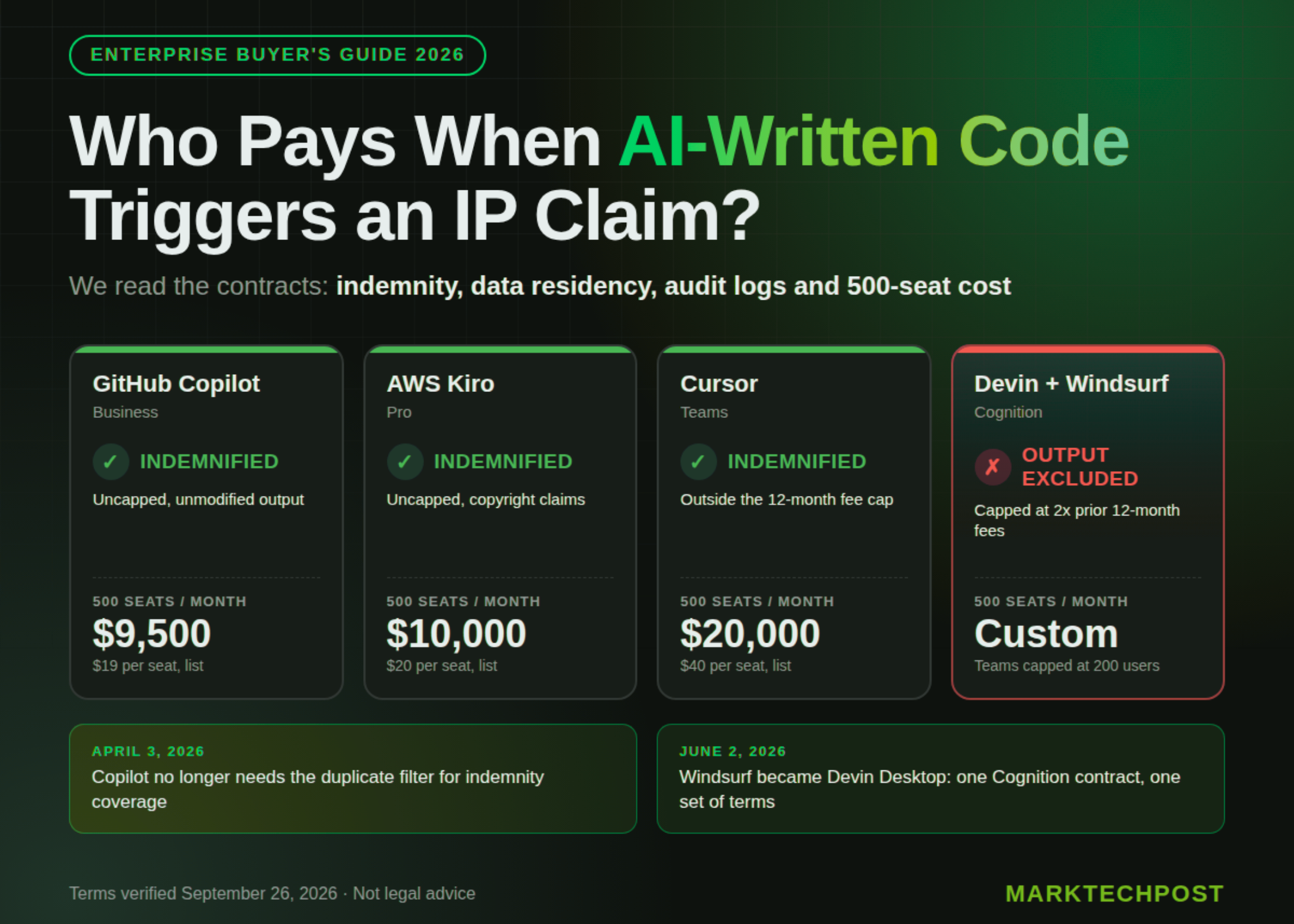
AI Coding Agents for Enterprise: IP Indemnity, Data Residency and 500-Seat Cost Compared
AI & Technology

AI Coding Agents for Enterprise: IP Indemnity, Data Residency and 500-Seat Cost Compared

September 27, 2026
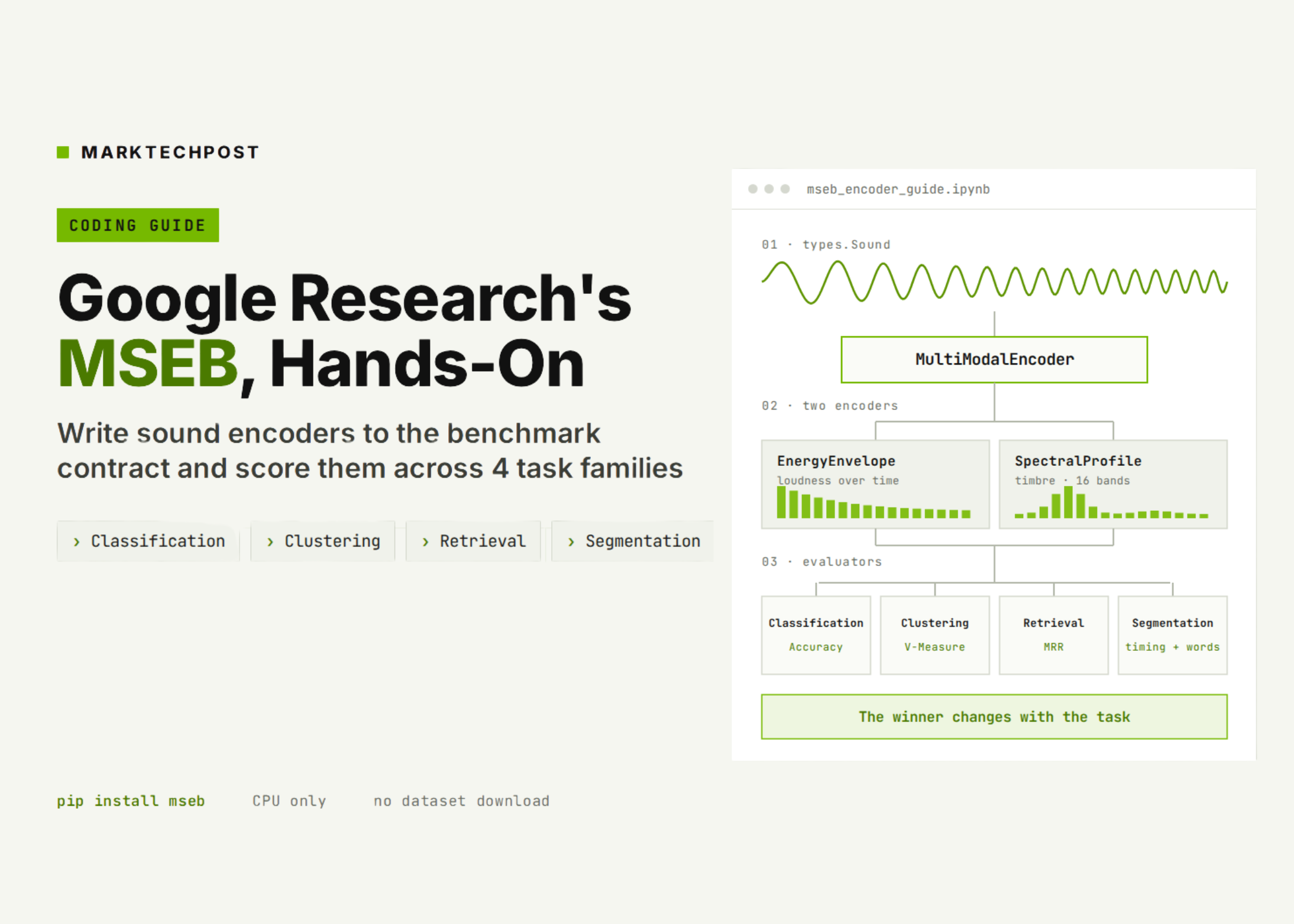
A Coding Guide to Google Research’s MSEB: Writing Sound Encoders to the Benchmark Contract and Scoring Them Across Classification, Clustering, Retrieval and Segmentation
AI & Technology

A Coding Guide to Google Research’s MSEB: Writing Sound Encoders to the Benchmark Contract and Scoring Them Across Classification, Clustering, Retrieval and Segmentation

September 27, 2026
Next Post
Good News: San Diego Padres give back to families impacted by plane crash

Good News: San Diego Padres give back to families impacted by plane crash

Leave a Reply Cancel reply

Your email address will not be published. Required fields are marked *

Search

No Result
View All Result
Jury deliberates in Lindsay Clancy murder trial

Jury deliberates in Lindsay Clancy murder trial

September 22, 2026
Multiple Pullbacks Ahead — Kevin Mahn On What’s Worth Buying

Multiple Pullbacks Ahead — Kevin Mahn On What’s Worth Buying

September 23, 2026
New software helps California schools crack down on staff allegedly viewing explicit content

New software helps California schools crack down on staff allegedly viewing explicit content

September 26, 2026

About

Learn more

Our Services

Legal

Privacy Policy

Terms of Use

Bloggers

Learn more

Article Links

Contact

Advertise

Ask us anything

©2020- TradePoint.io - All rights reserved!

Tradepoint.io, being just a publishing and technology platform, is not a registered broker-dealer or investment adviser. So we do not provide investment advice. Rather, brokerage services are provided to clients of Tradepoint.io by independent SEC-registered broker-dealers and members of FINRA/SIPC. Every form of investing carries some risk and past performance is not a guarantee of future results. “Tradepoint.io“, “Instant Investing” and “My Trading Tools” are registered trademarks of Apperbuild, LLC.

This website is operated by Apperbuild, LLC. We have no link to any brokerage firm and we do not provide investment advice. Every information and resource we provide is solely for the education of our readers. © 2020 Apperbuild, LLC. All rights reserved.

No Result
View All Result
  • Main
  • AI & Technology
  • Stock Charts
  • Market & News
  • Business
  • Finance Tips
  • Trade Tube
  • Blog
  • Shop

© 2023 - TradePoint.io - All Rights Reserved!